
Excel #SPILL Error - Causes and Fixes
Formula not working?
Share a small sample and the result you expected.
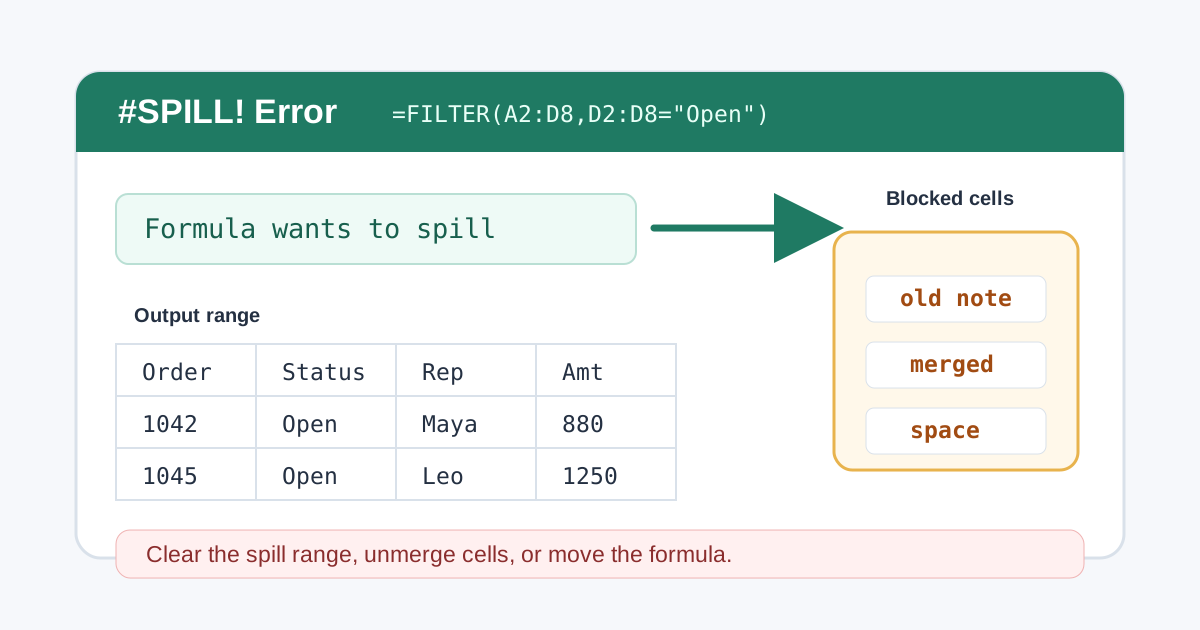
The #SPILL! error means Excel has a formula that wants to return more than
one cell, but Excel cannot place the full result on the worksheet.
This happens most often with dynamic array formulas such as FILTER, SORT,
UNIQUE, SEQUENCE, and XLOOKUP formulas that return multiple columns. The
formula may be correct; the worksheet simply does not have a clear spill range.
1. Quick Diagnosis Table
Start with the visible symptom, then use the matching fix.
| Symptom | Likely cause | Fast fix |
|---|---|---|
#SPILL! with a dashed border |
One or more cells in the spill range are not empty | Select the warning and clear the blocking cells |
#SPILL! near merged cells |
Merged cells overlap the output area | Unmerge the cells or move the formula |
#SPILL! inside an Excel Table |
Tables do not allow spilled array results inside the table body | Move the formula outside the table |
#SPILL! from FILTER |
The filtered rows need more space than the current output area | Clear cells below and to the right |
#SPILL! from XLOOKUP |
The return array has multiple columns | Clear cells to the right of the formula |
| Very large spill area | The formula references an entire column or creates too many results | Use a smaller range or a trimmed dynamic range |
Match the exact warning Excel shows
Select the #SPILL! cell and Excel names the reason in the warning. The wording
maps straight to the fix, so you do not have to guess:
| Excel warning text | Real cause | Fix |
|---|---|---|
| Spill range isn't blank | A cell inside the intended output area has content | Use Go To Special > Constants inside the spill area, then clear the cell |
| Spill range has merged cells | A merged cell overlaps the output area | Unmerge that range or move the formula |
| Spill range is in a table | The formula sits inside an Excel Table column | Move the formula outside the table body |
| Spill range is too big | The result needs more rows than exist below the formula | Bound the source range, or wrap the result in TAKE |
| Spill range is unknown | The spill reference is circular or points at itself | Remove the F2# style reference from the formula that owns the spill |
| Spill range has a value | An error value or reserved value sits in the output area | Clear the blocking cell, including any stale #N/A |
If you are new to spilled formulas, review Excel dynamic array formulas first. The main idea is that one formula can return a whole range.
2. What a Spill Range Means
A spill range is the group of cells Excel needs to fill with the formula result. Only the top-left cell contains the formula. The neighboring cells show the formula output.
Example:
=UNIQUE(A2:A20)If the formula finds six unique values, Excel needs six cells. If anything is
already in one of those cells, Excel returns #SPILL! instead of overwriting
your worksheet.
| Term | Meaning |
|---|---|
| Formula cell | The cell where you typed the formula |
| Spill range | Every cell Excel needs for the result |
| Spill reference | A reference such as F2# that points to the current spilled result |
When a spill works, you can use F2# to refer to the full result in another
formula:
=COUNTA(F2#)3. Fix Blocked Spill Ranges
The most common cause is a hidden value, old formula, space character, or note in the spill area.
If the blocking cell only contains a space or hidden import character, the data may look blank even though Excel sees content. Use Remove Leading and Trailing Spaces in Excel for text cleanup, or the broader Excel data cleaning workflow when the range has several import problems.
Use this checklist:
- Select the cell showing
#SPILL!. - Click the warning icon if Excel shows one.
- Choose the option that identifies the obstructing cell.
- Clear the blocking cells, or move the formula to a blank area.
Do not only check the first visible row. A spill can be blocked far below or to the right of the formula.
Example:
=FILTER(A2:D100,D2:D100="Open","No open items")This formula may return 3 rows today and 30 rows next week. Leave extra room below the formula so the result can grow.
4. Fix #SPILL from Merged Cells
Dynamic arrays cannot spill through merged cells. Even a merged cell that looks empty can block the result.
| Problem | Fix |
|---|---|
| Merged header overlaps the spill range | Move the formula below the merged header |
| Merged cells exist in the output area | Select the area and use Home > Merge & Center > Unmerge Cells |
| The sheet uses merged cells for layout | Put dynamic array formulas on a clean helper sheet |
If the merged cells are part of a report layout, first decide whether they are really needed. The guide to merge cells without losing data shows safer ways to combine text before formatting a header.
5. Fix #SPILL Inside Excel Tables
Excel Tables are great for source data, but spilled array formulas should usually sit outside the table body.
This formula is fine in a normal worksheet cell:
=SORT(UNIQUE(Table1[Region]))If you place it inside a table column, Excel may show #SPILL! because each
table row expects a single result.
Use this pattern instead:
| Location | Use |
|---|---|
| Excel Table | Store source data |
| Blank worksheet area | Place dynamic array output |
| Dashboard sheet | Reference the spill with A2# |
For filtered report blocks, the Excel FILTER function tutorial shows how to place the formula where the result has room to expand.
6. Fix Oversized Spill Formulas
Sometimes the formula is technically valid, but the result is too large or too open-ended.
This can happen when a dynamic array formula points at a full column:
=FILTER(A:D,D:D="Open")Use a bounded range or an Excel Table:
=FILTER(A2:D500,D2:D500="Open","No open items")If your workbook supports newer trim references or the TRIMRANGE function,
you can also reduce blank edges before feeding a range into a dynamic array.
See TRIMRANGE and trim references for
the preview-feature details.
7. Fix #SPILL from XLOOKUP Returning Multiple Columns
XLOOKUP can return more than one column when the return array has several columns:
=XLOOKUP(F2,$A$2:$A$100,$C$2:$E$100,"Not found")That formula needs three output cells across. If cells to the right are not
empty, Excel returns #SPILL!.
| XLOOKUP goal | Safer setup |
|---|---|
| Return one field | Point return_array at one column |
| Return several fields | Keep empty cells to the right |
| Build a lookup summary | Place the formula away from manual notes |
For a broader XLOOKUP troubleshooting checklist, see XLOOKUP not working in Excel.
8. Fix #SPILL from FILTER
FILTER returns every row that matches the condition. If the number of matches
changes, the spill range changes too.
Example:
=FILTER(A2:E100,B2:B100=H2,"No matching rows")Before assuming the formula is wrong, check:
| Check | Why it matters |
|---|---|
| Output area is blank | FILTER may need many rows |
| Include range has the same height | Mismatched ranges cause different errors |
| Formula is outside an Excel Table | Table columns expect one result per row |
| Criteria cell is correct | A broad condition can return many more rows |
If the formula returns a #CALC! error instead, add the third argument:
"No matching rows".
9. Prevent #SPILL Errors in New Workbooks
Use these habits when building dynamic array formulas:
- Put source data in Excel Tables, but place spill formulas outside the table
- Keep a blank output area below and to the right of the formula
- Avoid merged cells where dynamic reports need to expand
- Use bounded ranges or trimmed ranges instead of full-column references
- Use
A2#references when another formula needs the whole spilled result - Test formulas with a small range before connecting them to a large dataset
These habits matter most in dashboards and recurring reports, where today's small list can become next month's large list.
10. Find the Blocking Cell in Seconds
Excel can point at the obstructing cell, but on a wide sheet the dashed spill border is hard to read. These methods find the blocker without scrolling through the whole range:
- Select the cell showing
#SPILL!. The dashed border marks the output area Excel is trying to fill. - Select that whole area, then press
Ctrl+G, click Special, choose Constants, and click OK. Every non-blank cell in the selection is now selected, and the Name Box reports how many cells were found. - Clear those cells, or move the formula to a blank area and delete the old spill.
A quick formula gives you a count instead of a hunt:
| Question | Formula |
|---|---|
| Is anything already in the planned output area? | =COUNTA(F2:H20) |
| How many cells in that area are still free? | =COUNTBLANK(F2:H20) |
| What exactly is in the way? | =TOCOL(F2:H20,1) |
=TOCOL(F2:H20,1) keeps non-blank cells only, so one stray space or an old
#N/A appears in a short list instead of hiding in the grid.
The blocker is not always at the top of the range. FILTER and SORT grow
downward, so the first problem is usually the first non-empty cell below the
formula. When the result is wider than one column, check the first non-empty
cell to the right as well.
11. #SPILL! Compared with Other Dynamic Array Errors
Not every multi-cell problem is a spill problem. The error name tells you which layer failed, which saves time before you start moving cells around:
| Error | What it means | Typical fix |
|---|---|---|
#SPILL! |
The formula is valid but cannot place the result | Clear or move the blocking cells |
#CALC! |
The calculation itself produced nothing, such as FILTER matching no rows |
Supply the if_empty argument |
#VALUE! |
Argument sizes disagree, or text reached a numeric argument | Match the array and include ranges |
#NAME? |
A function such as TEXTSPLIT or TRIMRANGE is missing from this Excel build |
Check version support, or fall back to an older pattern |
#REF! |
The referenced range was deleted, or a trim expression found no data | Repair the reference |
| "You can't change part of an array" | You typed inside an existing spill range | Edit the formula in its first cell, or convert the spill to values first |
The last row is not an error code, but it is the message people hit after clicking into a spilled result. The cells belong to the formula, so either edit the top-left formula cell or convert the spill to values before typing.
There is also a boundary case that looks like a layout problem but is not: the
result has to fit on the grid. A formula that wants more than 1,048,576 rows has
nowhere to put the extra rows, and Excel reports that as a spill problem rather
than an overflow message. Bound the input range, or wrap the result in TAKE so
the output has a fixed size.
12. FAQ
Why does Excel say spill range is not blank when it looks empty?
The blocking cell may contain a space, old formula, hidden character, or merged
cell. Select the #SPILL! warning and let Excel point to the obstructing cell,
then clear that cell or move the formula.
Can I turn off spilling?
No. Spilling is how modern dynamic array formulas return multiple results. If
you only need one value, use a formula that returns one cell, or wrap the result
with a function such as INDEX.
Why does #SPILL happen in an Excel Table?
Excel Table columns are designed for one result per row. Place the dynamic array formula outside the table and refer to the table columns from there.
Is #SPILL a formula syntax error?
Usually no. The formula may be valid. #SPILL! often means the worksheet layout
is blocking the result.
13. Related Guides
- Learn the core spill behavior in Excel dynamic array formulas.
- Build filtered reports with the Excel FILTER function tutorial.
- Choose between spilled reports and one-value lookups with Excel FILTER vs VLOOKUP.
- Review broader error patterns in Excel formula errors.
- Clean hidden spaces that can block output with Remove Leading and Trailing Spaces in Excel.
- Fix lookup-specific spill problems with XLOOKUP not working in Excel.
- Manage blank range edges with TRIMRANGE and trim references.
- Avoid layout blockers with merge cells without losing data.
Need help fixing a formula?
Share the formula, a small sample table, and the result you expected. This free beta helps us learn which Excel problems readers actually need solved.
Ask for formula help