
How to Merge Cells in Excel Without Losing Data (Step-by-Step)
If you’ve ever tried to merge cells in Excel, you might have hit a frustrating roadblock: Excel’s default “Merge & Center” button often deletes data from all cells except the top-left one. This is a nightmare when you need to combine text from multiple cells (like first names and last names in separate columns) or keep all information while creating a clean header.
The good news? You don’t have to choose between merged cells and lost data. Below is a simple, beginner-friendly guide to merging cells in Excel without deleting any content—works for Excel 2019, 2021, 365, and even older versions.
Quick answer: if more than one cell contains data, do not click Merge & Center
yet. First combine the values into one helper cell with TEXTJOIN,
CONCATENATE, or &, paste the result as values, and then merge the empty
original cells.
If your real goal is just to combine or clean text, start with the Excel TEXT Function, then use Excel Autofill tips to copy the finished formula down the column. That is often a better fit than merging cells.
What You’ll Need Before Starting
- A basic Excel workbook with data you want to merge (e.g., cells A1, B1, and C1 with different text).
- No advanced skills required—we’ll use built-in Excel tools, no formulas needed (though we’ll share a formula trick too!).
Method 1: Use “Merge Across” or “Merge Cells” (For Headers, No Data Loss)
This method is best when you want to merge cells for formatting (like a table header) and only have data in the top-left cell (the rest are empty). It’s the safest way to avoid accidental data loss.
Step 1: Select the cells you want to merge
Click and drag your mouse to highlight the cells. For example, if you want to
merge A1, B1, and C1 into one header cell, select all three.

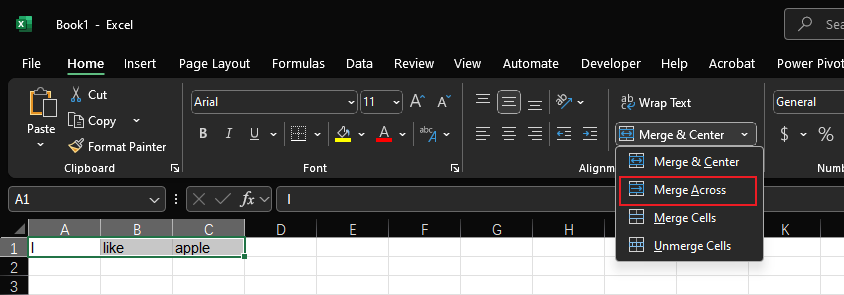
Step 2: Choose the right “Merge” option (not “Merge & Center”)
Go to the Home tab in the Excel ribbon. Look for the “Alignment” group (it’s usually on the right side of the ribbon).
Instead of clicking the big “Merge & Center” button (which deletes extra data), click the small dropdown arrow next to it to open the merge menu.
From the menu, select one of these two options:
- Merge Across: Merges cells in the same row (e.g., A1-C1) into one horizontal cell.
- Merge Cells: Merges cells in any selection (rows or columns) into one cell.
Avoid “Merge & Center” here unless you’re sure only the top-left cell has
data!
Step 3: Confirm the merge (if prompted)
If Excel detects data in more than one cell, it will pop up a warning: “Merging cells only keeps the data in the upper-left cell of the range.”
- If you only have data in the top-left cell (the rest are empty), click “OK”—your cells will merge, and no data will be lost.
- If you have data in multiple cells, stop here! Use Method 2 instead (we’ll show you how to keep all data).
Method 2: Combine Data from Multiple Cells First (No Data Loss)
If you have data in all cells you want to merge (e.g., A1 = “I”, B1 = “like”, C1 = “Apple”), you need to first combine the data into one cell—then merge the rest. Here’s how:
Step 1: Combine data with the CONCATENATE function (or “&” symbol)
Insert a new empty cell next to your data (e.g., if your data is in A1-C1, use D1 as the “combined cell”).
In the empty cell, type one of these two formulas (they do the same thing—pick whichever is easier to remember):
- Using CONCATENATE:
=CONCATENATE(A1, " ", B1, " ", C1)(The " " adds a space between each cell’s data—replace with a comma, hyphen, or nothing if you want.) - Using “&” (simpler):
=A1 & " " & B1 & " " & C1Press Enter. The empty cell will now show the combined data (e.g., “I like Apple”).
Formula in D1 combining A1-C1 into “I like Apple”
Step 2: Copy the combined data (so it’s not a formula)
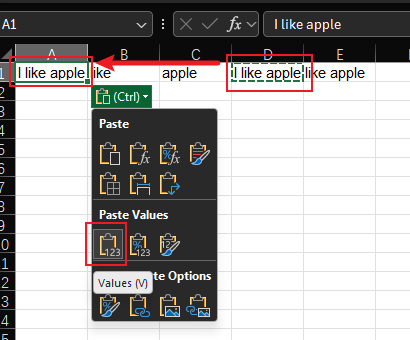
Right-click the cell with the combined data (e.g., D1) and select Copy (or press Ctrl+C on Windows / Cmd+C on Mac).
Then, right-click the same cell again and select Paste Special > Values
(this turns the formula into plain text, so it won’t break if you delete the
original cells).
Step 3: Merge the original cells (now empty!)
Delete the data from your original cells (A1-C1) so they’re empty. Then follow Method 1: select A1-C1, use “Merge Across” or “Merge Cells”, and click “OK”.
Finally, cut (Ctrl+X / Cmd+X) the combined data from D1 and paste it into the merged A1 cell. Done! You now have merged cells with all your original data.
Bonus: For Google Sheets Users (Quick Comparison)
If you switch between Excel and Google Sheets, the process is similar—but Google Sheets has a handy “Merge cells” option that lets you keep data by default:
- Select cells to merge.
- Go to Format > Merge cells.
- Choose “Merge all” or “Merge horizontally”—Google Sheets will automatically combine text from all cells (no formula needed!).
This is one of the few places Google Sheets is simpler than Excel—but our Excel methods above work every time, even if you don’t have a Google account.
Common Mistakes to Avoid
- Using “Merge & Center” with multiple data cells: This is the #1 cause of data loss. Always check the merge dropdown first.
- Forgetting to paste as values: If you skip Step 2 in Method 2, deleting
the original cells will break your formula (you’ll see
#REF!instead of your data). - Merging cells in tables: Excel tables don’t support merged cells—convert your table to a regular range first (right-click the table > “Convert to Range”).
Final Tip: When to Avoid Merged Cells Altogether
Merged cells can cause headaches if you later sort or filter your data (Excel might misinterpret merged ranges). If you’re working with a dataset you’ll edit often, try these alternatives:
- Use “Center Across Selection” (in the Alignment group’s dropdown) to look like merged cells, but keep cells separate.
- Use the CONCATENATE formula to combine data without merging cells.
But for headers, titles, or one-time formatting, merged cells are perfectly safe—just use the methods above to keep your data intact!
FAQ
Does Merge & Center delete data in Excel?
Yes, if more than one selected cell contains data. Excel keeps the upper-left cell and removes the rest, so combine the text first when you need to keep every value.
What formula should I use before merging cells?
Use TEXTJOIN when you are combining several cells with the same separator. Use
CONCATENATE or & for short, simple joins. After the formula looks right,
paste it as values before deleting the original cells.
Was this guide helpful?
If something is missing or unclear, open an issue and we will improve it.
Send feedback