
Remove Leading and Trailing Spaces in Excel
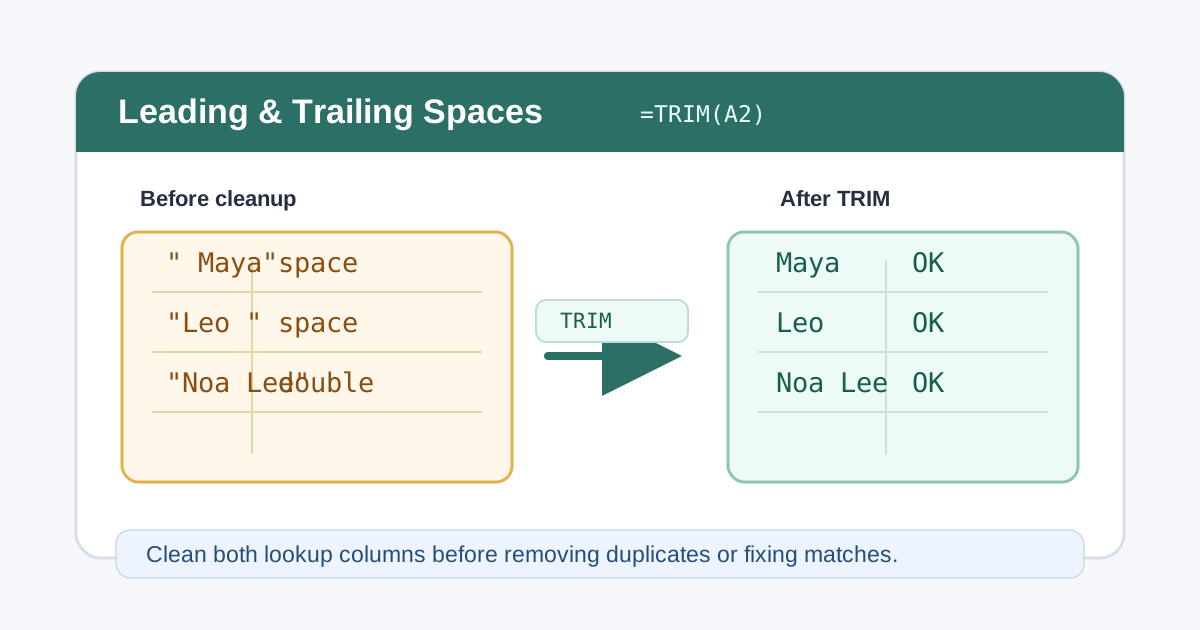
To remove leading and trailing spaces in Excel, put this formula in a helper column, fill it down, then copy the results and use Paste Special > Values:
=TRIM(A2)That fixes ordinary leading spaces, trailing spaces, and repeated spaces between words. If the data was copied from a website, PDF, CSV export, or another app, use the stronger formulas below because the problem may be non-breaking spaces, line breaks, tabs, or numbers stored as text.
1. Quick Fix Table
Start with the symptom you see in the sheet.
| Symptom | Likely cause | Best fix |
|---|---|---|
| Text has spaces before or after the value | Normal space characters | =TRIM(A2) |
| Names have double spaces between words | Repeated normal spaces | =TRIM(A2) |
| TRIM does not remove the space | Non-breaking space from web or PDF data | =TRIM(SUBSTITUTE(A2,CHAR(160)," ")) |
| Cell contains line breaks or hidden import characters | Non-printing characters | =TRIM(CLEAN(A2)) |
| VLOOKUP or XLOOKUP values look identical but fail | One or both lookup keys contain hidden spaces | Clean both lookup columns before the lookup |
| You only need a one-time replacement | Repeated visible spaces or labels | Use Find and Replace on a selected range |
| Numbers still act like text after cleanup | Data type mismatch | Convert with VALUE, Text to Columns, or Convert to Number |
If the spaces are only one part of a messy import, use the broader Excel data cleaning workflow first.
2. Use TRIM for Normal Extra Spaces
The TRIM function removes spaces from the beginning and end of text. It also
reduces repeated spaces between words to one space.
=TRIM(A2)Example:
| Original value | Formula | Clean result |
|---|---|---|
Maya Chen |
=TRIM(A2) |
Maya Chen |
Maya Chen |
=TRIM(A2) |
Maya Chen |
Maya Chen |
=TRIM(A2) |
Maya Chen |
C-104 |
=TRIM(A2) |
C-104 |
Use a helper column instead of editing the source column immediately. That lets you compare the original and cleaned values before overwriting anything.
3. Remove Non-Breaking Spaces
Sometimes TRIM appears to fail because the visible space is not a normal
space. Web pages and PDF exports often use a non-breaking space, which Excel
represents as CHAR(160).
Use this formula:
=TRIM(SUBSTITUTE(A2,CHAR(160)," "))The formula first changes non-breaking spaces into normal spaces, then TRIM
removes the extra spacing.
| Source | Why TRIM alone may fail | Better formula |
|---|---|---|
| Copied web table | Uses non-breaking spaces for layout | =TRIM(SUBSTITUTE(A2,CHAR(160)," ")) |
| PDF export | Contains invisible spacing characters | =TRIM(SUBSTITUTE(A2,CHAR(160)," ")) |
| CRM export | May mix normal and non-breaking spaces | Test with LEN before and after cleanup |
If the value is an ID, clean the text carefully before removing duplicates or running lookup formulas.
4. Remove Line Breaks and Hidden Characters
Use CLEAN when imported data contains non-printing characters such as hidden
line breaks or tabs.
=TRIM(CLEAN(A2))If you can see line breaks inside a cell, this formula replaces each line break with a normal space:
=TRIM(SUBSTITUTE(A2,CHAR(10)," "))For stubborn imported text, combine the ideas:
=TRIM(CLEAN(SUBSTITUTE(A2,CHAR(160)," ")))Check the result with LEN:
=LEN(A2)Then compare it with the cleaned value:
=LEN(B2)If the cleaned value is shorter and looks correct, paste values back over the original column when you are ready.
5. Clean Lookup Keys Before VLOOKUP or XLOOKUP
Hidden spaces are a common reason lookup formulas fail even when the values look the same. Clean both sides before changing the lookup formula itself.
Example source table:
| Raw product ID | Clean product ID | Product |
|---|---|---|
P-101 |
P-101 |
Keyboard |
P-205 |
P-205 |
Monitor |
P-318 |
P-318 |
Mouse |
Helper formula:
=TRIM(CLEAN(SUBSTITUTE(A2,CHAR(160)," ")))Then use the cleaned helper columns in the lookup:
=XLOOKUP(TRIM(F2),$B$2:$B$100,$C$2:$C$100,"Not found")For VLOOKUP:
=VLOOKUP(TRIM(F2),$B$2:$D$100,3,FALSE)If the lookup still misses after spaces are cleaned, check whether one side is a number and the other side is text. The guide to Excel numbers stored as text shows the type-conversion fixes. For formula-specific troubleshooting, see VLOOKUP not working, How to Fix VLOOKUP #N/A in Excel, or XLOOKUP not working.
6. Use Find and Replace for One-Time Cleanup
Find and Replace is useful when the problem is a visible repeated pattern and you do not need a helper formula.
To replace double spaces with single spaces:
- Select only the range you want to clean.
- Press
Ctrl+H. - In Find what, type two spaces.
- In Replace with, type one space.
- Click Replace All.
- Repeat until Excel says it found no more replacements.
Use this carefully. Replacing spaces across a whole workbook can accidentally change formulas, notes, labels, and values that were not part of the cleanup job. For safer replace workflows, review Find and Replace in Excel.
7. Paste Values After Testing
After the helper column gives the right results, convert the formulas into fixed values.
- Select the cleaned helper column.
- Copy it with
Ctrl+C. - Select the original column or a final output column.
- Use Home > Paste > Paste Special > Values.
- Keep the raw source data until the cleaned file has been checked.
This matters for recurring imports. A raw copy makes it easier to audit what changed if totals, duplicate counts, or lookup results look different after cleanup.
8. Find Which Character Is Causing the Space
Before choosing a formula, identify the character. If you can see a gap but
TRIM ignores it, the cell probably contains something other than a space.
To inspect the last character of a cell:
=UNICODE(RIGHT(A2,1))To inspect the first character instead:
=UNICODE(LEFT(A2,1))| Code | Character | Where it comes from | Formula that removes it |
|---|---|---|---|
| 32 | Normal space | Typing, most CSV exports | =TRIM(A2) |
| 160 | Non-breaking space | Web pages, PDFs, Word | =TRIM(SUBSTITUTE(A2,CHAR(160)," ")) |
| 9 | Tab | Copied tables, tab-separated exports | =TRIM(CLEAN(A2)) |
| 10 | Line feed | Multi-line cells, pasted notes | =TRIM(SUBSTITUTE(A2,CHAR(10)," ")) |
| 13 | Carriage return | Windows text files | =TRIM(CLEAN(A2)) |
| 8203 | Zero-width space | Web pages, HTML emails | =SUBSTITUTE(A2,UNICHAR(8203),"") |
UNICODE reports the code point, so it also works for the wider characters that
CODE cannot describe. Test a few suspect cells first: if every result is 32,
plain TRIM is enough for the whole column.
For a one-time non-breaking space in Find and Replace, hold Alt and type
0160 on the numeric keypad in the Find what box. Excel accepts the
character even though it looks like an ordinary space.
To highlight every cell that TRIM would change, add a conditional formatting
rule with the formula =LEN(A2)<>LEN(TRIM(A2)). That gives you the affected
rows before you touch the data.
9. Which Cleanup Method Should You Use?
The tool matters less than knowing which problem you have.
| Situation | Best method | Why |
|---|---|---|
| A few visible spaces, one-time | Find and Replace, two spaces to one | No formulas and no helper column |
| A whole column, recurring in this workbook | Helper column with TRIM or CLEAN |
You can compare raw and cleaned values before pasting |
| The same CSV arrives every week | Power Query Text.Trim |
The step is recorded and re-runs on refresh |
| Only the ends need cleaning, internal spacing must stay | Power Query Text.Trim |
Excel TRIM also collapses repeated spaces inside the text |
| Values are IDs, SKUs, or account numbers | Clean a copy, then compare with = |
Retyping or converting can drop leading zeros |
Lookups still fail after TRIM |
Check UNICODE and ISNUMBER |
The mismatch may be a character or a data type, not spacing |
| You cannot tell which rows are affected | Conditional formatting on =LEN(A2)<>LEN(TRIM(A2)) |
Highlights every cell that TRIM would shorten |
The safest default for a data column is a helper formula, because it keeps the original values visible while you verify the result. Use the one-time tools when the problem is small and obvious, and Power Query when the same import repeats.
10. FAQ
Why does TRIM not remove every space in Excel?
TRIM removes normal spaces, but it does not remove every kind of invisible
spacing. If the data came from a website, PDF, or copied report, replace
non-breaking spaces first with SUBSTITUTE(A2,CHAR(160)," "), then wrap the
result in TRIM.
Does TRIM remove spaces between words?
Yes, but only repeated spaces. TRIM keeps one normal space between words, so
Maya Chen becomes Maya Chen. It does not join the words into MayaChen.
How do I remove only leading and trailing spaces, not the spaces between words?
Excel's TRIM removes the outer spaces but also collapses repeated spaces inside
the text, so it cannot keep internal double spacing. When internal spacing is
meaningful, use Power Query's Text.Trim transform, which removes leading and
trailing whitespace only, or clean the specific values with a one-time Find and
Replace. Test on a copy first, because both approaches change the source text.
How do I remove spaces from numbers?
If the spaces are only around the number, use =VALUE(TRIM(A2)) for true
numeric values. Do not use this on IDs, ZIP codes, account numbers, or product
codes that need leading zeros. For more detail, use
Excel numbers stored as text.
Why do values still not match after TRIM?
The values may contain non-breaking spaces, line breaks, different data types,
or characters that look similar but are not identical. Check with LEN, clean
both sides, and test again with a direct comparison such as =B2=E2.
11. Related Guides
- Clean the full imported table with Excel data cleaning.
- Repeat the same cleanup for recurring CSV or workbook imports with Power Query for Beginners.
- Convert numeric-looking text with Excel numbers stored as text.
- Standardize repeated labels with Find and Replace in Excel.
- Review repeated values before deletion with How to Find Duplicates in Excel.
- Remove repeated rows after cleanup with How to Remove Duplicates in Excel.
- Compare lookup options with VLOOKUP vs XLOOKUP vs INDEX MATCH.
- Fix lookup failures with VLOOKUP not working.
- Diagnose exact-match misses with How to Fix VLOOKUP #N/A in Excel.
- Troubleshoot modern lookup formulas with XLOOKUP not working.
Was this guide helpful?
If something is missing or unclear, open an issue and we will improve it.
Send feedback