
Excel Data Cleaning: How to Fix Messy Data in 5 Steps
Messy data can make formulas fail, PivotTables miscount rows, and reports show the wrong result. The most common problems are duplicates, hidden spaces, mixed date formats, inconsistent names, and missing values.
This tutorial walks through a practical 5-step Excel data cleaning workflow you can use after importing data from CSV files, CRMs, databases, or copied tables.
If your source is a CSV export, start with Clean Imported CSV Data in Excel for delimiter, encoding, date, and column-type checks.
Use this hub to choose the next fix: Numbers Stored as Text, Remove Leading and Trailing Spaces, Remove Duplicates, Find and Replace, or Formula Not Calculating.
1. Start with a Messy Data Audit
Before changing the data, identify the problem types. A quick audit helps you choose the right Excel tool instead of guessing.
| Problem | Common symptom | Excel tool or formula |
|---|---|---|
| Duplicate records | Totals are too high | Remove Duplicates |
| Extra spaces | Lookups fail even when text looks identical | TRIM and CLEAN |
| Numbers stored as text | Totals ignore values or lookups fail | Convert to Number, Text to Columns, or VALUE |
| Mixed dates | Sorting and filtering behave incorrectly | Number format, Text to Columns |
| Split or reversed names | Names cannot be filtered consistently | Text to Columns, formulas |
| Missing values | #DIV/0!, #N/A, or incomplete charts |
Go To Special, AVERAGE, IFERROR |
Use this sample customer table as the running example:
| Customer ID | Full Name | Region | Sign-Up Date | Phone | Monthly Sales | |
|---|---|---|---|---|---|---|
| 001 | Smith, John | North | 10/5/2024 | 555-0101 | john@example.com | 2200 |
| 002 | Brown, Mike | West | 5-Oct-24 | mike@example.com | ||
| 001 | Smith, John | North | 10/5/2024 | 555-0101 | john@example.com | 2200 |
| 003 | Ana Lopez | South | 2024.11.15 | 555-0199 | 1800 | |
| 004 | Chen, Li | East | 25-Dec | 555-0142 | li@example.com | 1500 |
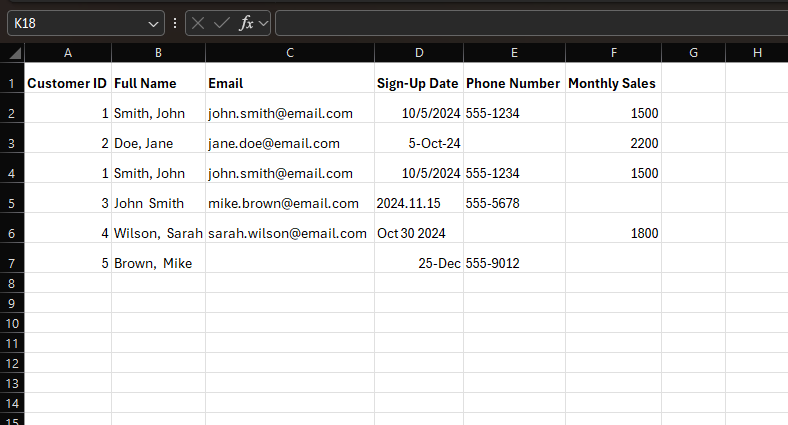
2. Remove Duplicate Rows
Duplicates are often created when exports are combined or when the same report is pasted twice. Remove them before calculating totals.
- Select the entire table, including headers.
- Go to Data > Remove Duplicates.
- Check My data has headers.
- Select the column that identifies a unique record, such as Customer ID.
- Click OK.
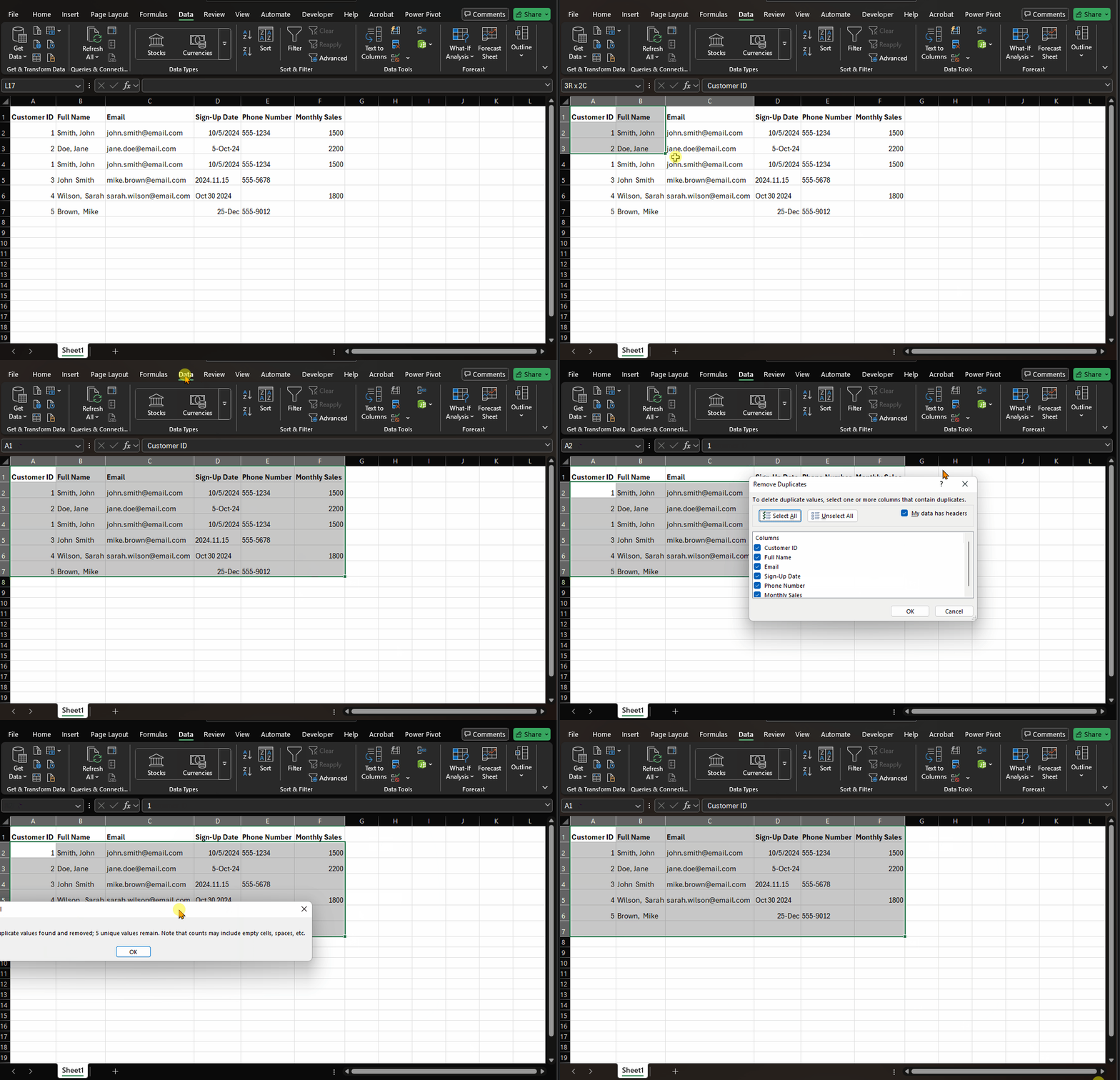
Use one column only when it is a true unique key. If the data has no unique ID, select multiple columns so Excel only removes rows that are fully duplicated.
For a focused version of this step, see How to Remove Duplicates in Excel.
3. Trim Extra Spaces and Hidden Characters
Extra spaces are hard to see but easy to break. They can make VLOOKUP,
XLOOKUP, sorting, and filters behave as if two matching values are different.
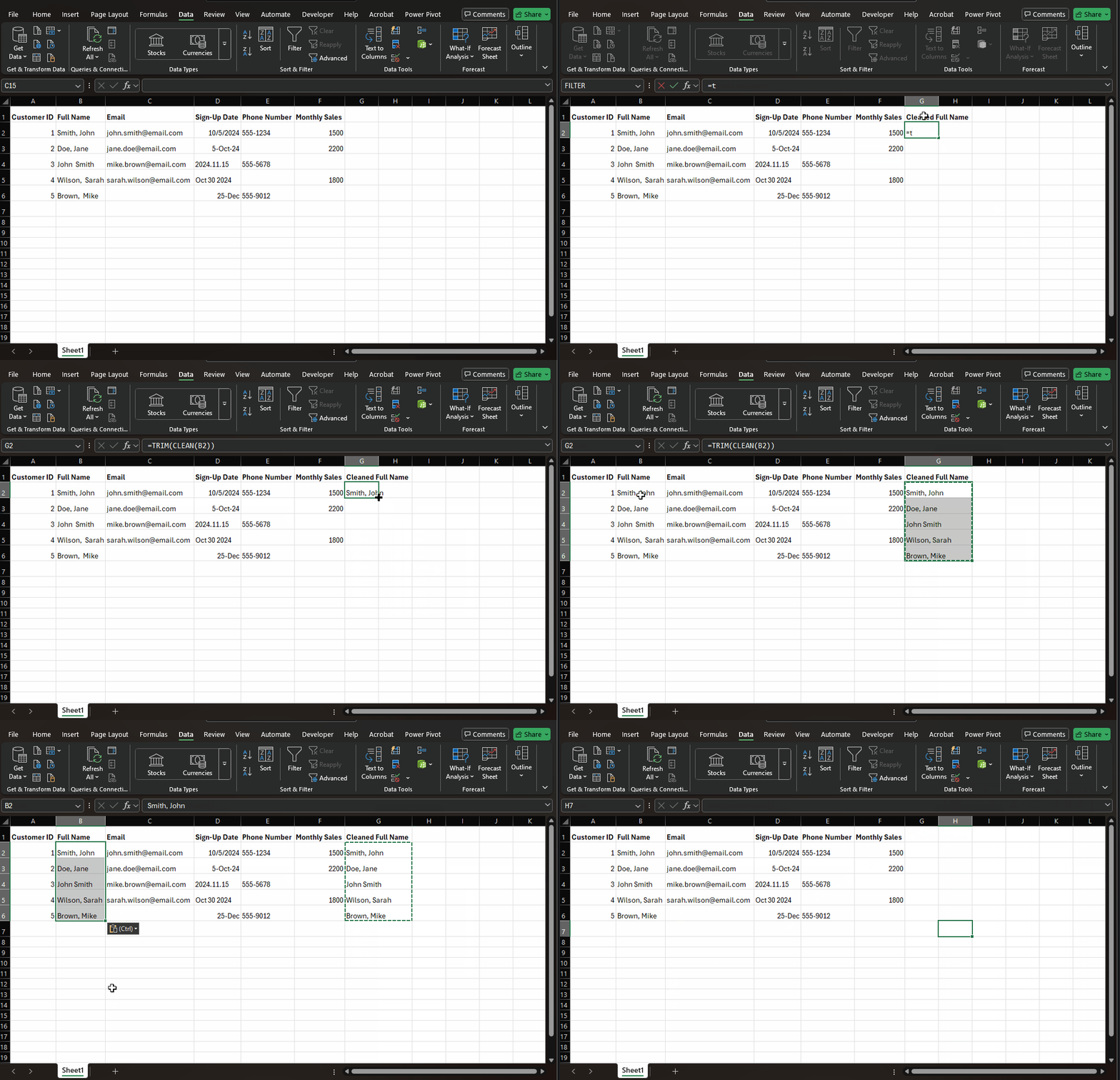
Use a helper column:
=TRIM(CLEAN(B2))Then fill the formula down, copy the results, and paste values back over the original name column.
| Function | What it fixes | Example |
|---|---|---|
TRIM |
Extra spaces between words and around text | Brown, Mike -> Brown, Mike |
CLEAN |
Non-printing characters from imports | Line breaks or hidden tabs |
SUBSTITUTE |
Specific unwanted characters | Replace non-breaking spaces |
If TRIM does not remove a space copied from a website, try:
=TRIM(SUBSTITUTE(B2,CHAR(160)," "))For a focused walkthrough of leading spaces, trailing spaces, non-breaking spaces, and line breaks, use Remove Leading and Trailing Spaces in Excel.
When the cleanup is a repeated text pattern rather than a hidden character, use Find and Replace in Excel to standardize names, codes, and labels before building formulas.
4. Standardize Dates and Data Entry Rules
Date problems are common after CSV imports. Excel may store some dates as real date values and others as text.
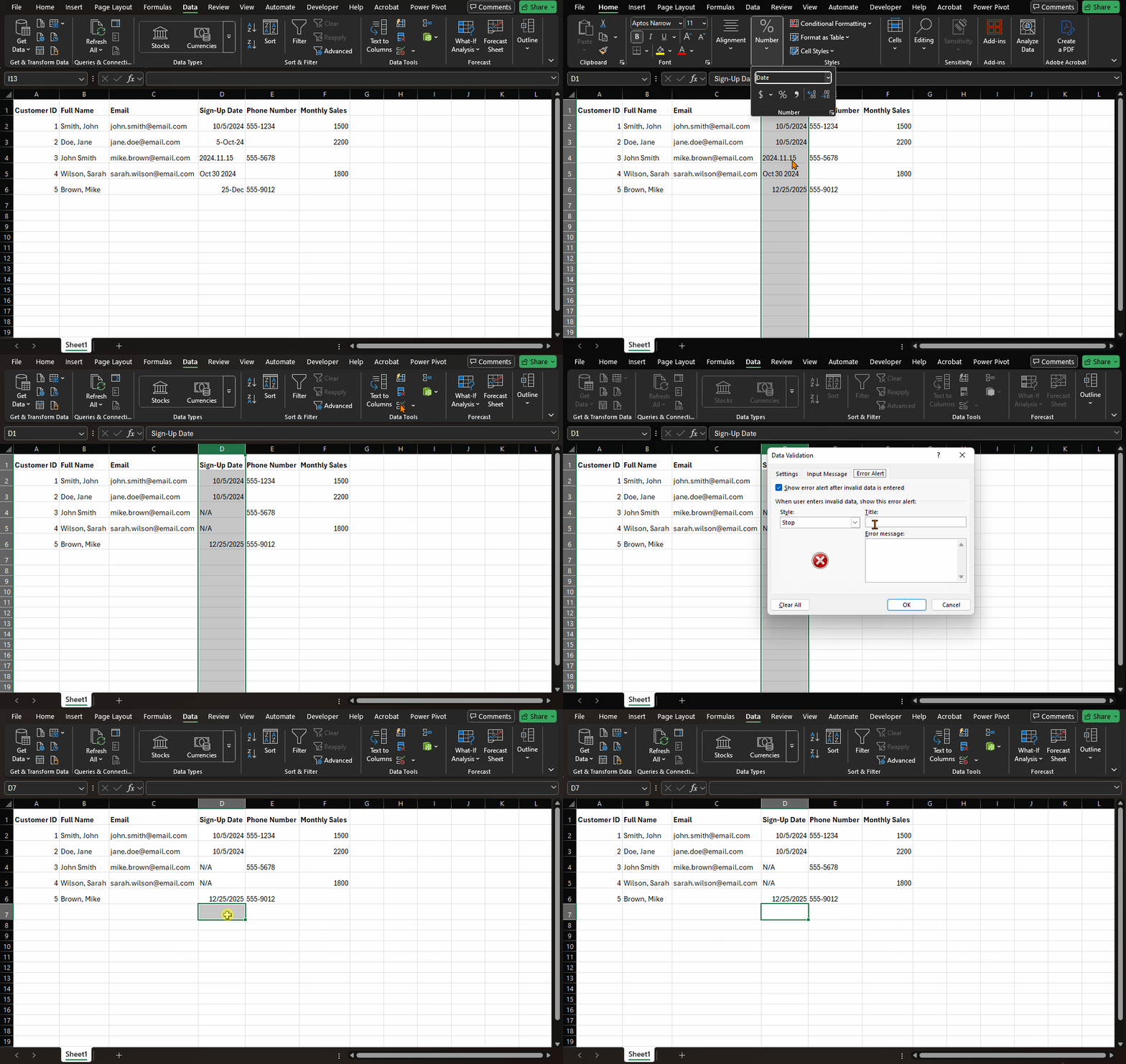
Start with formatting:
- Select the date column.
- Go to Home > Number Format.
- Choose Short Date or a custom date format.
- Sort the column to check whether any text dates stay out of order.
Then add a rule to prevent new bad dates:
- Select the date entry range.
- Go to Data > Data Validation.
- Set Allow to Date.
- Choose the valid date range.
- Add an error message such as
Enter a valid 2024 or 2025 date.
| Situation | Fix |
|---|---|
| Dates are real values but display differently | Apply a consistent date format |
| Dates are stored as text | Use Text to Columns or DATEVALUE |
| Future entries need control | Add Data Validation |
For more guardrails, see the Excel Data Validation guide.
5. Split, Reorder, and Standardize Names
Names often arrive in mixed formats such as Smith, John and Ana Lopez.
Choose one final format before building reports.
Use Text to Columns when the delimiter is consistent:
- Select the name column.
- Go to Data > Text to Columns.
- Choose Delimited.
- Select Comma or Space.
- Pick a destination for the split fields.
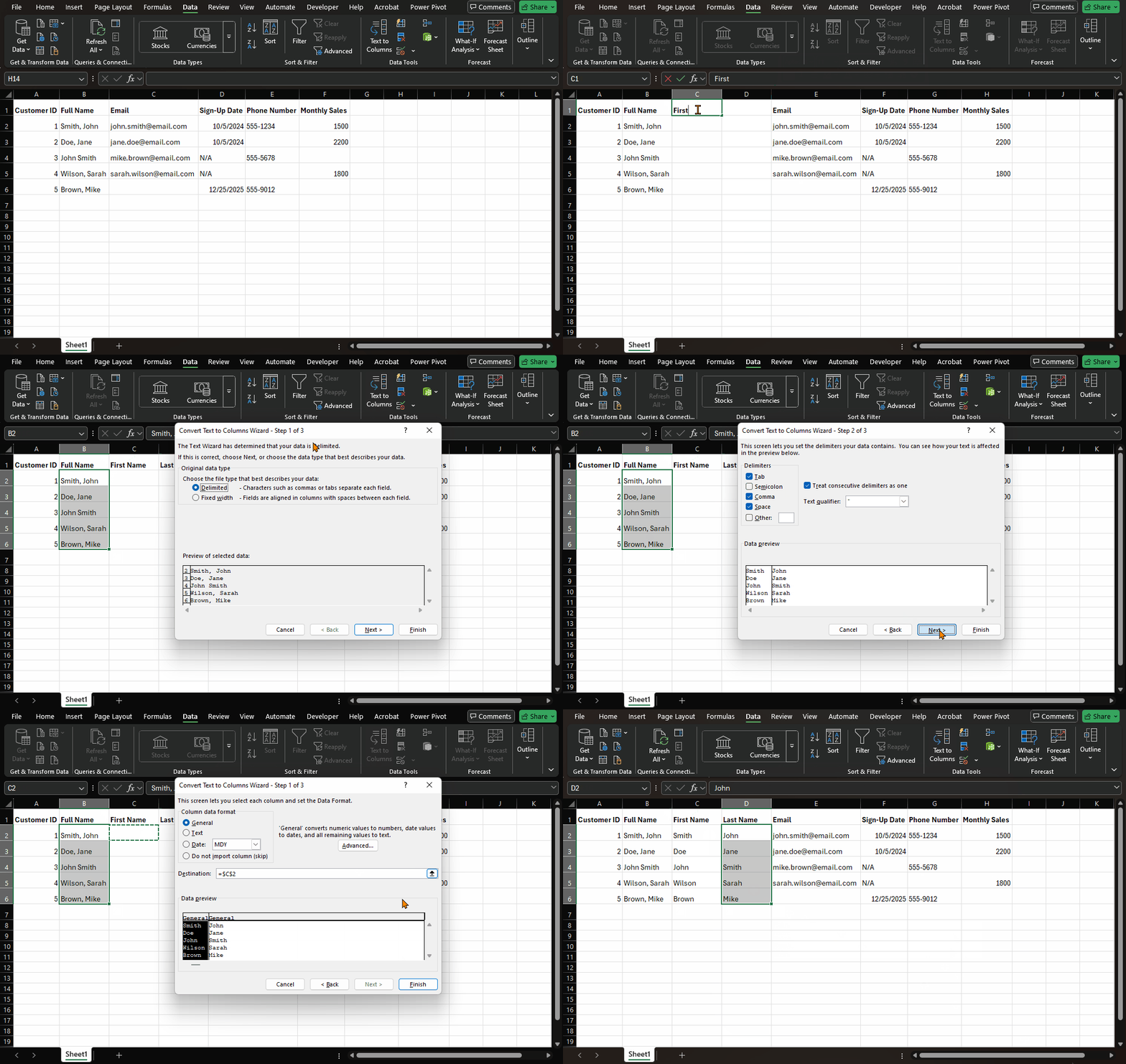
When formats are mixed, a formula can be safer. This formula converts Last, First into First Last, while leaving already-normal names alone:
=IF(ISNUMBER(SEARCH(",",B2)),TRIM(MID(B2,SEARCH(",",B2)+1,LEN(B2)))&" "&TRIM(LEFT(B2,SEARCH(",",B2)-1)),TRIM(B2))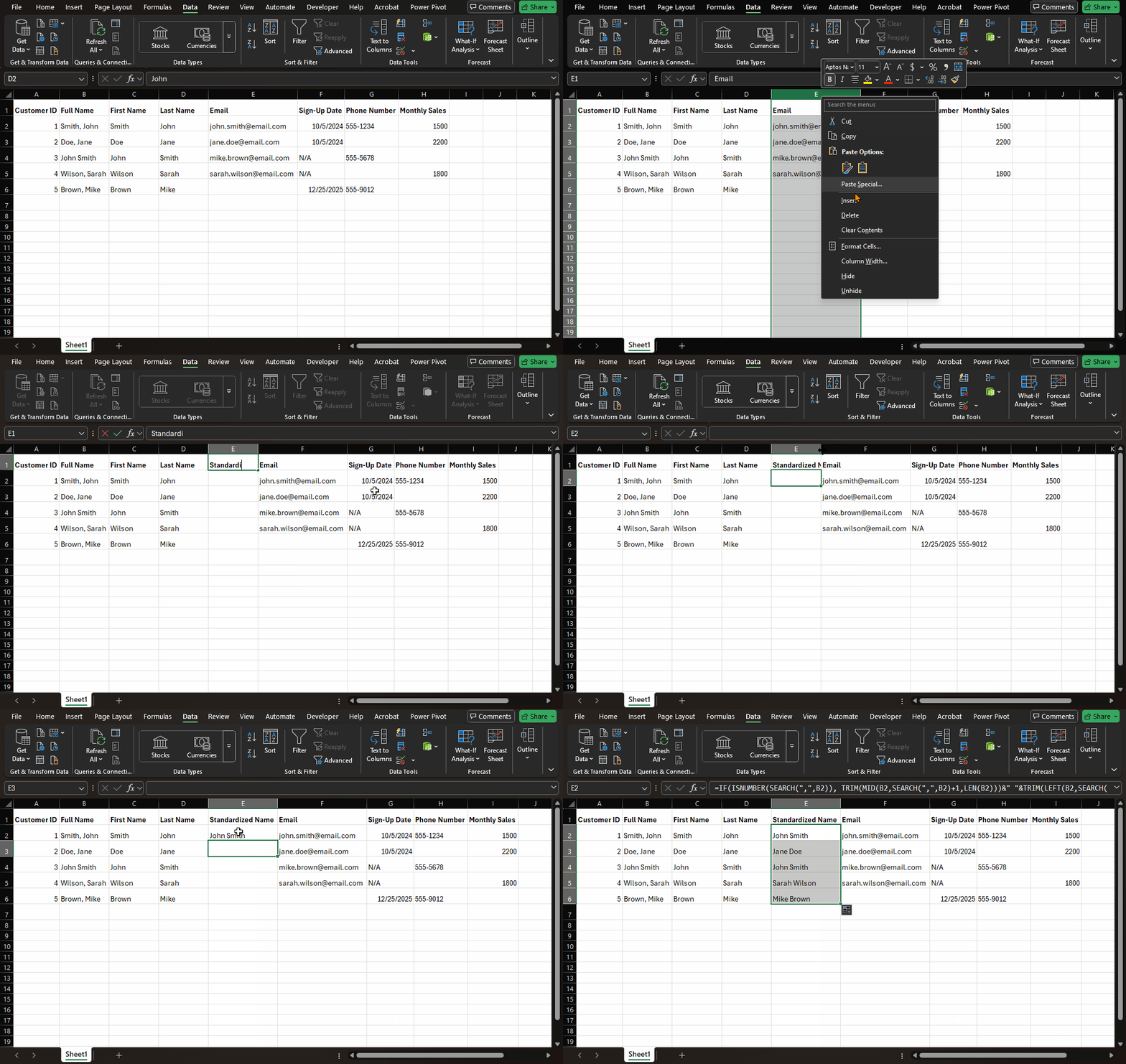
Result:
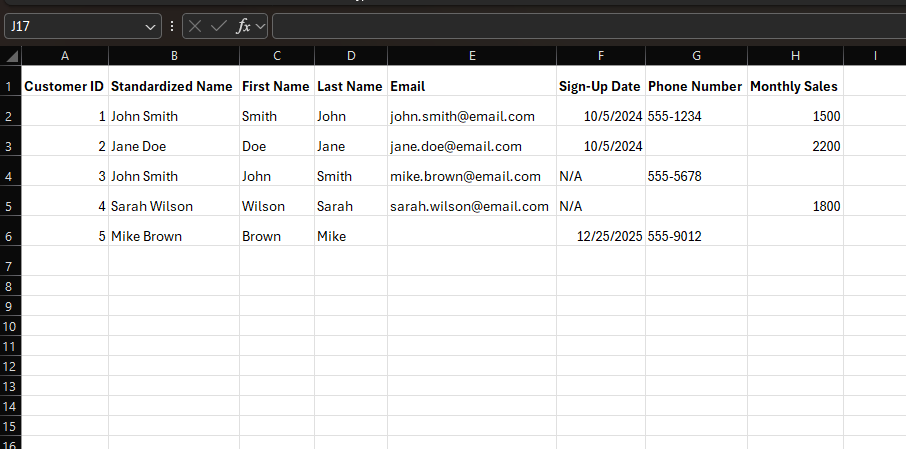
| Original | Clean result |
|---|---|
Smith, John |
John Smith |
Brown, Mike |
Mike Brown |
Ana Lopez |
Ana Lopez |
6. Fill or Flag Missing Values
Do not fill every blank the same way. The right treatment depends on whether the field is text, a number, or a required identifier.
| Field type | Recommended treatment |
|---|---|
| Required ID | Do not guess; flag for review |
| Text field | Fill with N/A only if blank is acceptable |
| Numeric measure | Use a business rule such as average, zero, or manual review |
| Formula output | Wrap the formula with IFERROR when appropriate |
To select blanks:
- Select the target range.
- Press
Ctrl+G. - Click Special.
- Choose Blanks.
- Type the replacement value.
- Press
Ctrl+Enter.
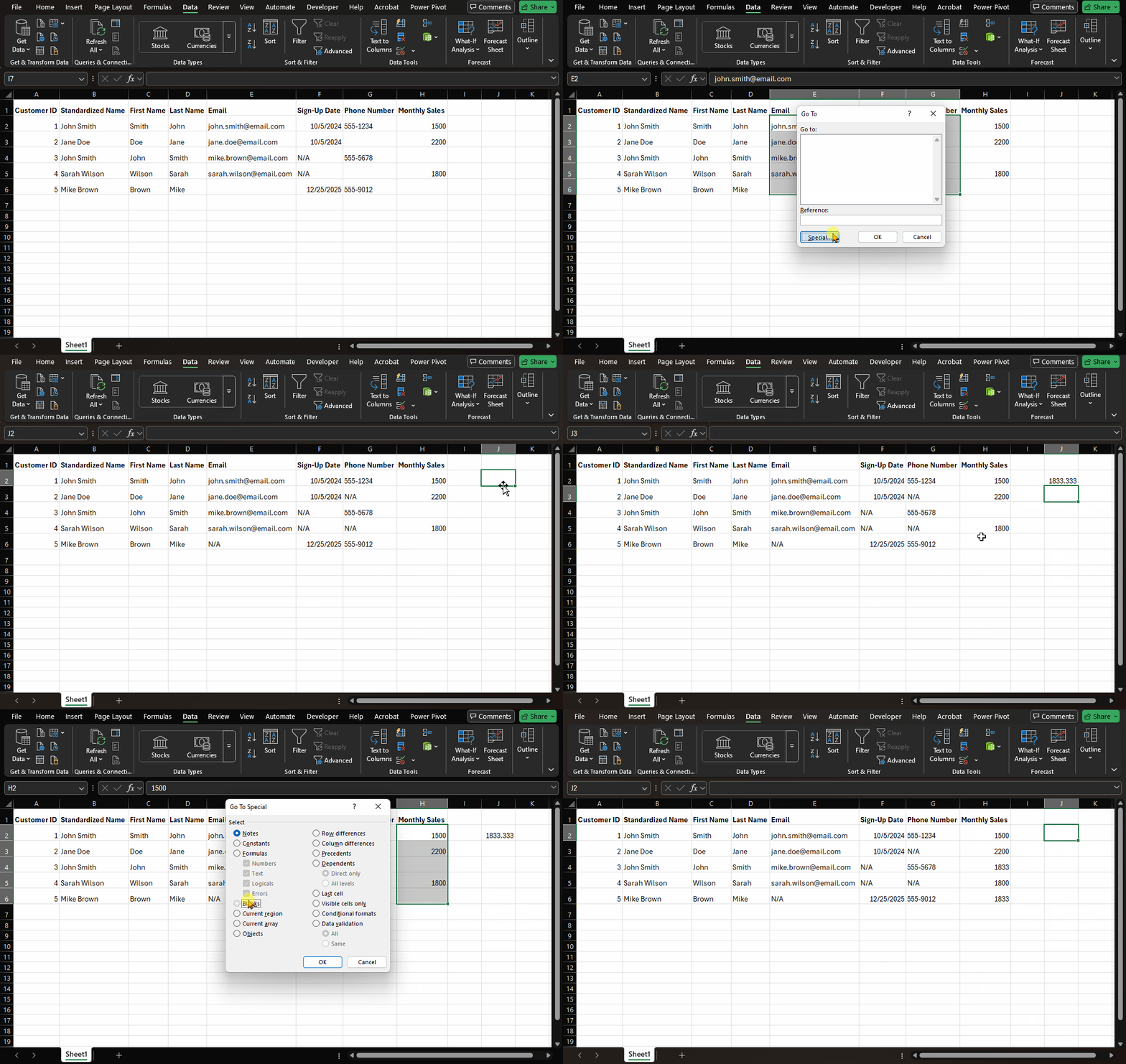
For numeric blanks, calculate the average first:
=AVERAGE(H2:H6)If missing values should stay visible for review, use a helper status column instead of overwriting them:
=IF(H2="","Needs review","OK")7. Final Clean Data Checklist
Before building formulas, charts, or PivotTables, check the cleaned table:
| Check | Pass condition |
|---|---|
| Duplicates | No repeated Customer ID rows |
| Text spaces | Lookup keys match after TRIM and CLEAN |
| Dates | Dates sort chronologically |
| Names | One consistent name format |
| Blanks | Required fields are filled or flagged |
| Formulas | Totals and lookups return expected results |
Then test a simple total:
=SUM(H2:H6)If it works, the data is ready for analysis. A good next step is to summarize the cleaned table with Excel Pivot Tables for Beginners or highlight issues with Excel Conditional Formatting. If totals or lookups still fail because numeric-looking values are text, use Excel numbers stored as text. If you need to compare cleaned IDs or names against another exported list, use How to Compare Two Columns in Excel. If repeated rows need review before deletion, use How to Find Duplicates in Excel. If a lookup still fails after cleanup, check VLOOKUP troubleshooting or XLOOKUP not working.
8. Choose the Right Cleanup Tool
Use this table when a sheet has several problems and you are not sure where to start:
| Problem | Best first tool | Why |
|---|---|---|
| Repeated customer or order rows | Remove Duplicates | It removes exact repeated records quickly |
| Same value written several ways | Find and Replace | It standardizes labels before formulas compare them |
| Extra spaces from copied data | TRIM and hidden-space formulas | They fix hidden characters without changing the meaning |
| Dates sort like text | Date formatting or DATEVALUE | It converts display-only dates into sortable values |
| Blank required fields | Go To Special > Blanks | It lets you fill or flag gaps in one pass |
| Messy names or codes | Text to Columns or helper formulas | It keeps the original data visible while you test |
The safest order is usually: standardize labels, remove duplicates, clean spaces, fix dates, then handle blanks. If you remove duplicates too early, slightly different labels can hide repeated records.
If formulas built on the cleaned range return #SPILL!, use
Excel #SPILL error causes and fixes to
check whether the output area is blocked.
9. Summary
Clean Excel data in this order: audit the problems, remove duplicates, trim spaces, standardize dates, normalize names, and handle missing values. This workflow prevents common formula errors and gives PivotTables a reliable source table to summarize.
Was this guide helpful?
If something is missing or unclear, open an issue and we will improve it.
Send feedback