
Excel Numbers Stored as Text - How to Fix
Numbers stored as text are one of the quietest Excel problems. The values may look like normal numbers, but totals, sorting, filters, VLOOKUP, XLOOKUP, and PivotTables can behave as if the cells are not numeric.
Use this guide when Excel shows a green warning triangle, formulas return unexpected results, or lookup values look identical but still do not match.
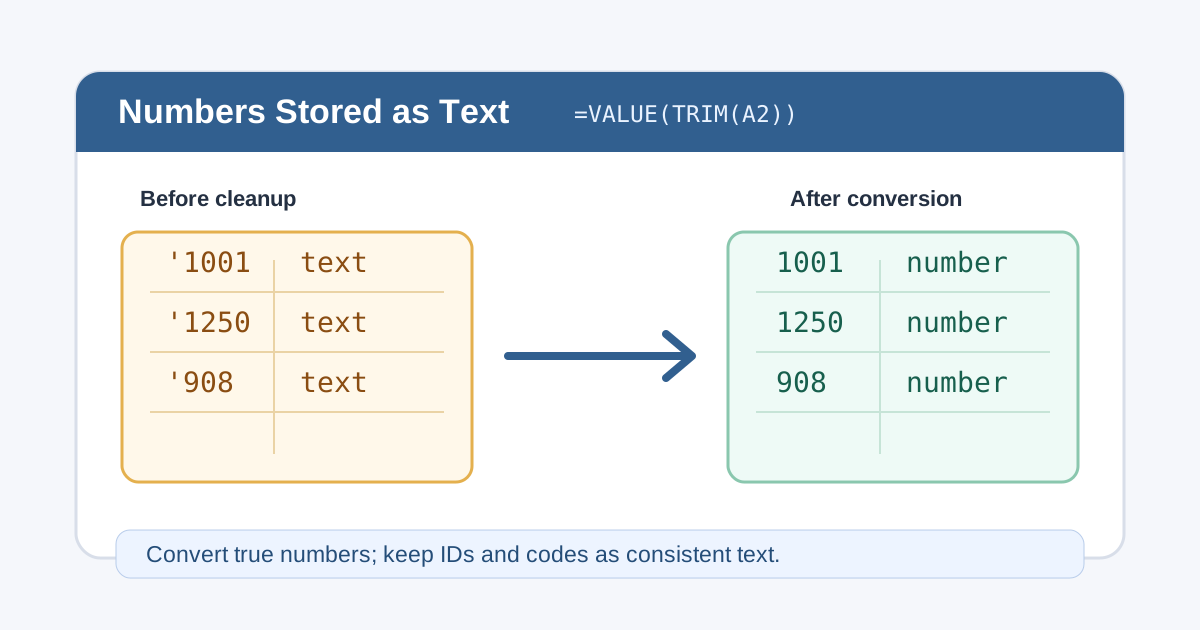
1. Quick Diagnosis Table
| Symptom | Likely cause | Fast fix |
|---|---|---|
| Green triangle in the cell | Excel detected a number stored as text | Choose Convert to Number |
| SUM returns 0 or ignores values | Numeric-looking cells are text | Convert the column before calculating |
| VLOOKUP or XLOOKUP cannot find a match | One side is text and the other is a number | Convert both lookup columns to the same type |
| Sort order looks wrong | Text numbers sort alphabetically | Convert text numbers to real numbers |
| Imported IDs lose leading zeros | Values should remain text identifiers | Keep them as text and do not convert |
If the problem is part of a larger cleanup job, start with Excel data cleaning and use this article for the number-specific fix.
2. Check Whether a Number Is Really Text
Use these tests before changing the data.
| Test | Formula | Meaning |
|---|---|---|
| Is it a number? | =ISNUMBER(A2) |
TRUE means Excel sees a real number |
| Is it text? | =ISTEXT(A2) |
TRUE means Excel sees text |
| Can it be converted? | =VALUE(A2) |
Returns a number if the text is numeric |
| Does it contain hidden spaces? | =LEN(A2) |
Compare before and after TRIM |
Example:
=ISNUMBER(A2)If this returns FALSE for a value such as 1001, the value is probably stored
as text.
If LEN shows extra characters before or after the number, clean the spaces
first with
Remove Leading and Trailing Spaces in Excel,
then convert only true numeric values.
3. Use Convert to Number for Simple Cases
When Excel shows a green triangle, this is the fastest fix:
- Select the affected cells.
- Click the warning icon.
- Choose Convert to Number.
- Recheck totals, sorting, and lookup formulas.
This works well when the cells contain clean numeric text such as 1250 or
42.75.
It is not the right fix for values that are identifiers, such as ZIP codes, employee IDs, SKU codes, or account numbers that intentionally use leading zeros.
4. Use Text to Columns to Convert a Whole Column
Text to Columns is a reliable bulk conversion tool, even when you do not need to split anything.
- Select the column.
- Go to Data > Text to Columns.
- Choose Delimited, then click Next.
- Leave delimiters unchanged, then click Next.
- Choose General.
- Click Finish.
Excel rewrites the selected values using the General format and usually converts numeric text into real numbers.
| Good for | Watch out for |
|---|---|
| Imported CSV quantity columns | Leading zeros may be removed |
| Amount columns that SUM ignores | Dates may be interpreted differently by locale |
| Lookup keys that should be numeric | Mixed IDs may need text instead |
5. Use Paste Special Multiply
Paste Special can force numeric conversion without adding a helper column.
- Type
1in an empty cell. - Copy that cell.
- Select the text-number range.
- Go to Home > Paste > Paste Special.
- Choose Multiply, then click OK.
Multiplying by 1 keeps the numeric value but makes Excel store it as a number.
Use this on true numeric measures, such as prices, quantities, counts, and amounts. Do not use it on text identifiers that need leading zeros.
6. Use VALUE or NUMBERVALUE in a Helper Column
For formula-based cleanup, use VALUE:
=VALUE(A2)If the source contains extra spaces, wrap it with TRIM:
=VALUE(TRIM(A2))If the data uses a different decimal or thousands separator, use NUMBERVALUE:
=NUMBERVALUE(A2,".",",")After the helper column looks correct, copy it and use Paste Special > Values over the original column.
| Source value | Formula | Result |
|---|---|---|
" 1250 " |
=VALUE(TRIM(A2)) |
1250 |
"1,250.75" |
=NUMBERVALUE(A2,".",",") |
1250.75 |
"1001" |
=VALUE(A2) |
1001 |
7. Fix Lookup Formulas That Fail Because of Text Numbers
Lookups fail when the lookup value and lookup column use different data types.
The value 1001 as a number is not always the same as "1001" as text.
Test both sides:
=ISNUMBER(F2)=ISNUMBER(A2)If the lookup column contains real numbers but the lookup cell contains text, convert the lookup value inside the formula:
=XLOOKUP(VALUE(F2),$A$2:$A$100,$C$2:$C$100,"Not found")For VLOOKUP:
=VLOOKUP(VALUE(F2),$A$2:$C$100,3,FALSE)For deeper lookup troubleshooting, see VLOOKUP not working and XLOOKUP not working.
8. Know When Not to Convert
Some numeric-looking values are not numbers. They are codes.
Keep these as text:
| Value type | Why text may be correct |
|---|---|
| ZIP codes | Leading zeros matter |
| Product SKUs | Letters and numbers may mix |
| Employee IDs | The value identifies a record, not a quantity |
| Account numbers | Long values can lose precision |
| Phone numbers | Formatting and leading zeros may matter |
If you need formulas to compare these values, make both sides text instead of converting one side to numbers.
Example:
=TEXT(A2,"00000")That formula keeps a five-digit code with leading zeros.
9. Prevent the Problem During Imports
Many text-number problems start with CSV exports, copied web tables, or reports from another system.
Use these habits:
- Format ID columns as Text before pasting data
- Use Power Query for Beginners or import settings when column types matter
- Convert amount and quantity columns before building formulas
- Keep a raw copy of imported data before overwriting it
- Audit key columns with
ISNUMBER,ISTEXT, andCOUNTIF
If formulas are not updating after cleanup, the issue may be calculation mode,
apostrophes, or formatting. Use Excel formula not calculating
for that checklist. If the formula returns a visible error such as #VALUE!, use the
Excel formula errors guide for broader formula
debugging.
10. Fix All Numbers Stored as Text at Once
When an entire column is text, fixing it cell by cell is the slow way. These methods repair the whole column in one pass, from quickest to most repeatable.
| Method | Steps | Best for | Watch out for |
|---|---|---|---|
| Warning icon, then Convert to Number | Select the whole column, click the warning icon once | A clean numeric column that already shows the green triangle | Only appears while background error checking is on |
| Text to Columns, then Finish | Select one or more columns, Data > Text to Columns, Delimited, Next, Next, General, Finish | Several columns in one action | Re-interprets dates and drops leading zeros |
| Paste Special, then Multiply | Copy a cell containing 1, select the range, Paste Special, Multiply |
Amounts and quantities | Non-numeric text returns #VALUE! |
| Spilled helper formula | =VALUE(TRIM(A2:A100)) in one empty cell |
Auditing the result before overwriting anything | Needs a spare column and a dynamic-array Excel |
| Power Query column type | Set the column to Whole Number or Decimal Number | Imports you refresh every week | The type applies on refresh, not to the pasted sheet |
Check that every value converted
After a bulk fix, count what is left instead of scrolling through the column:
| Question | Formula |
|---|---|
| How many cells are still text? | =SUMPRODUCT(--ISTEXT(A2:A100)) |
| How many are real numbers now? | =SUMPRODUCT(--ISNUMBER(A2:A100)) |
| Which rows are left over? | Conditional formatting rule =ISTEXT($A2) |
A remaining text count above zero usually means the range also contains blanks, IDs, or values with stray characters. Blanks count as neither text nor a number, so compare both totals against the row count before deciding the conversion failed.
If the green triangle never appears
The Convert to Number shortcut only exists while Excel's background error checking is on. Turn it on under File > Options > Formulas > Enable background error checking. If it is already on and a cell still shows no triangle, the value is not being read as numeric text at all: look for a leading apostrophe, a non-breaking space, or a currency label stored inside the same cell. On cells that do trigger it, the warning tooltip reads Number stored as text; older builds word it as "the number in this cell is formatted as text or preceded by an apostrophe".
11. Summary
For true numeric values, convert numbers stored as text with the warning icon, Text to Columns, Paste Special Multiply, or a helper formula such as:
=VALUE(TRIM(A2))For IDs and codes, do the opposite: keep them as text and make sure every lookup table uses the same type. The right answer is consistency. Totals need real numbers; identifiers need stable text.
12. Related Guides
- Clean the broader dataset with Excel data cleaning.
- Remove hidden spaces first with Remove Leading and Trailing Spaces in Excel.
- Fix lookup failures with VLOOKUP not working.
- Diagnose exact-match lookup misses with How to Fix VLOOKUP #N/A in Excel.
- Troubleshoot modern lookups with XLOOKUP not working.
- Standardize repeated text issues with Find and Replace in Excel.
- Fix formulas that do not update with Excel formula not calculating.
- Compare formula errors in Excel formula errors.
- Use formatting intentionally with the Excel TEXT function.
Was this guide helpful?
If something is missing or unclear, open an issue and we will improve it.
Send feedback