
Find and Replace in Excel: Text, Formulas, Wildcards
Formula not working?
Share a small sample and the result you expected.
1. Introduction
Find and Replace in Excel helps you change text, numbers, formulas, formatting,
and repeated patterns without editing cells one by one. The fastest shortcut on
Windows is Ctrl+H; on Mac, use Command+Shift+H in many Excel versions or
open Edit > Find > Replace from the menu.
This guide shows the basic replace workflow first, then covers safer advanced uses: finding formulas, using wildcards, searching by format, reviewing matches with Find All, and avoiding risky Replace All mistakes.
2. Basic Find and Replace
Quick Steps
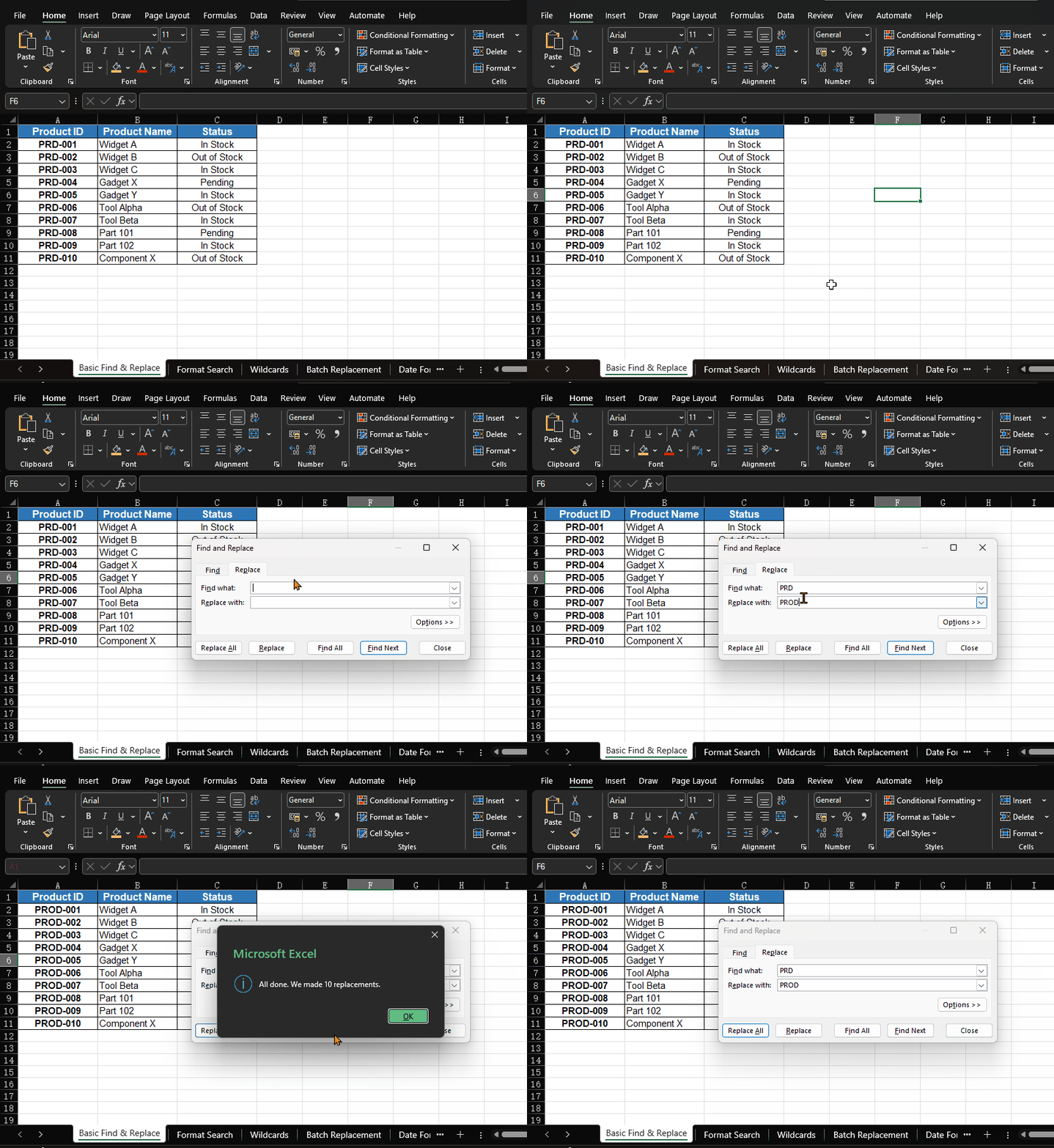
- Press
Ctrl+Hto open Replace directly - Enter your search term in the Find what field
- Enter your replacement term in the Replace with field
- Click Find Next to review matches, or Replace All if you are sure
If you only want to search without replacing, press Ctrl+F.
Accessing Find and Replace
- Press
Ctrl+Fto open the Find dialog box - Click the Replace tab or press
Ctrl+Hto open Replace directly - Enter your search term in the "Find what" field
- Enter your replacement term in the "Replace with" field
Find and Replace in Excel for Mac
Excel for Mac has the same Find and Replace tool, but shortcuts can vary by version and keyboard settings.
| Action | Windows | Mac |
|---|---|---|
| Open Find | Ctrl+F |
Command+F |
| Open Replace | Ctrl+H |
Command+Shift+H or Edit > Find > Replace |
| Find next match | Enter in the Find box |
Return in the Find box |
If the Mac shortcut does not open Replace, use the menu path instead. The options such as Within, Look in, Match case, and Match entire cell contents are still the settings to check before replacing values.
Basic Replacement Options
- Find Next: Locate the next occurrence
- Replace: Replace the current occurrence
- Replace All: Replace all occurrences at once
- Match case: Only find exact case matches
- Match entire cell contents: Only find cells containing exactly the search term
Search Scope Options
Click the Options button in the Find dialog to reveal additional controls:
| Option | Choices | When to Use |
|---|---|---|
| Within | Sheet / Workbook | Search the current sheet only, or across all sheets |
| Search | By Rows / By Columns | Controls the order in which cells are scanned |
| Look in | Formulas / Values / Comments | Search in cell formulas, displayed values, or comments |
Searching within a selection: If you select a range of cells before opening Find and Replace, Excel will limit the search to that selection. This is useful when you only want to replace values in a specific column or area without affecting the rest of the sheet.
Find All: Review and Select Matches
The Find All button is more powerful than it appears:
- Enter your search term and click Find All
- A list of all matching cells appears at the bottom of the dialog
- Press
Ctrl+Ato select all results in the list - Close the dialog — all matching cells are now selected in the worksheet
- You can now apply formatting, delete, or perform other operations on all matched cells at once
This is a fast way to highlight, format, or delete all cells matching a pattern without using Replace.
3. Searching by Format
Finding Cells by Format
- Open the Find dialog box
- Click the Options button to expand the dialog
- Click the Format button next to "Find what"
- Select the format you want to search for (e.g., font color, cell fill)
- Click Find All to see all cells with that format
Replacing Formatting
- Open the Replace dialog box
- Set your "Find what" format as above
- Click the Format button next to "Replace with"
- Select the new format you want to apply
- Click Replace All to update all matching cells
Practical Example: Batch Updating Cell Highlighting
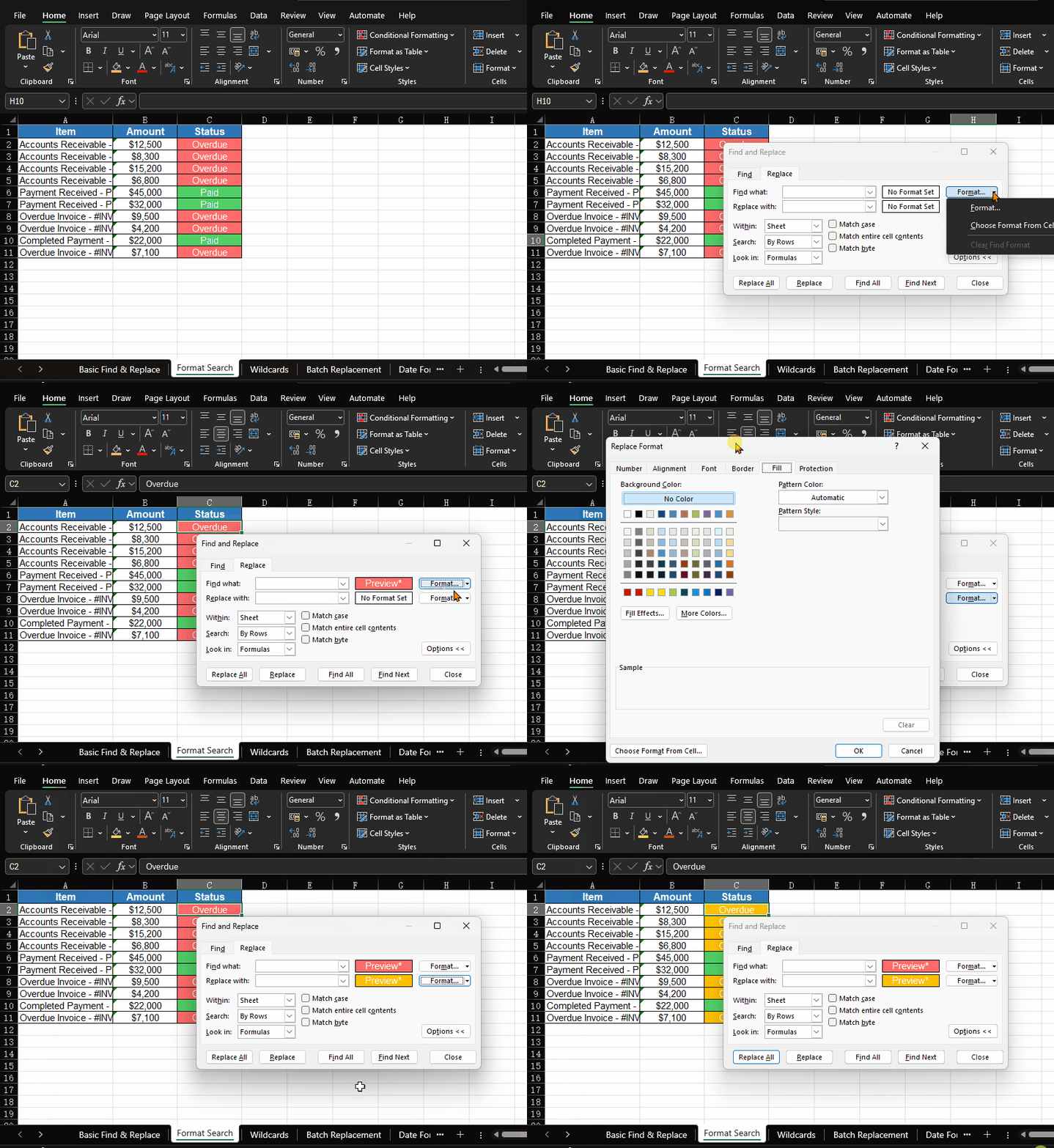
Imagine you have a financial report where overdue items are highlighted with a red cell fill. The quarter has ended and you need to change all red-highlighted cells to yellow to indicate "under review" status.
- Open Replace (
Ctrl+H), click Options to expand - Click Format next to "Find what" → choose Fill tab → select red
- Click Format next to "Replace with" → choose Fill tab → select yellow
- Leave both text fields empty (we're only changing format, not content)
- Click Replace All
This technique is especially useful when formatting has been applied manually across hundreds of cells and you need to update the color scheme consistently.
4. Using Wildcards for Flexible Matching
Wildcard Characters
Excel supports two wildcard characters in find and replace:
| Wildcard | Function | Example | Matches |
|---|---|---|---|
? |
Matches any single character | b?t |
bat, bet, bit, but |
* |
Matches any sequence of characters | *test |
test, pretest, unit_test |
~ |
Escape character, used to search for literal ?, *, or ~ |
~* |
Only the literal * character |
Wildcards are most useful when you want to search by pattern instead of searching for one exact word. In practice, they work especially well with Find All, because you can review every match before making changes.
Demo 1: Match a Single Character with ?
Use ? when one character can vary but the rest of the pattern stays the same.
For example, searching for:
b?tcan match values such as bat, bet, bit, and but.
Demo 2: Match Any Sequence with *
Use * when part of the text can be any length.
For example, searching for:
*testcan match test, pretest, unit_test, and mytest.
Demo 3: Find Cells with Exactly 3 Characters
This is the clearest wildcard demo for understanding how pattern matching works in Excel.
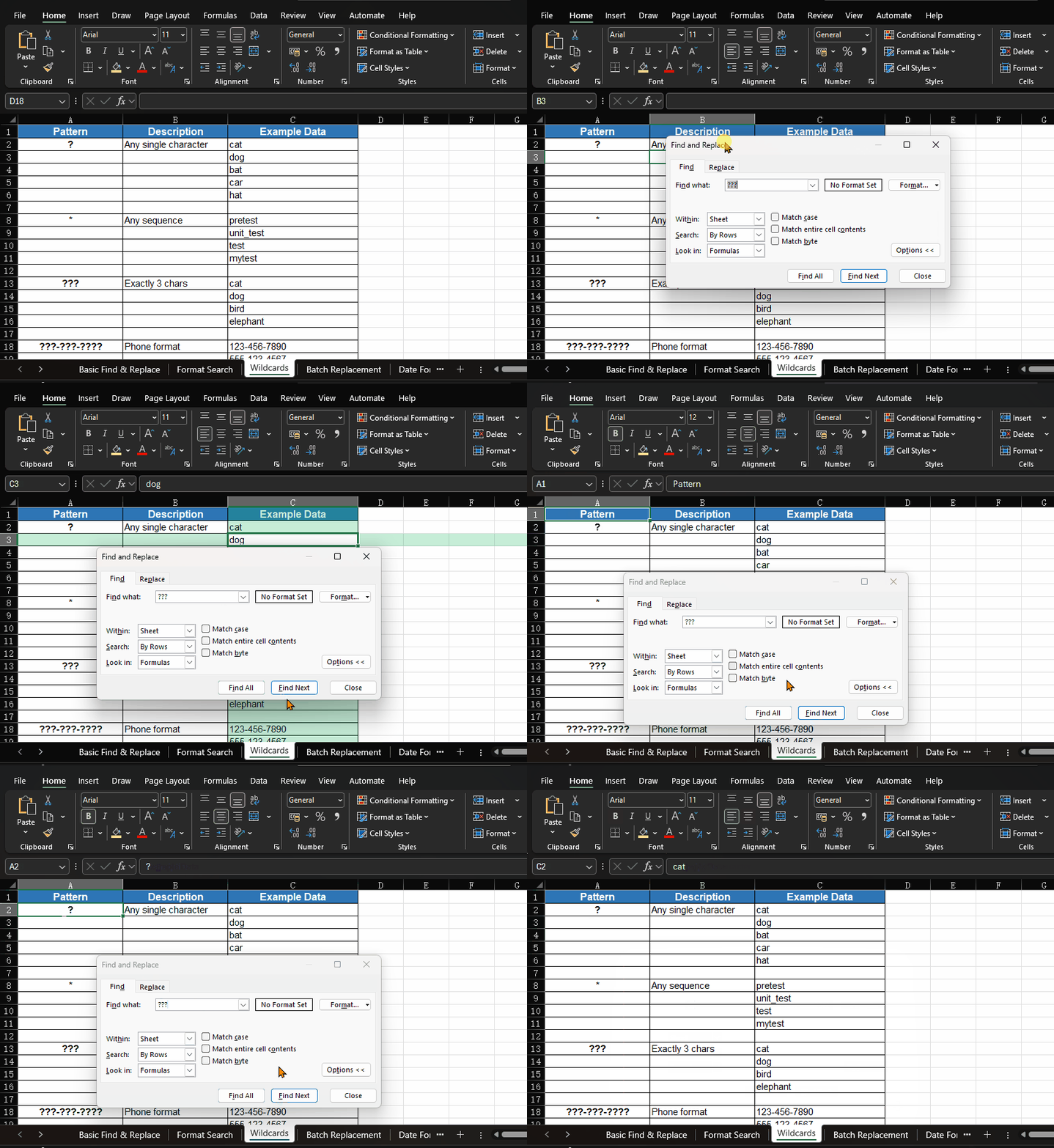
- Open the Find dialog box with
Ctrl+F - Enter
???in Find what - Click Find All to review every matching cell
- If you want to restrict results to cells whose entire content is exactly three characters long, click Options and check Match entire cell contents
In a simple list of short text values, searching for ??? is often enough to
demonstrate how wildcard matching works.
If you need stricter matching, enabling Match entire cell contents ensures
Excel only returns cells whose full content is exactly three characters long,
such as cat, dog, bat, car, or hat.
Demo 4: Find Phone Numbers by Pattern
Wildcards also help when values follow a known structure.
To find phone numbers in xxx-xxx-xxxx format, search for:
???-???-????This is a practical way to identify entries that already match the expected pattern before you clean or replace anything.
Finding Literal ? or * Characters
If your data contains the actual characters ? or *, use ~ as an escape
character.
For example, search for:
5~*3if you want to find the literal text 5*3 rather than treating * as a
wildcard.
The GIF below demonstrates wildcard search with ???. Once you understand this
workflow, you can apply the same steps to other patterns such as b?t, *test,
and ???-???-????. If you need stricter matching, you can also enable Match
entire cell contents.
5. Find and Replace in Formulas
Finding and replacing in formulas is useful, but it deserves extra care because you can change calculation logic across the workbook.
Common formula tasks include:
| Task | Example |
|---|---|
| Rename a referenced sheet | Replace OldData! with SalesData! |
| Update a fixed range | Replace $A$2:$A$100 with $A$2:$A$500 |
| Find formulas that use a function | Search for VLOOKUP( or SUMIF( |
Before replacing formulas, set Look in to Formulas and use Find All to review the matches.
6. Advanced Find and Replace Tips
Finding and Replacing in Formulas
- Open the Find dialog box
- Under "Within", select "Workbook"
- Under "Look in", select "Formulas"
- Enter your search term and click "Find All"
This is useful when you need to update cell references or function names across
multiple formulas. For example, if you renamed a sheet from "Data" to
"SalesData", you can replace Data! with SalesData! in all formulas at once.
Finding Blank Cells
- In Find what, leave the field empty
- Check "Match entire cell contents"
- Click "Find All" to select all blank cells
Once selected, you can fill them with a default value like "N/A" or 0 using
Replace, or use the Find All + Ctrl+A technique to select and delete them.
7. Common Pitfalls and How to Avoid Them
Partial Match Trap
By default, Replace All matches partial text. If you replace cat with dog,
the word category becomes dogegory. To avoid this:
- Check Match entire cell contents if you only want to replace cells that contain exactly "cat"
- If you need partial replacement but want to avoid false matches, add context
to your search term (e.g., replace
catwithdogincluding the trailing space)
Formula Breakage
Replacing text in formulas can have unintended consequences. For example,
replacing the text Jan with January could turn a formula like
=SUMIF(A:A,"Jan",B:B) into =SUMIF(A:A,"January",B:B), which may return
different results.
Before performing Replace All on a workbook with formulas:
- Set "Look in" to Values first to only affect cell values
- If you do need to modify formulas, use Find All first to review all matches before replacing
Invisible Characters
Sometimes Find and Replace doesn't seem to work because cells contain invisible
characters like leading/trailing spaces, non-breaking spaces (Char(160)), or
line breaks (Char(10)). If a search isn't matching as expected:
- Use
=LEN(A1)to check if the cell contains hidden characters - Use
=CODE(MID(A1,n,1))to identify the character code at position n - Use
=CLEAN(TRIM(A1))to remove non-printable characters and extra spaces
For a formula-first cleanup path, use Remove Leading and Trailing Spaces in Excel before running large replacements.
8. Using SUBSTITUTE for More Control
The Find and Replace dialog replaces all occurrences in a cell at once. When you need more precision, the SUBSTITUTE function is a better choice.
Syntax
=SUBSTITUTE(text, old_text, new_text, [instance_num])The optional instance_num parameter lets you replace only a specific
occurrence.
Example: Replace Only the Second Comma
If cell A1 contains Apple, Banana, Cherry, Date and you want to replace only
the second comma:
=SUBSTITUTE(A1, ",", ";", 2)Result: Apple, Banana; Cherry, Date
Nested SUBSTITUTE for Multiple Replacements
To apply several replacements in one formula:
=SUBSTITUTE(SUBSTITUTE(SUBSTITUTE(A1, "NY", "New York"), "CA", "California"), "TX", "Texas")This approach is useful when you want the replacements to live in a formula rather than permanently modifying the source data.
9. Find and Replace vs Formulas
Find and Replace is best when the change should become permanent. Formulas are better when the original data should stay unchanged or the rule needs to update later.
| Task | Better choice | Reason |
|---|---|---|
Rename NY to New York across a final report |
Find and Replace | The source values need a one-time cleanup |
| Create a cleaned helper column for imported data | Formula | You can compare the original and cleaned values |
| Replace only the second comma in a cell | SUBSTITUTE |
The dialog cannot target one occurrence |
| Update a formula reference across many formulas | Find and Replace, after Find All | You can review every affected formula first |
| Split or rearrange names | Formula, Text to Columns, or Flash Fill | The transformation is more than a simple replacement |
If you are unsure, run Find All first and inspect the list. A five-second review can prevent a workbook-wide replacement mistake.
10. FAQ
What is the shortcut for Find and Replace in Excel?
On Windows, press Ctrl+H to open Replace. On Mac, try Command+Shift+H; if
that does not work in your version, use Edit > Find > Replace.
How do I find and replace in Excel formulas?
Open Find and Replace, expand Options, set Look in to Formulas, then use Find All before replacing. This helps you avoid changing formulas you did not intend to edit.
How do I find and replace wildcards in Excel?
Use ? for one unknown character and * for any sequence of characters. To
search for a literal question mark or asterisk, add ~ before it, such as ~?
or ~*.
11. Summary
Excel's Find and Replace is far more capable than most users realize. Beyond
basic text substitution, you can search and replace by cell format, use
wildcards (?, *, ~) for pattern matching, review results with Find
All, and use Match entire cell contents when you need more precise
matching. When built-in replace is too broad, the SUBSTITUTE function gives you
formula-based control over exactly what changes.
12. Related Guides
- Use Excel Data Cleaning when Find and Replace is part of a broader cleanup workflow.
- Remove hidden spaces with Remove Leading and Trailing Spaces in Excel when Find and Replace cannot see the problem.
- Pair replacements with How to Remove Duplicates in Excel when standardizing repeated records.
- Use How to Find Duplicates in Excel when standardized values still need a review-first duplicate check.
- If replacements affect formulas, check Excel formula errors before changing a large workbook.
Need help fixing a formula?
Share the formula, a small sample table, and the result you expected. This free beta helps us learn which Excel problems readers actually need solved.
Ask for formula help