
VLOOKUP Not Working? Fix #N/A and #REF! Errors
Formula not working?
Share a small sample and the result you expected.
When VLOOKUP is not working in Excel, the problem usually comes from one of five places: the lookup value is missing, the table array starts in the wrong column, the match type is wrong, the column number is invalid, or your data needs a quick cleanup.
If VLOOKUP returns the wrong data, check the fourth argument first. For IDs,
names, SKUs, invoice numbers, and most business data, the formula should end in
FALSE so Excel uses exact match instead of a nearby approximate match.
If you've ever thought, "I followed the VLOOKUP steps perfectly -- why isn't it working?", you're not alone. This guide walks through the most common VLOOKUP errors and the fastest way to fix each one.
If the values look identical but the formula still fails, start with Excel Data Cleaning to clear hidden spaces and text-number mismatches before changing the formula itself.
1. Quick Fix Table
Start here if you just need the likely cause.
| Symptom | Most likely cause | Fast fix |
|---|---|---|
#N/A |
Lookup value is missing, has extra spaces, or has the wrong data type | Check spelling, use TRIM, and compare numbers stored as text |
| Values match but VLOOKUP fails | One value is text and the other is a number, or one side has hidden spaces | Clean both columns with TRIM, VALUE, or Text to Columns |
| Wrong result, no error | Approximate match is being used | Add FALSE as the fourth argument |
#REF! |
col_index_num is larger than the table array |
Count columns inside the selected table array |
#VALUE! |
An argument has the wrong type or an invalid range | Rebuild the formula by selecting ranges with your mouse |
| Formula misses new rows | The table array does not expand | Convert the source range to an Excel Table with Ctrl+T |
| Left lookup fails | VLOOKUP can only search the first column of table_array |
Move the lookup column first, or use XLOOKUP / INDEX MATCH |
2. What VLOOKUP Actually Does
VLOOKUP searches for a value in the first column of a table and returns a matching value from a specified column. The basic formula is:
=VLOOKUP(lookup_value, table_array, col_index_num, [range_lookup])lookup_value: What you're searching for (e.g., a product ID)table_array: The range of cells containing your datacol_index_num: Which column to return data from (counting from the left)[range_lookup]: UseFALSEfor exact matches (most common),TRUEfor approximate matches
3. VLOOKUP Table Array Not Working
Many "VLOOKUP not working" problems are really table array problems. The
table_array must include both the column you search and the column you want to
return.
Check these rules:
| Rule | Example |
|---|---|
The lookup column must be the first column in table_array |
If you search product IDs in column B, the table array should start at B |
The return column must be inside table_array |
=VLOOKUP(A2, B:D, 3, FALSE) can return from D |
col_index_num counts from the left edge of table_array |
In B:D, B is 1, C is 2, D is 3 |
| The range should include future rows if the list grows | Use an Excel Table instead of a fixed range |
For example, if product IDs are in column B and prices are in column D, this can work:
=VLOOKUP(A2, B:D, 3, FALSE)But this will not work if Excel needs to search column B and your table starts in column C:
=VLOOKUP(A2, C:D, 2, FALSE)If your lookup table lives on another worksheet, use the same table-array rules with a sheet reference. See How to Use VLOOKUP Across Sheets in Excel for the exact syntax and sheet-name examples.
For a quick diagnostic, compare the two values directly before changing the lookup formula:
=A2=B2If the result is FALSE even though the cells look identical, check spaces and
data types:
=LEN(A2)=ISNUMBER(A2)The same checks help with XLOOKUP. If the problem is specifically #N/A, use
How to Fix VLOOKUP #N/A in Excel for the
focused checklist.
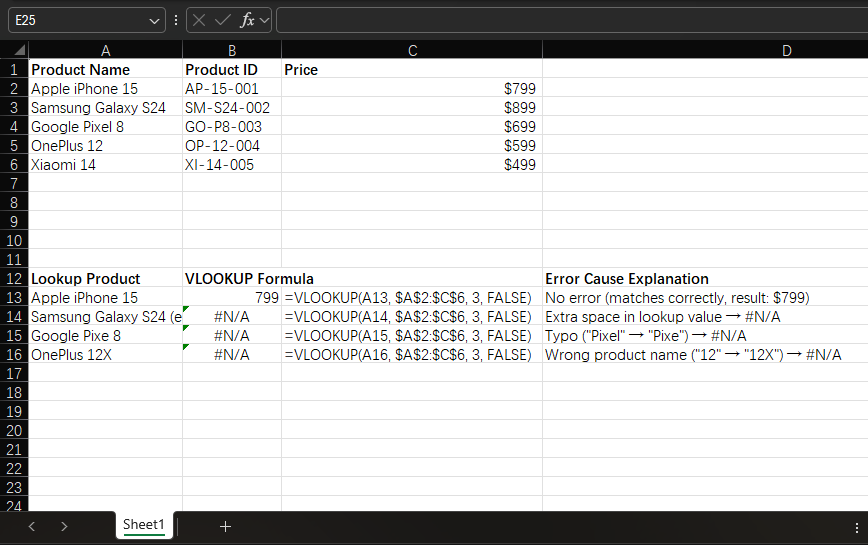
4. Problem: #N/A Error ("Not Available")
This is the most common VLOOKUP error. It means Excel can't find your lookup value in the first column of your table.
For a focused step-by-step checklist, see How to Fix VLOOKUP #N/A in Excel.
Possible Causes and Fixes
Typos or extra spaces
- Check for: Misspellings, extra spaces, or different capitalization (e.g., "apple" vs "Apple")
- Fix: Use the TRIM function to remove extra spaces:
=VLOOKUP(TRIM(A2), table_array, 2, FALSE) - Or clean your data first with Data > Text to Columns > Finish. For stubborn leading, trailing, or non-breaking spaces, use Remove Leading and Trailing Spaces in Excel.
Lookup value isn't in the first column
- VLOOKUP only searches the first column of your table_array
- Fix: Rearrange your columns so the lookup column is first, or use INDEX+MATCH instead
Numbers stored as text (or vice versa)
- Check if numbers look left-aligned (text) vs right-aligned (numbers)
- Fix: Convert text to numbers with:
- Select column > Data > Text to Columns > Finish
- Or use VALUE function:
=VLOOKUP(VALUE(A2), table_array, 2, FALSE)
- For a focused cleanup workflow, see Excel numbers stored as text.
5. Problem: Incorrect Result (But No Error)
Sometimes VLOOKUP returns a value, but it's the wrong one. This is often more dangerous than an error because you might not notice it.
Common Causes
Accidental approximate match
- Forgetting to add
FALSEas the last argument makes VLOOKUP return approximate matches - Fix: Always include
FALSEfor exact matches:=VLOOKUP(A2, B2:D100, 3, FALSE) - Avoid leaving the fourth argument blank unless you specifically want an approximate match.
- Forgetting to add
Duplicate values in the first column
- VLOOKUP returns the first occurrence of a value it finds
- Fix: Remove duplicates first (see our guide on removing duplicates), use
VLOOKUP with multiple criteria,
or use
INDEX+MATCHwithCOUNTIFto find all matches
Wrong column index number
- col_index_num counts from the first column of your table_array, not the worksheet
- Example: If your table is B2:D100, column 1 = B, column 2 = C, column 3 = D
- Fix: Double-check your column count relative to your table range
6. Problem: #REF! Error ("Reference Error")
This error means Excel can't find the column you're trying to reference.
Causes and Fixes
col_index_num is larger than your table has columns
- If your table has 3 columns, using col_index_num = 4 will cause #REF!
- Fix: Reduce your column number or expand your table_array to include more columns
Table_array was deleted or moved
- If you delete columns/rows in your table range, VLOOKUP loses its reference
- Fix: Convert your range to a named table (Ctrl+T) so references update automatically
7. Problem: #VALUE! Error
This usually happens when one of your arguments is the wrong data type.
Common Fixes
col_index_num is not a number
- Make sure you're using a number (e.g., 2) instead of text (e.g., "2" or "Column B")
- Fix: Replace any text with a numeric value
table_array is not a valid range
- Ensure your table range is entered correctly (e.g., A1:C100, not "A1-C100")
- Fix: Click and drag to select your range instead of typing it manually
8. Problem: VLOOKUP Stops Working When You Add New Data
If your formula doesn't include new rows you add to your table:
- Fix 1: Use a dynamic named range that expands automatically
- Fix 2: Convert your data to an Excel Table (Ctrl+T) and use the table name in
your formula:
=VLOOKUP(A2, Table1, 2, FALSE)
Excel Tables are usually the safer fix because the table expands when new rows are added.
9. Better Than VLOOKUP: Try XLOOKUP (Excel 365/2021)
If you have Excel 365 or 2021, XLOOKUP avoids most VLOOKUP problems:
- Can search in any column (not just the first)
- Doesn't return errors for missing values if you specify a default
- Easier to read syntax
Example XLOOKUP formula:
=XLOOKUP(A2, B2:B100, D2:D100, "Not Found")If you are deciding between lookup formulas, see VLOOKUP vs XLOOKUP vs INDEX MATCH.
For a step-by-step modern replacement, use the
Excel XLOOKUP tutorial. If the formula still
returns #N/A, #REF!, or #VALUE!, review the broader
Excel formula errors guide. If XLOOKUP itself is
failing, use XLOOKUP troubleshooting.
10. Quick Troubleshooting Checklist
When VLOOKUP fails, run through this list:
- Is the lookup value in the first column of your table?
- Did you include
FALSEfor exact matches? - Are there typos or extra spaces in your data?
- Is
col_index_numsmaller than or equal to the number of columns in your table? - Are numbers stored as numbers, not text?
- Does your table array include the return column?
- Does your table range include newly added rows?
11. FAQ
Why is my VLOOKUP not working even with exact match?
The most common causes are extra spaces, numbers stored as text, or a lookup
value that is not in the first column of the table array. Try TRIM, compare
the data types on both sides, and confirm that the table array starts with the
lookup column.
Why does VLOOKUP return the wrong value?
The fourth argument may be missing. If you leave it blank, VLOOKUP uses
approximate match, which can return a nearby value instead of an exact one. Use
FALSE for IDs, names, invoice numbers, and most business data.
Why is VLOOKUP not returning the right data?
VLOOKUP may be searching the wrong column, returning the wrong column index, or
using approximate match. Confirm that the lookup column is the first column in
the table array, recount col_index_num, and end the formula with FALSE.
Why is VLOOKUP not working even though values match?
The values may only look the same. One side might have extra spaces, hidden characters, or numbers stored as text. Clean both lookup columns, then test the match again with exact match enabled.
Why does VLOOKUP stop working when I add rows?
The formula may point to a fixed range that does not include the new rows.
Convert the source data to an Excel Table with Ctrl+T, then use the table name
in your VLOOKUP formula.
Related Guides
- Clean hidden spaces and text-number mismatches with Excel Data Cleaning.
- Use Remove Leading and Trailing Spaces in Excel when lookup values look identical but have hidden spaces.
- Decide whether a lookup should become a dynamic row report with Excel FILTER vs VLOOKUP.
- Compare modern lookup options in VLOOKUP vs XLOOKUP vs INDEX MATCH.
- Use Excel Dynamic Array Formulas when the task should return filtered rows instead of one lookup value.
- Fix exact-match failures with How to Fix VLOOKUP #N/A in Excel.
- Convert mismatched numeric keys with Excel numbers stored as text.
Need help fixing a formula?
Share the formula, a small sample table, and the result you expected. This free beta helps us learn which Excel problems readers actually need solved.
Ask for formula help