
VLOOKUP vs XLOOKUP vs INDEX MATCH: Which Is Best?
Formula not working?
Share a small sample and the result you expected.
Excel gives you several ways to look up a value and return matching data. VLOOKUP is familiar, XLOOKUP is cleaner, and INDEX MATCH is still useful when you need compatibility or more control.
Quick answer: use XLOOKUP for new workbooks in Excel 365 or Excel 2021 and newer. Use VLOOKUP for simple legacy workbooks. Use INDEX MATCH when you need flexible formulas that still work in older Excel versions.
The real question is not "which formula is best forever?" The better question is: which lookup formula is best for this workbook, this audience, and this type of data?
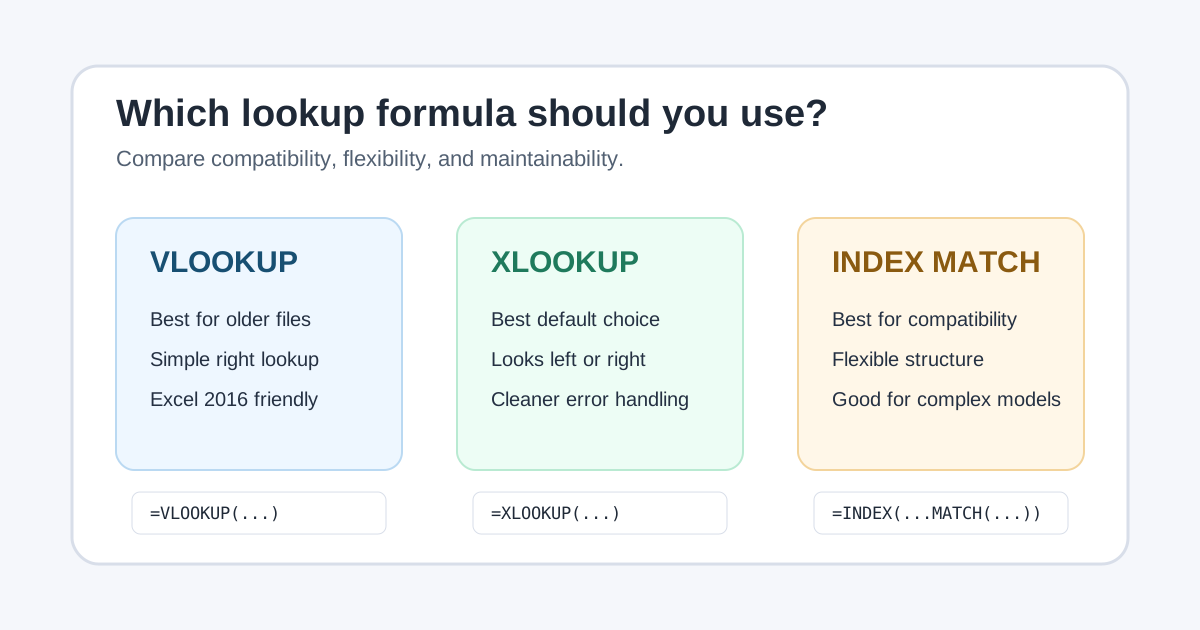
1. Quick Decision Table
Use this table when you just need a recommendation:
| Situation | Best choice | Why |
|---|---|---|
| You are building a new workbook in Excel 365 or Excel 2021+ | XLOOKUP | Cleaner syntax, exact match by default, and easier error handling |
| You must support Excel 2016 or Excel 2019 users | VLOOKUP or INDEX MATCH | XLOOKUP is not available in those versions |
| You need to look up a value and return data from the left | XLOOKUP or INDEX MATCH | VLOOKUP only searches the first column of its table array |
| You need a simple lookup in an old worksheet | VLOOKUP | It is widely understood and easy to maintain in legacy files |
| You need a flexible model that works across many Excel versions | INDEX MATCH | It separates the return range from the match logic |
| You need a friendly "not found" message | XLOOKUP | It has a built-in [if_not_found] argument |
| You care about speed in a large workbook | Usually any of the three can work | Range size, exact match, and workbook design matter more than the function name |
| You inherited a workbook that already works | Usually keep the existing formula | Rewriting working formulas can create new risk |
For most new workbooks, start with XLOOKUP. Use VLOOKUP for simple legacy workbooks. Use INDEX MATCH when compatibility or model structure matters more than formula readability.
2. Example Data Used in This Guide
The examples below use this product table:
| Product ID | Product | Category | Price | Supplier |
|---|---|---|---|---|
| P-101 | Keyboard | Hardware | 45 | Northwind |
| P-205 | Monitor | Hardware | 210 | Contoso |
| P-318 | Desk Lamp | Office | 38 | Fabrikam |
| P-427 | Notebook | Stationery | 6 | Northwind |
| P-512 | Webcam | Hardware | 84 | Contoso |
Assume cell H2 contains the product ID you want to find.
3. VLOOKUP: Best for Simple Legacy Lookups
VLOOKUP searches the first column of a table array and returns a value from a column to the right.
To return the price for the product ID in H2:
=VLOOKUP(H2, A2:E6, 4, FALSE)The arguments are:
| Argument | Example | Meaning |
|---|---|---|
lookup_value |
H2 |
The product ID to find |
table_array |
A2:E6 |
The table where Excel should search |
col_index_num |
4 |
Return the 4th column from the table array |
[range_lookup] |
FALSE |
Use exact match |
VLOOKUP is still useful when:
- The workbook must be opened by people on older Excel versions
- The lookup column is already the first column
- The return value is to the right of the lookup column
- Your team already understands VLOOKUP well
The biggest weakness is that the return column is a number. If someone inserts
or removes columns, 4 may no longer mean "Price." That is why VLOOKUP formulas
can become fragile in changing workbooks.
If VLOOKUP is failing in an existing file, start with the VLOOKUP troubleshooting guide. If the source table is on another worksheet, use VLOOKUP across sheets for the exact sheet reference syntax before deciding whether to modernize the formula.
4. XLOOKUP: Best Default for Modern Excel
XLOOKUP separates the lookup range and return range, so you do not count columns.
To return the price for the product ID in H2:
=XLOOKUP(H2, A2:A6, D2:D6, "Not found")The arguments are:
| Argument | Example | Meaning |
|---|---|---|
lookup_value |
H2 |
The product ID to find |
lookup_array |
A2:A6 |
The range to search |
return_array |
D2:D6 |
The range to return from |
[if_not_found] |
"Not found" |
A friendly result when there is no match |
XLOOKUP is usually the best option when:
- You are using Excel 365, Excel 2021, or newer
- You want exact match without remembering
FALSE - You want to look left or right
- You want a built-in not-found result
- You want formulas that are easier to read later
The main limitation is compatibility. Microsoft's official XLOOKUP documentation notes that XLOOKUP is not available in Excel 2016 or Excel 2019.
For a deeper walkthrough, see the Excel XLOOKUP tutorial.
5. INDEX MATCH: Best for Compatibility and Flexible Models
INDEX MATCH combines two functions:
MATCHfinds the position of the lookup valueINDEXreturns the value at that same position from another range
To return the price for the product ID in H2:
=INDEX(D2:D6, MATCH(H2, A2:A6, 0))Read it from the inside out:
| Formula part | What it does |
|---|---|
MATCH(H2, A2:A6, 0) |
Finds the exact position of the product ID |
INDEX(D2:D6, ...) |
Returns the price from the same position |
INDEX MATCH is useful when:
- You need compatibility with older Excel versions
- You want to avoid VLOOKUP column index numbers
- You are building a workbook with many lookup formulas
- You need to look left but cannot use XLOOKUP
- You want formulas that are easier to restructure than VLOOKUP
It is less beginner-friendly than XLOOKUP, but it remains a strong choice in workbooks that must support older Excel versions.
Microsoft documents the pieces separately: the INDEX function returns a value from a table or range, while the MATCH function returns a value's relative position.
6. Syntax Comparison
Here are the same lookup written three ways:
| Formula type | Formula |
|---|---|
| VLOOKUP | =VLOOKUP(H2, A2:E6, 4, FALSE) |
| XLOOKUP | =XLOOKUP(H2, A2:A6, D2:D6, "Not found") |
| INDEX MATCH | =INDEX(D2:D6, MATCH(H2, A2:A6, 0)) |
The differences matter:
| Feature | VLOOKUP | XLOOKUP | INDEX MATCH |
|---|---|---|---|
| Exact match by default | No | Yes | No, but 0 makes it exact |
| Can look left | No | Yes | Yes |
| Needs column number | Yes | No | No |
| Built-in not-found result | No | Yes | No |
| Works in Excel 2016/2019 | Yes | No | Yes |
| Easiest for beginners | Medium | High | Medium-low |
VLOOKUP is easy to recognize, but its column number is fragile. XLOOKUP is the cleanest modern option. INDEX MATCH is more verbose, but it is flexible and widely compatible.
7. Left Lookup Comparison
Left lookup means the value you want to return is to the left of the lookup column.
Suppose H2 contains a product name, and you want the product ID from the left.
With XLOOKUP:
=XLOOKUP(H2, B2:B6, A2:A6, "Not found")With INDEX MATCH:
=INDEX(A2:A6, MATCH(H2, B2:B6, 0))With VLOOKUP, this is not possible unless you rearrange the table or build a helper table where the lookup column comes first.
8. Multiple Criteria Lookup
Sometimes one lookup value is not enough. For example, product ID plus supplier may be needed to identify the correct row.
With XLOOKUP:
=XLOOKUP(1, (A2:A6=H2)*(E2:E6=I2), D2:D6, "Not found")With INDEX MATCH:
=INDEX(D2:D6, MATCH(1, (A2:A6=H2)*(E2:E6=I2), 0))These formulas create two TRUE/FALSE tests, multiply them together, and find the row where both conditions are true.
VLOOKUP can also handle multiple criteria, but it usually needs a helper column that joins values together, such as product ID plus supplier. For the full helper-column workflow, see VLOOKUP with Multiple Criteria in Excel.
9. XLOOKUP vs INDEX MATCH Speed
People often ask whether XLOOKUP is faster than INDEX MATCH. In normal worksheets, the difference is usually less important than the way the formula is built.
Use this practical rule:
| Situation | What matters most |
|---|---|
| Small lookup tables | Choose the formula people can read and maintain |
| Large workbooks | Avoid full-column references such as A:A when possible |
| Repeated lookups across many rows | Use fixed ranges or Excel Tables consistently |
| Multiple criteria formulas | Test calculation time in the actual workbook |
| Shared files with older Excel users | INDEX MATCH or VLOOKUP may be safer than XLOOKUP |
For most teams, XLOOKUP is easier to audit because the lookup range and return range are explicit. INDEX MATCH can still be a strong choice when compatibility matters or when a workbook already uses it consistently.
10. Performance and Maintainability Notes
For small and medium worksheets, performance differences usually do not matter. The bigger issue is maintainability: can someone understand and safely update the formula later?
Use these rules:
| Rule | Why it matters |
|---|---|
| Avoid full-column lookup ranges in large workbooks | They can slow calculation |
| Use Excel Tables when possible | Ranges expand automatically as data grows |
| Prefer exact match for IDs and names | Approximate match can return surprising results |
| Keep lookup and return ranges the same size | Mismatched ranges cause errors |
| Use absolute references when copying formulas | Prevents ranges from shifting |
Example with fixed ranges:
=XLOOKUP(H2, $A$2:$A$100, $D$2:$D$100, "Not found")If you are still getting errors, the Excel formula errors guide can help you identify whether the issue is missing data, wrong references, or incompatible argument sizes. If the specific symptom is a missing lookup result, start with How to Fix VLOOKUP #N/A in Excel.
11. Compatibility Guide
The best formula depends partly on who will open the file.
| Excel version or environment | Recommended lookup |
|---|---|
| Excel 365 | XLOOKUP |
| Excel 2024 | XLOOKUP |
| Excel 2021 | XLOOKUP |
| Excel 2019 | VLOOKUP or INDEX MATCH |
| Excel 2016 | VLOOKUP or INDEX MATCH |
| Shared workbook with unknown versions | VLOOKUP or INDEX MATCH |
If compatibility is uncertain, avoid XLOOKUP unless you know every user has a supported Excel version.
12. Final Recommendation
Here is the practical rule:
- Use XLOOKUP for new workbooks in modern Excel
- Use VLOOKUP for simple legacy files where the lookup column is first
- Use INDEX MATCH when you need compatibility plus flexibility
Do not rewrite every old formula just because a newer function exists. But when you are building something new, XLOOKUP is usually the clearest starting point.
The best lookup formula is the one that your workbook's users can open, understand, audit, and safely maintain.
13. Related Guides
- Choose between one-value lookups and matching-row reports with Excel FILTER vs VLOOKUP.
- Learn the modern single-value lookup pattern in the Excel XLOOKUP tutorial.
- Fix existing VLOOKUP problems with the VLOOKUP troubleshooting guide.
- Diagnose missing lookup results with How to Fix VLOOKUP #N/A in Excel.
- Build helper-key lookups with VLOOKUP with Multiple Criteria in Excel.
Need help fixing a formula?
Share the formula, a small sample table, and the result you expected. This free beta helps us learn which Excel problems readers actually need solved.
Ask for formula help