
Excel COUNT Functions: COUNT, COUNTA, COUNTIF, and COUNTIFS
Formula not working?
Share a small sample and the result you expected.
1. Quick Answer: Which COUNT Function Should You Use?
| Goal | Function | Example |
|---|---|---|
| Count cells that contain numbers | COUNT |
=COUNT(A2:A100) |
| Count cells that are not empty | COUNTA |
=COUNTA(A2:A100) |
| Count blank cells | COUNTBLANK |
=COUNTBLANK(A2:A100) |
| Count cells that meet one condition | COUNTIF |
=COUNTIF(C2:C100, ">1000") |
| Count cells that meet multiple conditions | COUNTIFS |
=COUNTIFS(D2:D100, "VIP", C2:C100, ">2000") |
If your result looks wrong, first check whether your data contains numbers stored as text, formula blanks, or criteria ranges with different sizes. Those three issues cause most COUNT, COUNTIF, and COUNTIFS mistakes.
2. Introduction
The COUNT function family is essential for data analysis in Excel. These functions allow you to count cells based on specific criteria, providing valuable insights into your data.
This tutorial will guide you through all the COUNT functions, from basic counting to advanced conditional counting, with practical examples you can apply immediately.
3. Basic COUNT Function
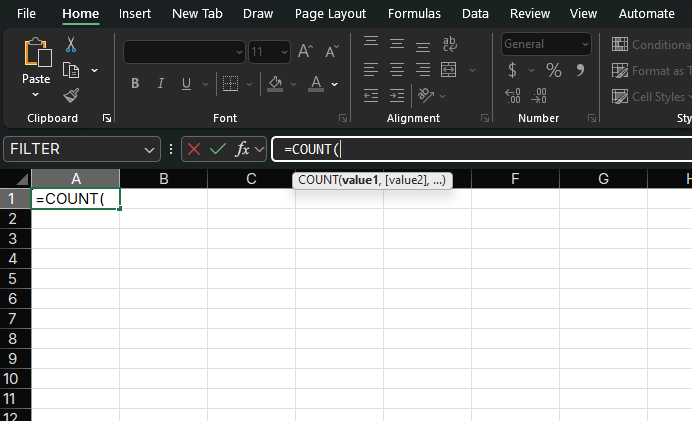
The COUNT function counts the number of cells that contain numbers.
Syntax
=COUNT(value1, [value2], ...)Arguments Explained:
- value1: The first cell range or value to count (required)
- value2, ...: Additional cell ranges or values (optional, up to 255)
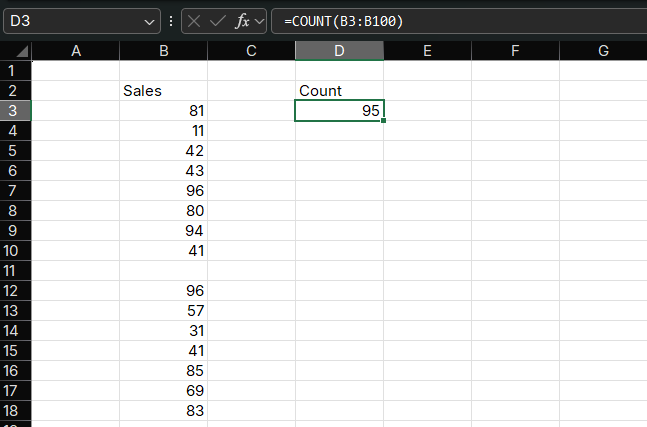
Example 1: Counting Sales Transactions
Suppose you have sales data in column A and want to count how many transactions were recorded.
Formula:
=COUNT(A2:A100)How it works:
- Counts only cells with numeric values in the range A2:A100
- Ignores text, blank cells, and errors
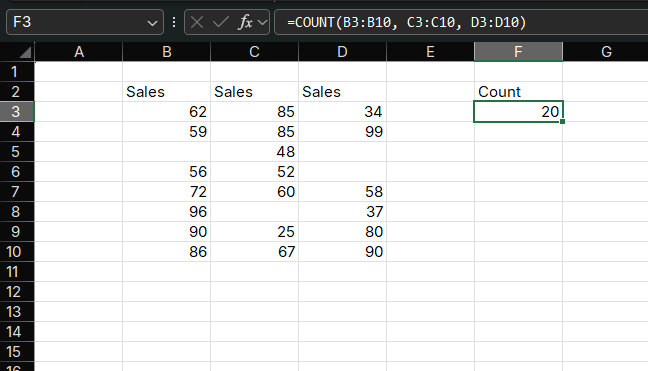
Example 2: Counting Multiple Ranges
You can count cells across multiple ranges:
Formula:
=COUNT(B2:B10, D2:D10, F2:F10)How it works:
- Counts numeric values in three separate columns
- Returns the total count across all ranges
4. COUNTA Function
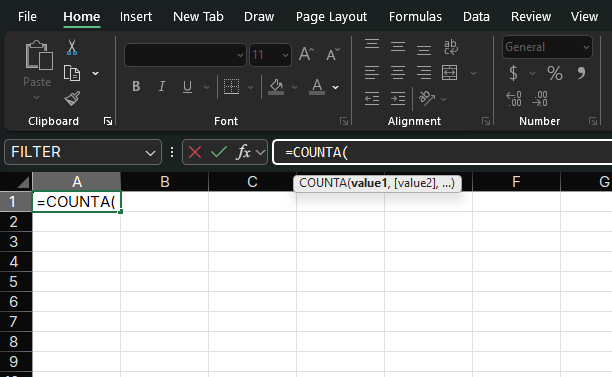
COUNTA (Count All) counts the number of non-empty cells.
Syntax
=COUNTA(value1, [value2], ...)Arguments Explained:
- value1: The first cell range or value to count (required)
- value2, ...: Additional cell ranges or values (optional)
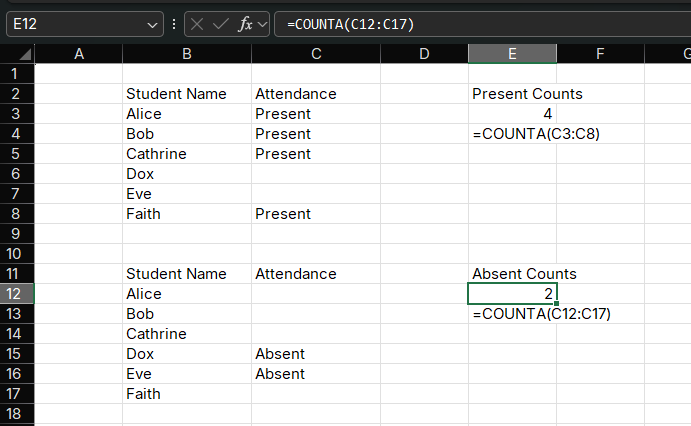
Example: Tracking Student Attendance
Suppose you have student names in column A and attendance records in column B ("Present" or "Absent").
Formula:
=COUNTA(B2:B50)How it works:
- Counts all non-empty cells in the range
- Includes cells with text, numbers, and logical values
- Ignores only completely blank cells
Key Difference: COUNT vs COUNTA
- COUNT: Counts only numeric values
- COUNTA: Counts all non-empty cells (text, numbers, logical values)
5. COUNTBLANK Function
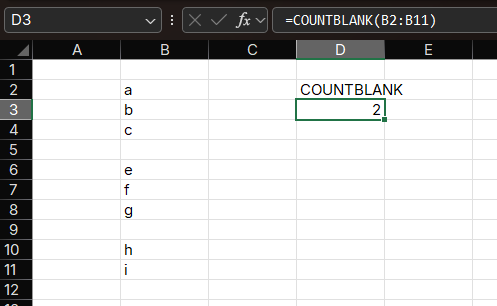
COUNTBLANK counts the number of empty cells in a range.
Syntax
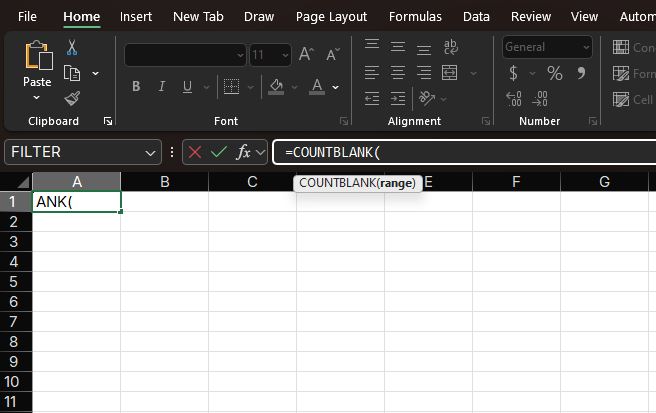
=COUNTBLANK(range)Argument Explained:
- range: The cell range to check for blank cells (required)
Example: Inventory Management
Suppose you have a list of products in column A and their stock levels in column B. You want to count how many products have no stock recorded.
Formula:
=COUNTBLANK(B2:B100)How it works:
- Counts only completely blank cells in the range
- Ignores cells with formulas that return empty strings (use
=COUNTIF(range, "=")for that)
6. COUNTIF Function
COUNTIF counts cells that meet a single condition.
Syntax
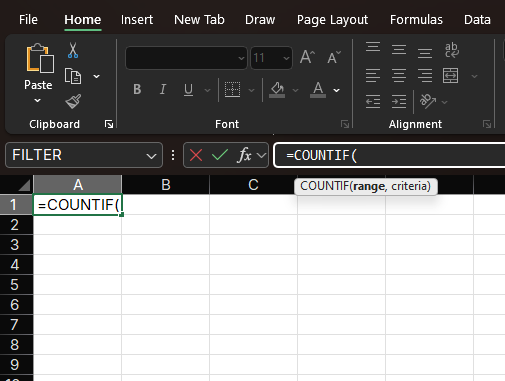
=COUNTIF(range, criteria)Arguments Explained:
- range: The cell range to evaluate (required)
- criteria: The condition to apply (required, can be a number, text, or expression)
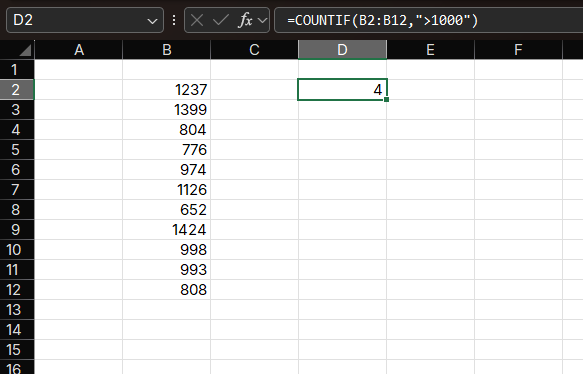
Example 1: Counting Sales Above a Threshold
Suppose you have sales data in column C and want to count how many sales are above $1,000.
Formula:
=COUNTIF(C2:C100, ">1000")How it works:
- Evaluates each cell in C2:C100
- Counts cells where the value is greater than 1000
Example 2: Counting Text Values
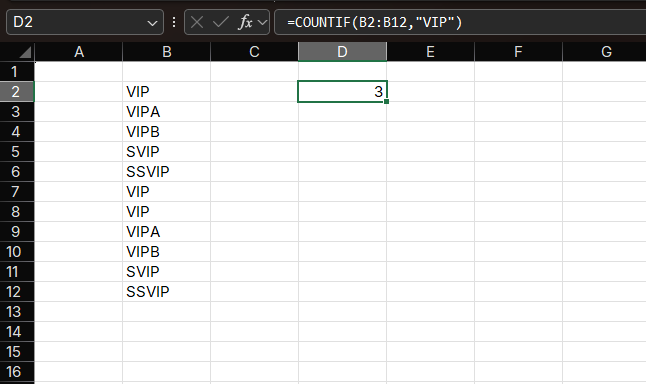
You can also count cells containing specific text:
Formula:
=COUNTIF(D2:D100, "VIP")How it works:
- Counts cells that exactly match "VIP"
- Use wildcards for partial matches, such as
"*VIP*"for any cell containing the text "VIP"
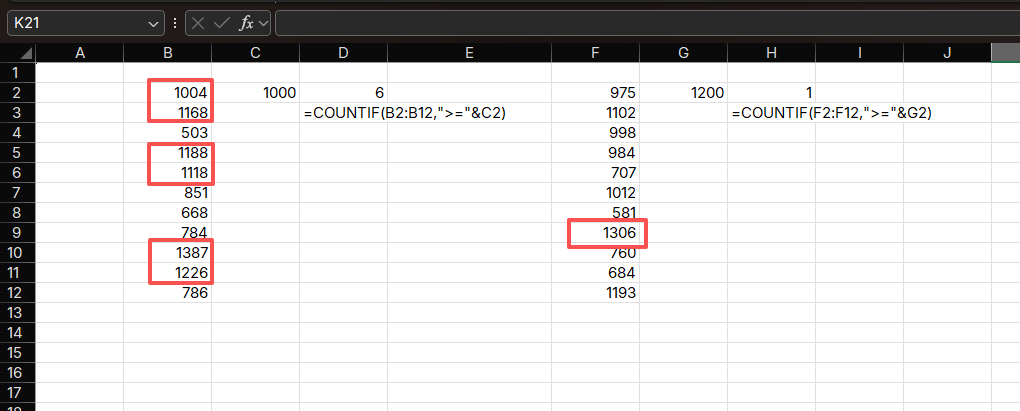
Example 3: Using Cell References as Criteria
=COUNTIF(E2:E100, ">="&F2)How it works:
- Compares each cell in E2:E100 to the value in F2
- Counts cells that are greater than or equal to F2
7. COUNTIFS Function
COUNTIFS counts cells that meet multiple conditions.
Syntax
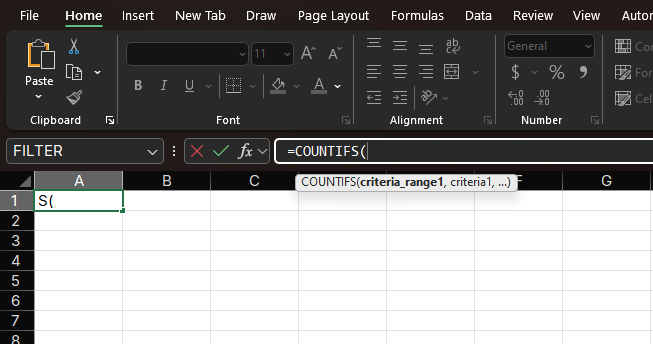
=COUNTIFS(criteria_range1, criteria1, [criteria_range2, criteria2], ...)Arguments Explained:
- criteria_range1: The first range to evaluate (required)
- criteria1: The condition for the first range (required)
- criteria_range2, criteria2, ...: Additional ranges and conditions (optional)
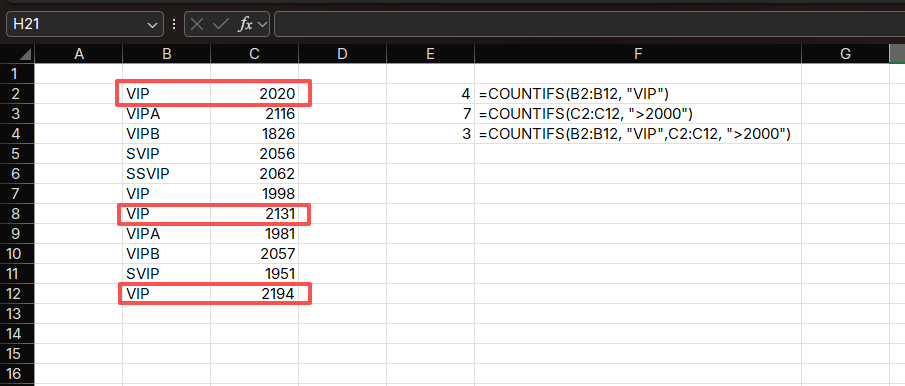
Example 1: Counting High-Value VIP Sales
Suppose you have sales data with customer types in column D and sales amounts in column C. You want to count VIP sales above $2,000.
Formula:
=COUNTIFS(D2:D100, "VIP", C2:C100, ">2000")How it works:
- Checks two conditions:
- Customer type is "VIP"
- Sales amount > $2,000
- Counts only cells that meet both conditions
Example 2: Date Range Counting
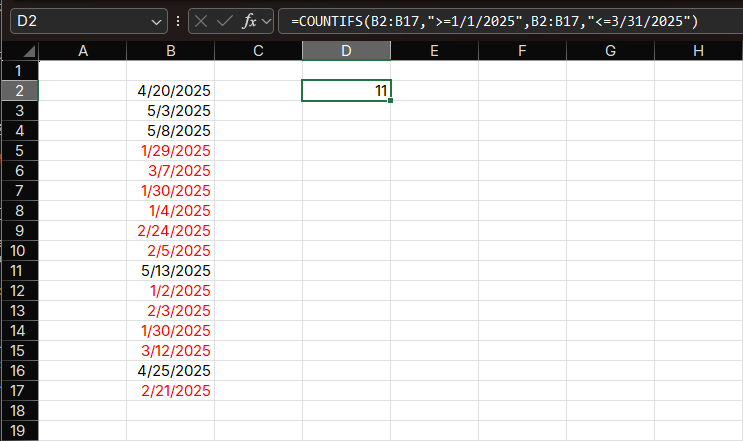
Count sales between two dates:
Formula:
=COUNTIFS(A2:A100, ">=1/1/2025", A2:A100, "<=3/31/2025")How it works:
- Counts sales transactions in Q1 2025
- Both date conditions must be met
Example 3: Multiple Text Criteria
Count products that are both "Electronics" and "In Stock":
Formula:
=COUNTIFS(B2:B100, "Electronics", E2:E100, "In Stock")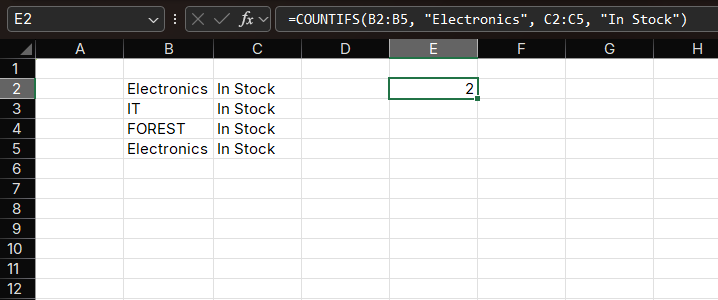
8. Practical Applications
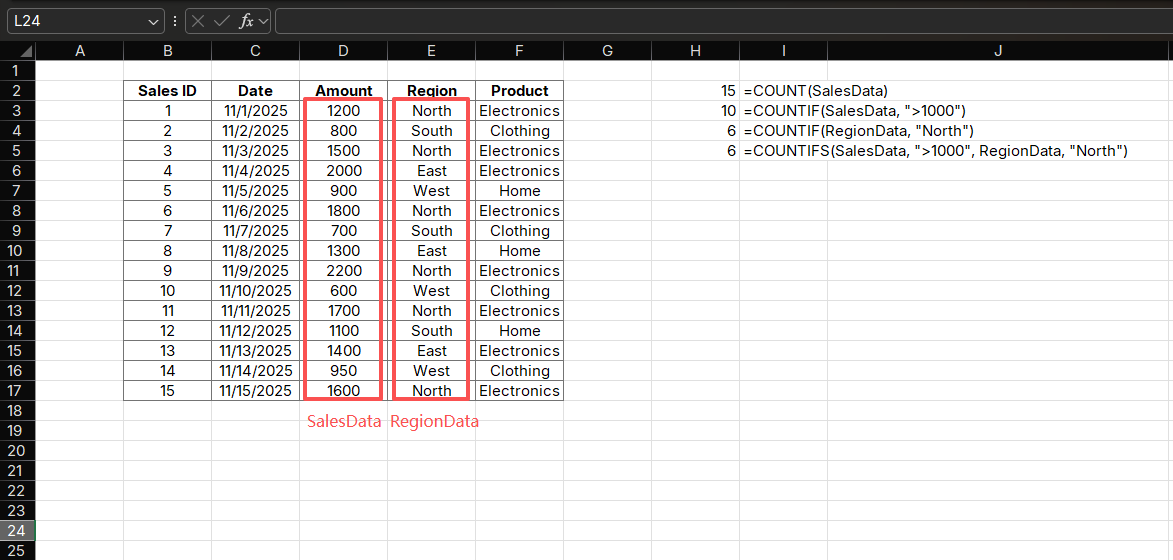
Application 1: Sales Performance Dashboard
Create a comprehensive sales dashboard using multiple COUNT functions:
Formulas:
=COUNT(SalesData)                    // Total transactions
=COUNTIF(SalesData, ">1000")         // High-value sales
=COUNTIF(RegionData, "North")        // North region sales
=COUNTIFS(SalesData, ">1000", RegionData, "North")  // High-value North sales
Purpose: Build a dashboard to track sales performance across regions
How it works:
- Combines multiple COUNT functions to create a comprehensive view
- Provides quick insights into sales distribution and performance
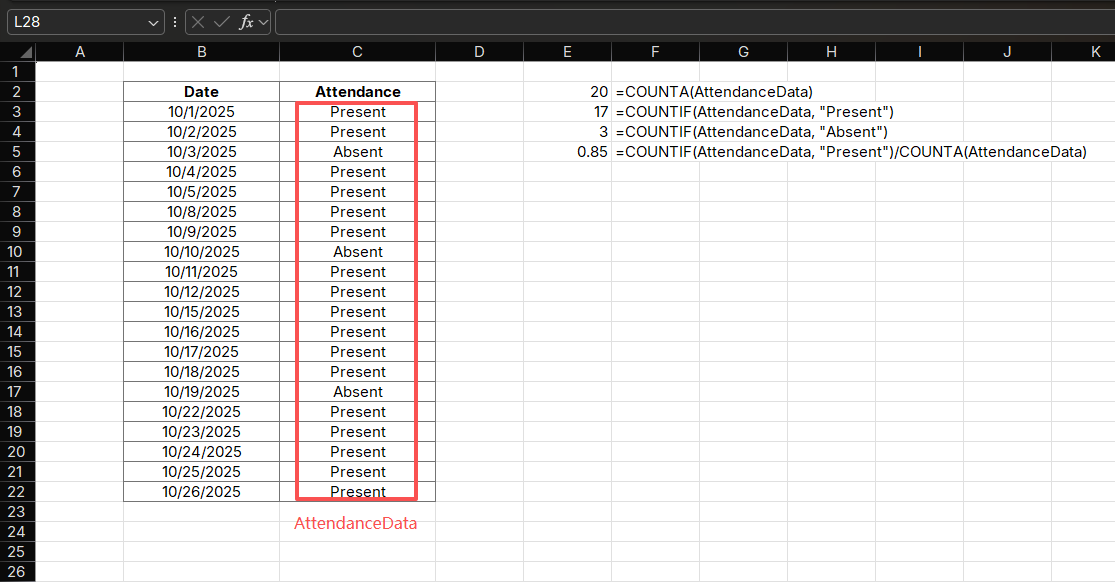
Application 2: Student Attendance Analysis
Analyze attendance patterns using a combination of COUNT functions:
Formulas:
=COUNTA(AttendanceData)              // Total classes
=COUNTIF(AttendanceData, "Present")  // Present days
=COUNTIF(AttendanceData, "Absent")   // Absent days
=COUNTIF(AttendanceData, "Present")/COUNTA(AttendanceData)  // Attendance rate
Purpose: Calculate attendance statistics for a student
How it works:
- Uses COUNTA to count total classes
- Uses COUNTIF to count present and absent days
- Calculates attendance rate by combining results
Application 3: Inventory Audit Report
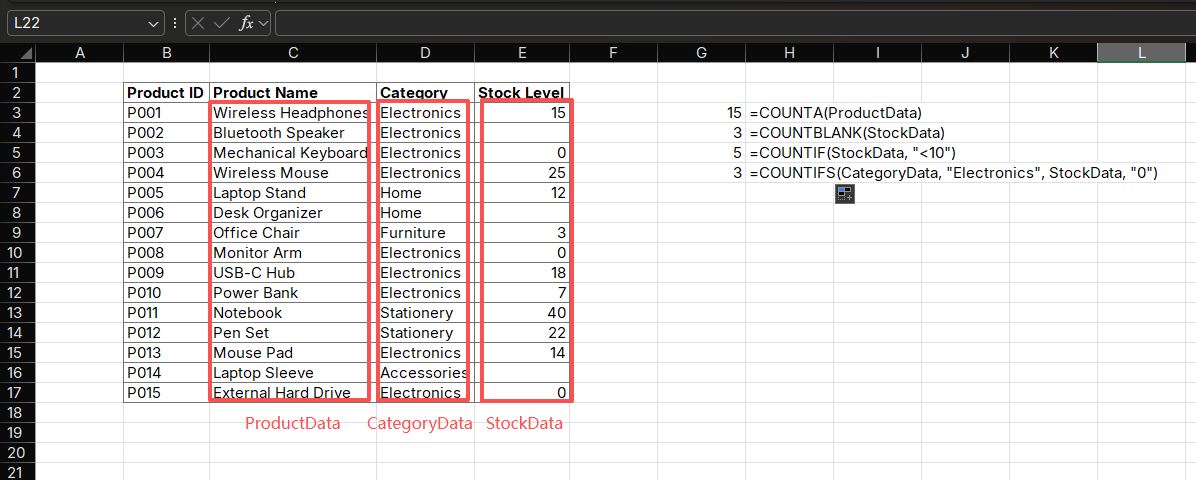
Generate an inventory audit report:
Formulas:
=COUNTA(ProductData)                  // Total products
=COUNTBLANK(StockData)               // Products with no stock
=COUNTIF(StockData, "<10")           // Low stock products (<10 units)
=COUNTIFS(CategoryData, "Electronics", StockData, "0")  // Out-of-stock electronics
Purpose: Identify inventory issues and prioritize restocking
How it works:
- Uses COUNTA to count total products
- Uses COUNTBLANK to identify missing stock data
- Uses COUNTIF and COUNTIFS to identify low and out-of-stock items
Application 4: Customer Purchase Behavior Analysis
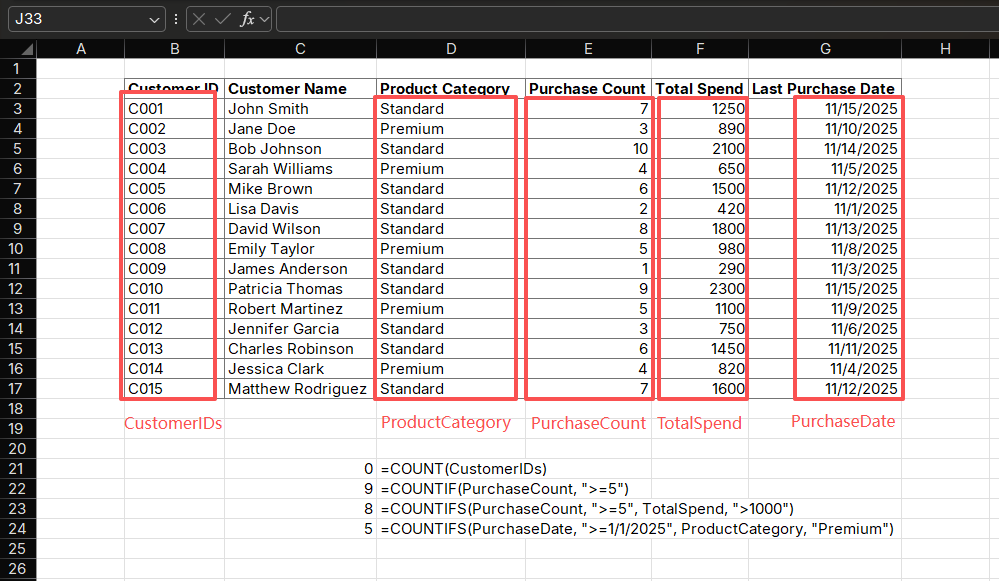
Analyze customer purchase patterns:
Formulas:
=COUNT(CustomerIDs)                  // Total customers
=COUNTIF(PurchaseCount, ">=5")       // Frequent buyers (5+ purchases)
=COUNTIFS(PurchaseCount, ">=5", TotalSpend, ">1000")  // High-value frequent buyers
=COUNTIFS(PurchaseDate, ">=1/1/2025", ProductCategory, "Premium")  // Premium purchases this year
Purpose: Segment customers based on purchase behavior
How it works:
- Uses COUNT to count total customers
- Uses COUNTIF to identify frequent buyers
- Uses COUNTIFS to create more targeted customer segments
Application 5: Project Task Status Tracking
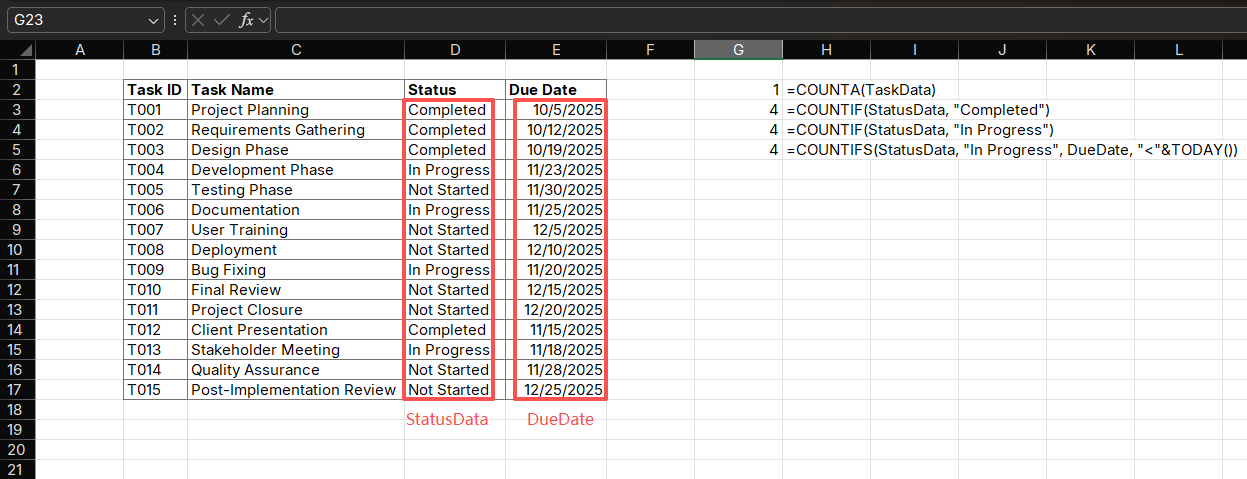
Track project tasks using COUNT functions:
Formulas:
=COUNTA(TaskData)                    // Total tasks
=COUNTIF(StatusData, "Completed")    // Completed tasks
=COUNTIF(StatusData, "In Progress")  // Tasks in progress
=COUNTIFS(StatusData, "In Progress", DueDate, "<"&TODAY())  // Overdue tasks
Purpose: Monitor project progress and identify overdue tasks
How it works:
- Uses COUNTA to count total tasks
- Uses COUNTIF to track task statuses
- Uses COUNTIFS with TODAY() function to identify overdue tasks
9. Common Errors and Troubleshooting
1. COUNT Returns 0 When Expecting a Value
Issue: Cells contain numbers formatted as text.
Fix: Convert text to numbers: Select cells > Data > Text to Columns > Finish
2. COUNTIF Not Working with Text
Issue: Missing quotation marks around text criteria.
Fix: Add quotes: =COUNTIF(A2:A10, "Text") instead of
=COUNTIF(A2:A10, Text)
3. COUNTIFS Returns Incorrect Results
Issue: Mismatched ranges (different sizes).
Fix: Ensure all criteria ranges have the same number of rows and columns.
4. COUNTBLANK Doesn't Count Formula Blanks
Issue: Cells contain formulas that return empty strings.
Fix: Use =COUNTIF(range, "=") to count formula blanks.
5. Wildcard Issues
Issue: Partial matches not working . Fix: Use correct wildcards:
*for any number of characters?for a single character~to escape wildcards (e.g.,~*to find actual asterisks)
10. Summary
The COUNT function family provides powerful tools for data analysis:
- COUNT: Counts numeric values
- COUNTA: Counts non-empty cells
- COUNTBLANK: Counts empty cells
- COUNTIF: Counts with single conditions
- COUNTIFS: Counts with multiple conditions
By mastering these functions, you can:
- Analyze sales performance
- Track attendance and participation
- Manage inventory levels
- Segment customers
- Generate valuable business insights
Start using these functions today to unlock the full potential of your Excel data analysis!
Related Guides
- Use COUNTIF vs COUNTIFS in Excel when you need to decide between one-condition and multi-condition counting formulas.
- Use How to Compare Two Columns in Excel when
COUNTIFis checking whether values exist in another list. - Use How to Find Duplicates in Excel when
COUNTIForCOUNTIFSneeds to flag repeated records. - Use Excel FILTER Function Tutorial when you need to count only extracted matching rows.
- Compare counts with averages in Excel AVERAGE Function.
- Add up matching records with Excel SUMIF and SUMIFS when counting is not enough.
- Review Excel SUM function for the simplest way to total the numeric records you counted.
- Summarize counted records visually with Excel Pivot Tables for Beginners.
Need help fixing a formula?
Share the formula, a small sample table, and the result you expected. This free beta helps us learn which Excel problems readers actually need solved.
Ask for formula help