
How to Use Autofill Options in Excel Efficiently
Excel Autofill is more than the small square at the corner of a cell. The fill handle can extend dates, copy formulas, repeat business lists, keep references locked, and split text patterns with Flash Fill.
Use this guide when you need to fill a report quickly without typing the same pattern over and over.
The fastest workflow is: enter the first value or formula, drag or double-click the fill handle, then use the Autofill Options button to choose whether Excel should copy cells, fill a series, fill dates, fill without formatting, or copy formatting only. If you want that menu before Excel commits the result, right-click and drag the fill handle instead of left-click dragging.
Quick reference:
| Goal | Best Autofill option |
|---|---|
| Repeat the same value | Copy Cells |
| Continue dates, weekdays, months, or quarters | Fill Series or Fill Dates |
| Apply one formula down a long table | Double-click the fill handle |
| Keep a tax rate, target, or lookup table fixed | Lock references before filling |
| Split or combine text by pattern | Flash Fill |
1. Start with the Fill Handle
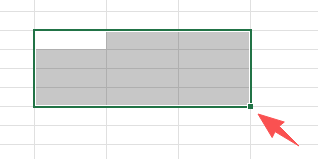
Autofill uses the fill handle, the small square in the bottom-right corner of the selected cell or range.
- Type a starting value.
- Select the cell.
- Move your cursor to the bottom-right corner.
- Drag the fill handle down, up, left, or right.
Try this sample data:
| Cell | Value |
|---|---|
| A1 | Date |
| A2 | 1/1/2026 |
| B1 | Status |
| B2 | Draft |
| C1 | Amount |
| C2 | 125 |
Drag A2 down and Excel creates a date series. Drag B2 down and Excel copies
the text. Drag C2 down and Excel usually copies the number unless you choose a
series option.
2. Double-Click to Fill Down a Long Column
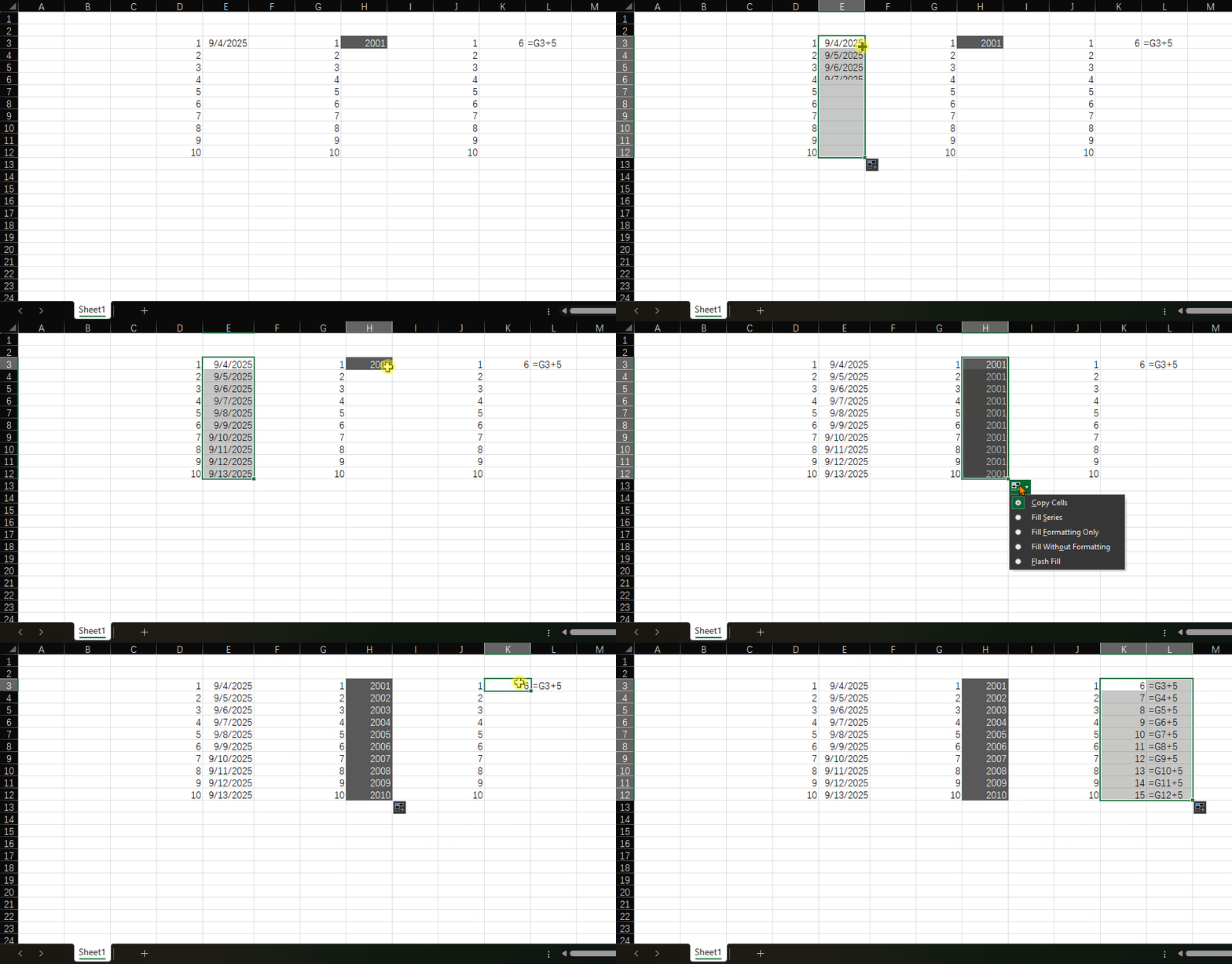
Dragging hundreds of rows is slow. If the column next to your formula already has data, double-click the fill handle instead.
- Enter your formula in the first row.
- Make sure the adjacent column has values below it.
- Double-click the fill handle.
Excel fills the formula down until the adjacent data stops.
| Best for | Example |
|---|---|
| Applying formulas | Fill =C2*D2 down an order table |
| Copying formats | Extend a report row style |
| Filling dates beside existing rows | Add invoice dates next to customer names |
If double-click stops too early, check for blank cells in the neighboring column. Excel uses that column to decide where the filled range should end. If formulas fill down but do not update, check Excel formula not calculating before rewriting the formula.
3. Use Custom Lists for Repeating Business Terms
Custom lists are useful when you repeatedly type the same sequence, such as departments, regions, project phases, or shift names.
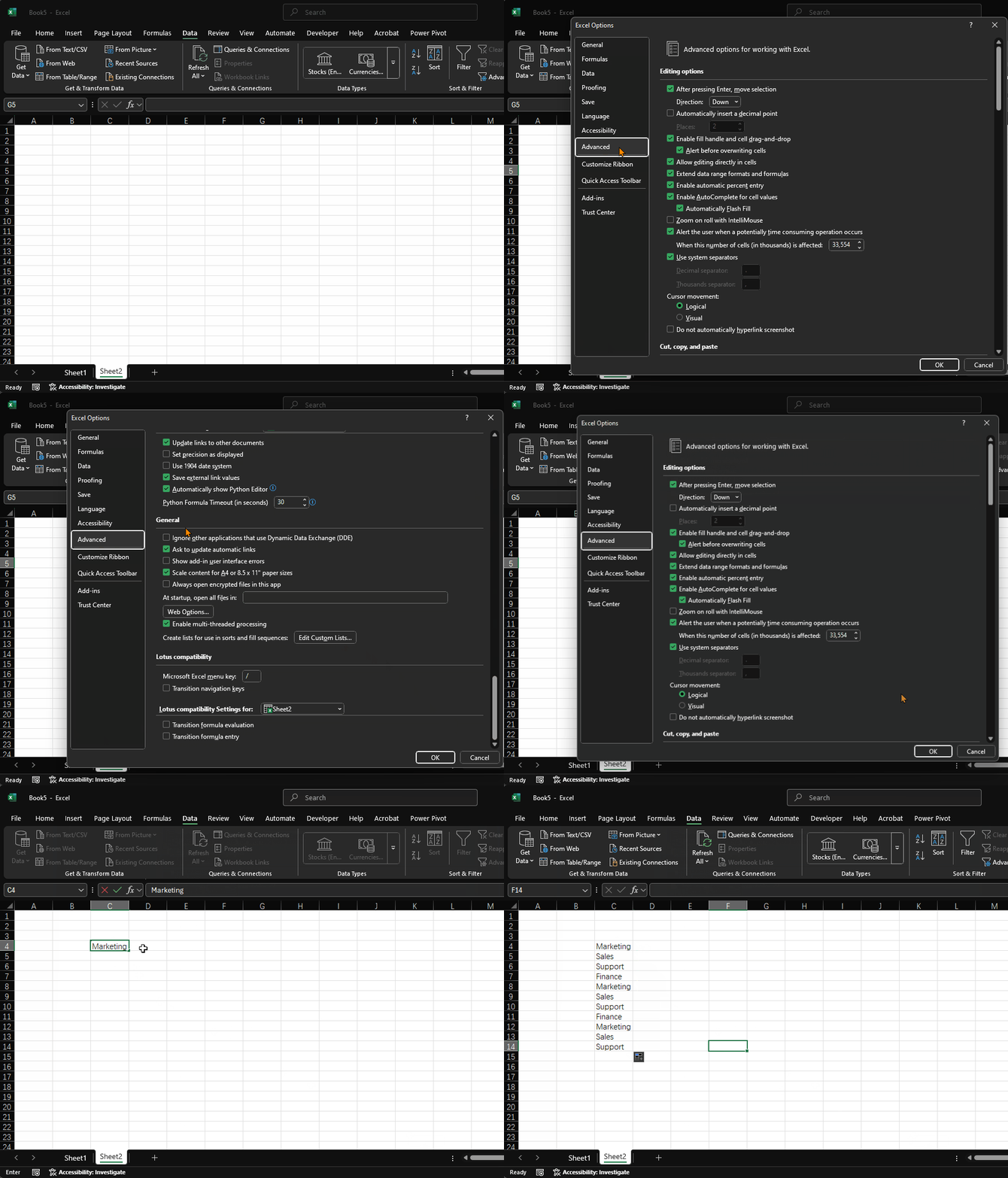
- Go to File > Options > Advanced.
- Scroll to General and choose Edit Custom Lists.
- Type one item per line, such as:
Marketing
Sales
Support
Finance- Click Add, then OK.
- Type the first item in a worksheet and drag the fill handle.
| Custom list | Autofill result |
|---|---|
| Q1, Q2, Q3, Q4 | Repeats business quarters |
| North, South, East, West | Repeats sales regions |
| Draft, Review, Approved | Repeats workflow stages |
You can also select an existing range in the worksheet and import it into the custom list dialog.
4. Lock References Before Filling Formulas
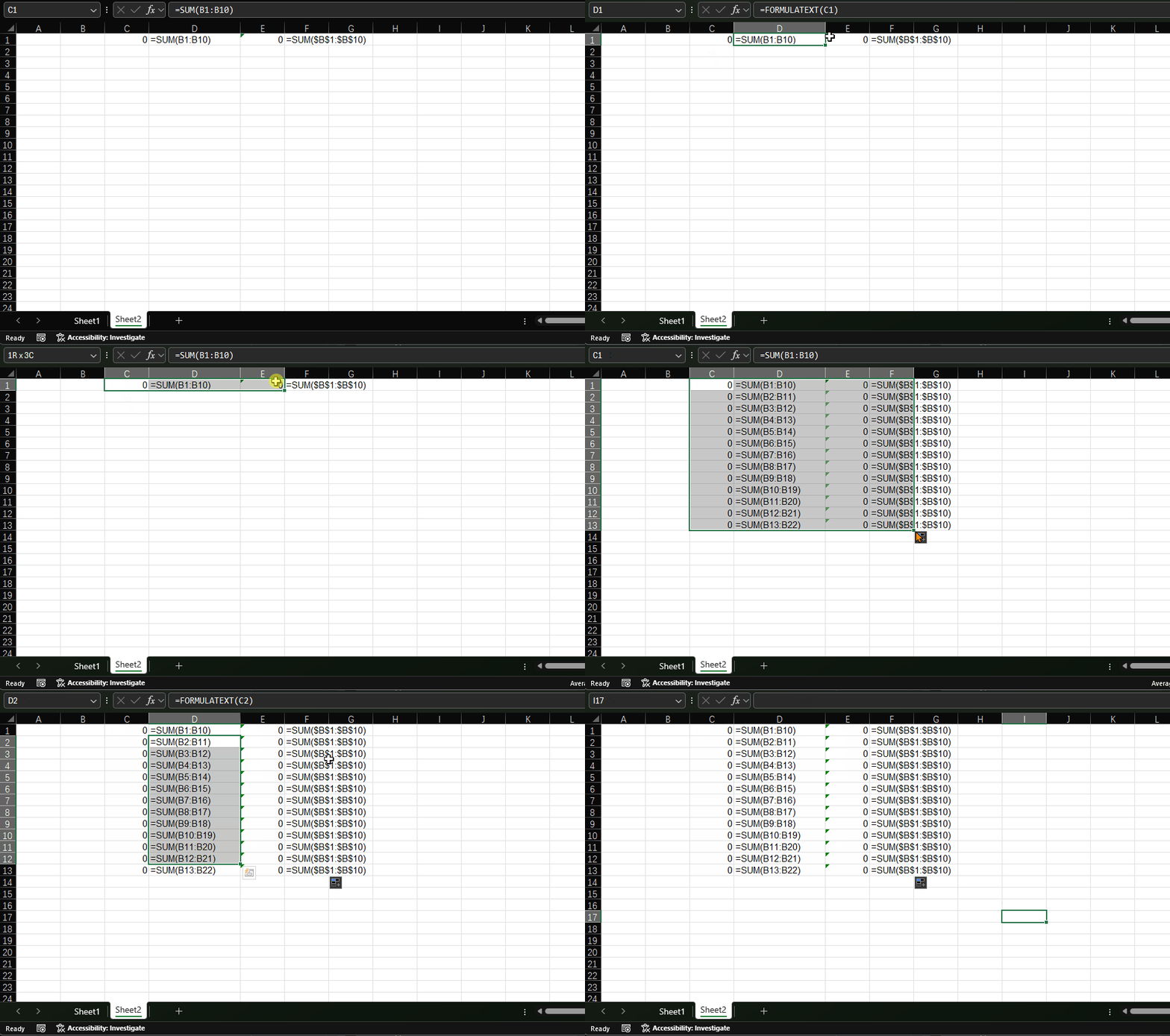
Autofill adjusts cell references by default. That is perfect for row-by-row calculations, but it can break formulas that should always point to the same tax rate, target, or lookup table.
Use dollar signs to lock the reference before filling:
=C2*$F$1In this example, C2 changes to C3, C4, and so on when filled down, but
$F$1 stays fixed.
| Reference type | Example | What changes when filled down |
|---|---|---|
| Relative | C2 |
Row and column can change |
| Absolute | $F$1 |
Nothing changes |
| Mixed column | $F1 |
Row can change |
| Mixed row | F$1 |
Column can change |
For a deeper explanation, see the guide to Excel cell references.
5. Fill Dates and Weekdays Smartly
Excel recognizes many date patterns. After you drag a date, use the Autofill options button to choose the pattern you actually want.
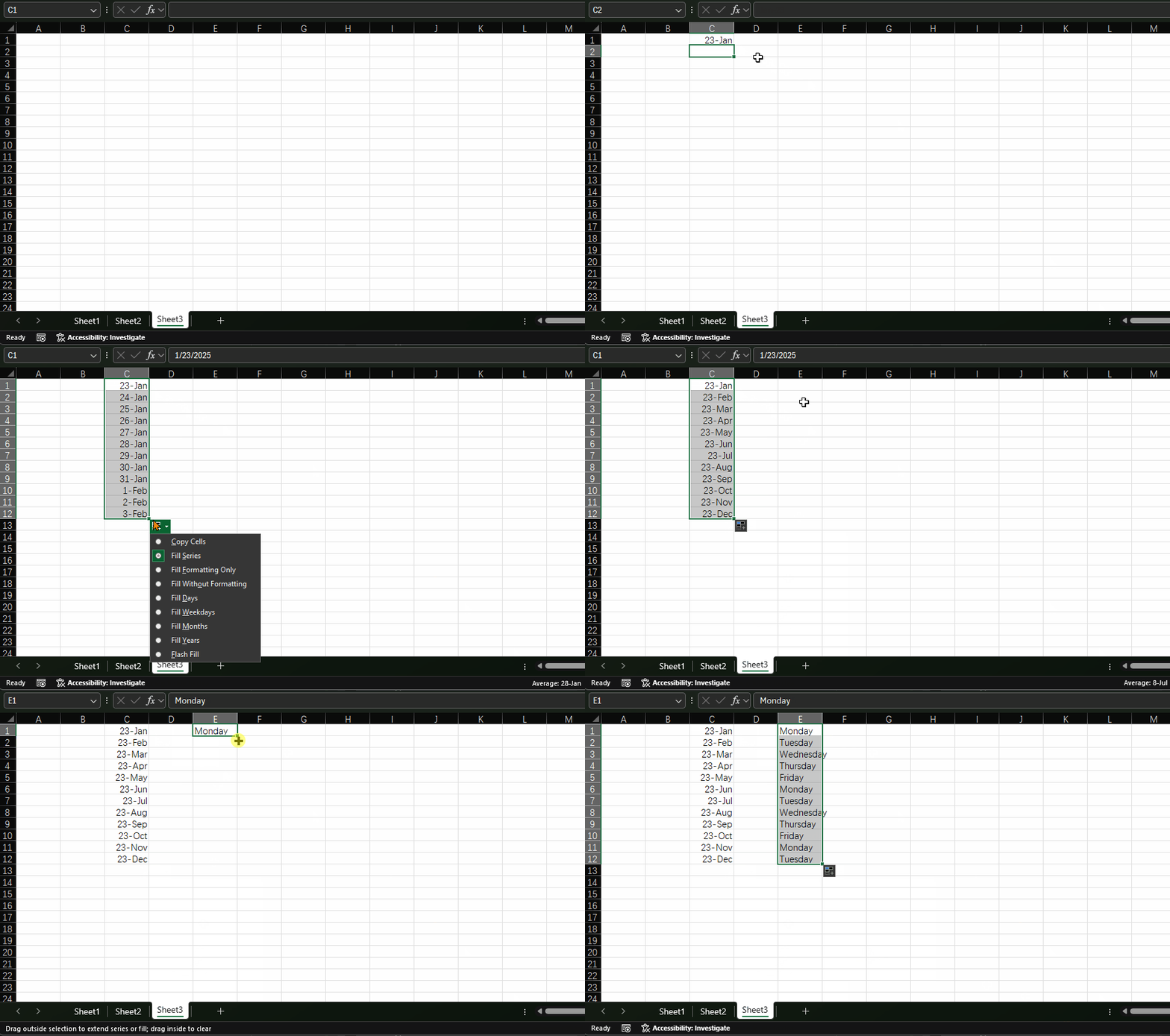
| Starting value | Option | Result |
|---|---|---|
1/1/2026 |
Fill Days | 1/2/2026, 1/3/2026 |
1/1/2026 |
Fill Weekdays | Skips weekends |
Jan-2026 |
Fill Months | Feb-2026, Mar-2026 |
Q1 2026 |
Fill Series | Q2 2026, Q3 2026 |
Right-click and drag when you want Excel to show the fill options before it commits the result.
Common Autofill options include:
| Option | Use it when |
|---|---|
| Copy Cells | You want the same value repeated |
| Fill Series | You want numbers, months, quarters, or dates to continue |
| Fill Formatting Only | You want the style without changing values |
| Fill Without Formatting | You want values or formulas without copying the source style |
6. Use Flash Fill for Text Patterns
Flash Fill is related to Autofill, but it is designed for text patterns. It can split names, extract numbers, or combine text without a formula.
- Put the original text in column A.
- Type the desired result in column B for the first row.
- Press
Ctrl+Eon Windows orCmd+Eon Mac.
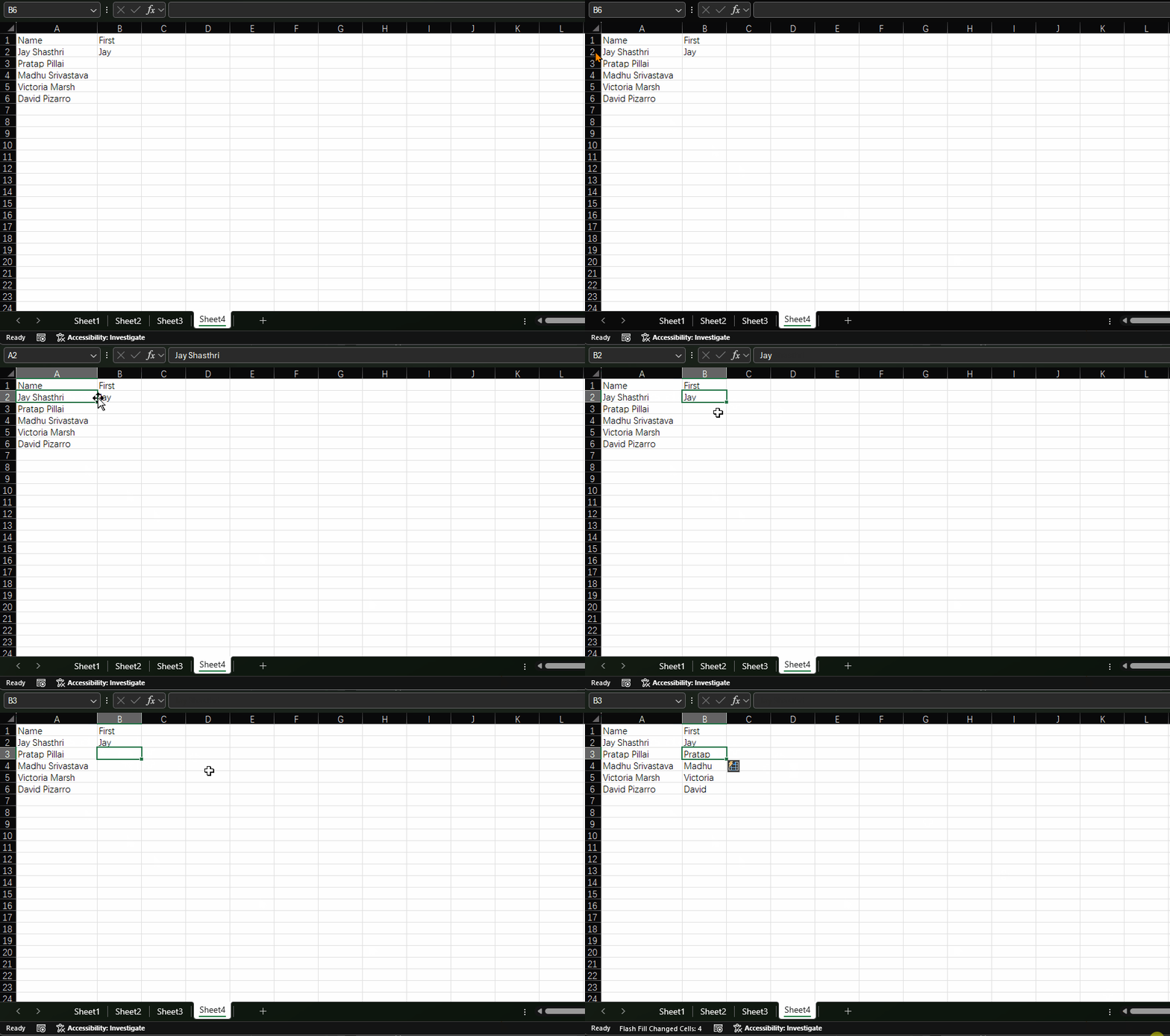
| Original text | Desired result |
|---|---|
Doe, John |
John Doe |
Order 12345 |
12345 |
jane.smith@example.com |
jane.smith |
Flash Fill is fast, but it is pattern-based. If the source data changes later, Flash Fill results do not update automatically. Use formulas when you need dynamic results. If the data was imported from a CSV, website, or system export, clean hidden spaces and inconsistent values first with Excel Data Cleaning.
7. Keyboard Shortcuts
| Shortcut | Action |
|---|---|
Ctrl+D |
Fill down |
Ctrl+R |
Fill right |
Ctrl+E |
Flash Fill |
Alt, H, F, I, S |
Open Fill Series on Windows |
Select the target range first, with the starting value in the top row or left column.
For a broader keyboard-first workflow, pair these fill commands with the Excel shortcuts for beginners guide.
8. Practice Exercise with Answers
Create this small worksheet:
| A | B | C |
|---|---|---|
| Quarter | Revenue | Report Name |
| Q1 2026 | 12500 | |
| 14200 | ||
| 15800 | ||
| 17100 |
Tasks:
- Fill
Q1 2026down to create Q2, Q3, and Q4. - In
C2, create a report name from the quarter. - Fill the formula down.
Answer:
=A2&" Revenue Report"Expected result:
| Quarter | Revenue | Report Name |
|---|---|---|
| Q1 2026 | 12500 | Q1 2026 Revenue Report |
| Q2 2026 | 14200 | Q2 2026 Revenue Report |
| Q3 2026 | 15800 | Q3 2026 Revenue Report |
| Q4 2026 | 17100 | Q4 2026 Revenue Report |
9. Summary
Use the fill handle for simple series, double-click when a neighboring column defines the range, custom lists for repeated business terms, locked references for formulas, and Flash Fill for text patterns. These small habits make routine Excel data entry much faster and less error-prone.
10. FAQ
Why is Autofill copying instead of creating a series?
Excel may not recognize the pattern, or it may be using Copy Cells. After you drag, open the Autofill Options button and choose Fill Series.
How do I use Autofill options efficiently?
Use double-click for long formula columns, right-click drag when you want the options menu first, and use Flash Fill when the pattern is text cleanup instead of a numeric or date series.
If Autofill is part of a formatting workflow, review Merge cells in Excel without losing data before combining labels or headings.
Which Autofill option should I choose?
Use Copy Cells when the value should repeat, Fill Series when numbers or dates should continue, Fill Formatting Only when you only want the style, and Fill Without Formatting when formulas or values should continue without copying the original cell's color, borders, or number format.
11. Related Guides
- Lock formulas before filling them with Excel cell references.
- Use keyboard-first fill commands with Excel shortcuts for beginners.
- Control repeated input with Excel data validation.
- Clean copied text patterns with Find and Replace in Excel.
- Combine labels safely with merge cells without losing data.
Was this guide helpful?
If something is missing or unclear, open an issue and we will improve it.
Send feedback