
Excel LET Function: Simplify Long Formulas
Formula not working?
Share a small sample and the result you expected.
If you've ever repeated the same calculation several times inside one Excel formula, the LET function is usually the cleaner fix. LET lets you define named variables inside a formula, reuse those names, and return one final result. That makes long formulas easier to read, easier to debug, and less likely to break when you edit one part later.
Use LET when the same expression appears more than once, when a formula has several logical steps, or when you want someone else to understand the formula without reverse-engineering every cell reference.
1. Quick Answer: When Should You Use LET?
| Formula problem | What LET improves | Example use |
|---|---|---|
| The same calculation is repeated | Define it once and reuse the name | Store A2*B2 as subtotal |
| A formula has several steps | Name each step in order | Discount, tax, and final price |
| A nested formula is hard to audit | Replace mystery parts with labels | score, weight, final_grade |
| You are preparing reusable logic | Make the formula easier to convert later | Pair LET with Excel LAMBDA |
2. What Is the LET Function?
At its core, the LET function solves a common Excel pain point: repeating the
same value or calculation multiple times in one formula. Instead of typing a
long, nested formula with duplicate parts (e.g., calculating A1*B1 3 times),
LET lets you:
- Define a name for a value/calculation (like a variable in coding).
- Reuse that name throughout the formula.
- Output a final result using those names.
Basic Syntax
The LET function uses a simple "name-value-result" structure:
=LET(name1, value1, [name2, value2, ...], result)name1: A short, descriptive name for your variable, such astaxRateortotal_sales. Names cannot contain spaces.value1: The value or calculation assigned toname1(e.g.,0.08for an 8% tax rate,A1+B1for total sales).result: The final calculation you want to return (uses the names you defined).
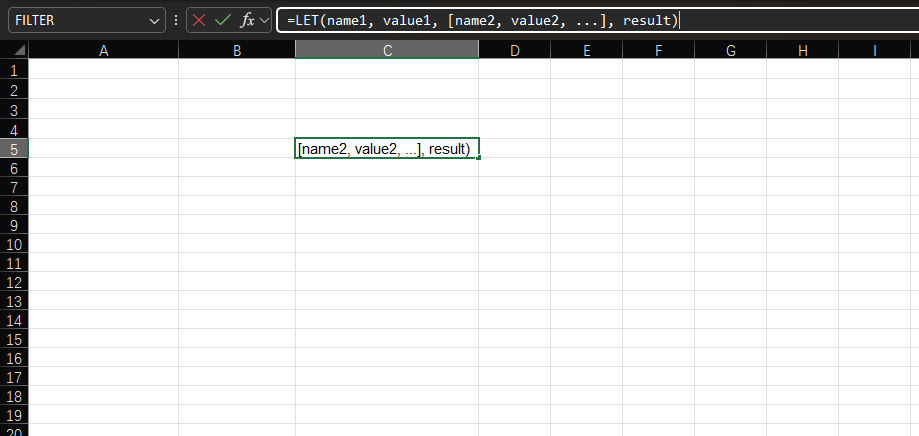
LET is available in modern Excel versions such as Microsoft 365 and Excel 2021.
If a workbook must open in older Excel versions, test compatibility first
because unsupported functions can return #NAME?.
3. Why Use LET? 3 Key Benefits
Let's start with a simple example to see why LET is better than traditional formulas:
Scenario: Calculate Total Cost (Including Tax)
Suppose you need to calculate the total cost of a product, where:
- Price per unit = Cell
A1(e.g., $50) - Quantity = Cell
B1(e.g., 4) - Tax rate = 8% (fixed for all products)
Traditional Formula (No LET)
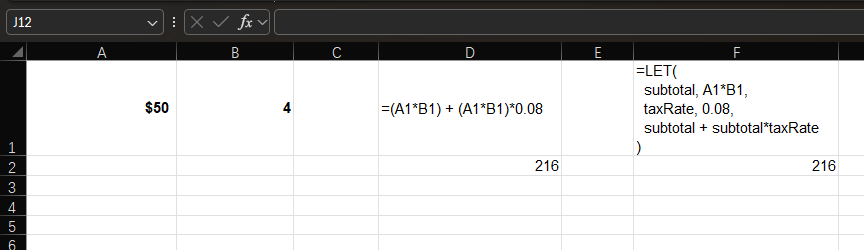
You would have to repeat A1*B1 (subtotal) twice:
=(A1*B1) + (A1*B1)*0.08If you later want to change the tax rate (e.g., to 9%), you would have to update it everywhere it appears.
LET Formula
With LET, define subtotal and taxRate once, then reuse them:
=LET(
  subtotal, A1*B1,
  taxRate, 0.08,
  subtotal + subtotal*taxRate
)- Easier to read: Anyone looking at the formula knows
subtotalmeansA1*B1. - Faster to edit: Change
taxRatefrom0.08to0.09once, and the entire formula updates. - Fewer errors: No more typos from repeating calculations (e.g.,
accidentally typing
A2*B1instead ofA1*B1).
4. Step-by-Step Examples: LET in Action
Let's walk through 3 practical examples, from simple to advanced.
Example 1: Simplify a Nested Formula (Grade Calculation)
Suppose you want to calculate a student's final grade, where:
- Homework score = Cell
C1(e.g., 85) - Exam score = Cell
D1(e.g., 92) - Homework weight = 30%, Exam weight = 70%
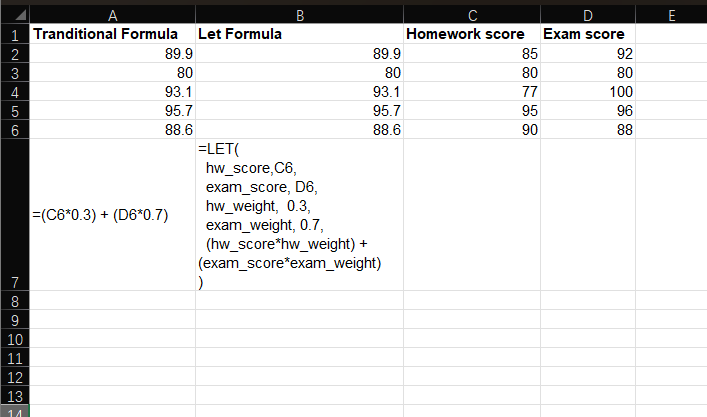
Traditional Nested Formula
=(C1*0.3) + (D1*0.7)This works, but if you have 10+ grades to calculate, it's hard to track what
0.3 and 0.7 mean.
LET Formula
Define hw_weight and exam_weight to make the formula self-documenting:
=LET(
  hw_score, C1,
  exam_score, D1,
  hw_weight, 0.3,
  exam_weight, 0.7,
  (hw_score*hw_weight) + (exam_score*exam_weight)
)
Now, even a new user will understand how grades are weighted.
Example 2: Reuse a Complex Calculation (Discount + Tax)
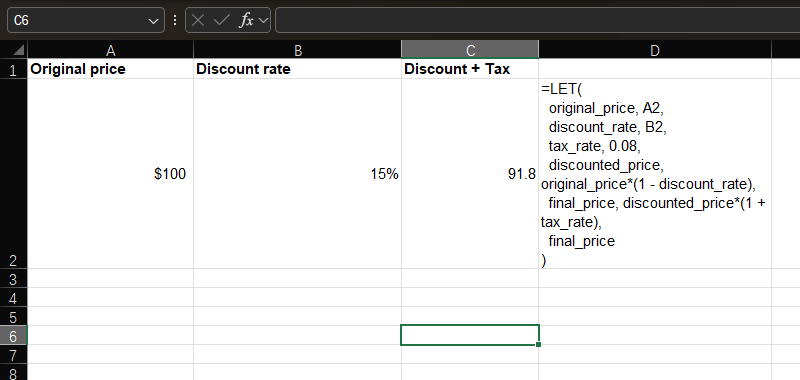
Let's add more layers: calculate final price after a discount and tax.
- Original price =
A1($100) - Discount rate =
B1(15%, entered as0.15) - Tax rate = 8% (fixed)
LET Formula
=LET(
  original_price, A1,
  discount_rate, B1,
  tax_rate, 0.08,
  discounted_price, original_price*(1 - discount_rate),
  final_price, discounted_price*(1 + tax_rate),
  final_price
)
Here, we define 5 variables. Each step builds on the last. If you want to adjust
the discount logic (e.g., original_price - (original_price*discount_rate)),
you only change discounted_price once.
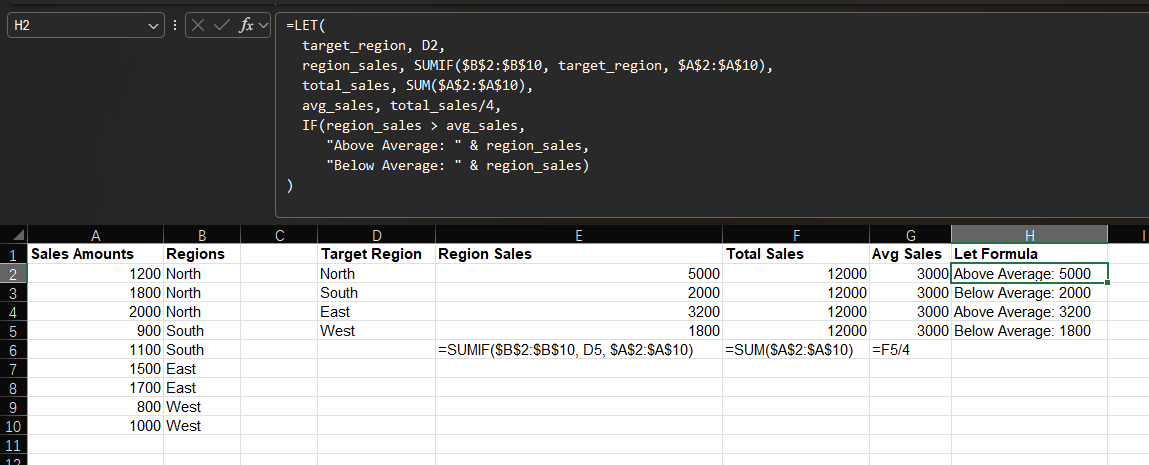
Example 3: Advanced: Combine LET with Other Functions (Data Analysis)
LET shines when paired with functions like SUM, VLOOKUP, or IF. Let's
calculate the average sales per region, then flag regions above/below average.
- Sales data: Cells
A2:A10(sales amounts),B2:B10(regions: "North", "South", "East", "West") - Target region:
C1(e.g., "North")
LET Formula
=LET(
  target_region, C1,
  region_sales, SUMIF(B2:B10, target_region, A2:A10),
  total_sales, SUM(A2:A10),
  avg_sales, total_sales/4,
  IF(region_sales > avg_sales,
     "Above Average: " & region_sales,
     "Below Average: " & region_sales)
)
Result: If North's sales are $5,000 and the average is $4,500, it returns
Above Average: 5000.
5. Common LET Errors and How to Fix Them
| Symptom | Likely cause | Fix |
|---|---|---|
#NAME? |
Excel version does not support LET, or a name is misspelled | Check the Excel version and spelling |
| "You've entered too few arguments" | A name is missing its paired value, or the final result is missing | Keep name/value pairs together and end with a result |
| Result is correct but hard to audit | The final expression is still too long | Add one more named step before the final result |
| Formula breaks after editing | A variable name was changed in one place but not another | Rename consistently inside the same LET formula |
- Invalid variable names: Don't use Excel reserved words (e.g.,
SUM,IF) or spaces. Usetax_rateinstead oftax rate. - Mismatched name-value pairs: For every
name, you need avalue. If you havename1, value1, name2, Excel will throw an error. - Forgetting the final result: The last argument in LET must be the
result(the calculation you want to output). - Using LET in older Excel versions: LET only works in Excel 365 and
Excel 2021. If you share files with someone on Excel 2019 or earlier, they'll
see
#NAME?errors.
6. When to Skip LET (And Use These Alternatives)
LET is powerful, but it's not always necessary:
- Simple, one-time calculations: If your formula only uses a value once
(e.g.,
A1*2), LET is overkill. - Sharing with older Excel versions: Use Defined Names from the Formulas tab instead. They work in more versions of Excel.
- Dynamic variables that change with cells: If you need a variable to update
across multiple cells (e.g., a tax rate used in 100 rows), store it in a cell
(e.g.,
C1=0.08) and referenceC1instead of defining it in LET.
7. Related Guides
- Pair LET with Excel dynamic array formulas when one formula needs to spill multiple results.
- Use Excel LAMBDA function to turn repeated LET patterns into reusable custom logic.
- Review Excel formula errors if your LET formula is still producing unexpected results.
- Use Excel cell references to lock lookup ranges, tax rates, and other inputs before simplifying the formula with LET.
8. Final Tips for Mastering LET
- Start small: Try replacing 1-2 repetitive formulas with LET first. Don't rewrite your entire workbook at once.
- Use line breaks: As in the examples, press
Enterafter each name-value pair to make the formula easier to read (Excel ignores line breaks in LET). - Test step-by-step: If your LET formula returns an error, temporarily make
the final argument one variable name at a time, such as
discounted_price, so you can confirm each step inside the LET formula.
By the end of this guide, you should be able to use LET to simplify complex formulas, reduce errors, and make your Excel spreadsheets more maintainable. Try it with your own data. Once you use LET, you'll wonder how you ever lived without it!
Need help fixing a formula?
Share the formula, a small sample table, and the result you expected. This free beta helps us learn which Excel problems readers actually need solved.
Ask for formula help