
Excel SUM Function: More Than Just Simple Addition
Formula not working?
Share a small sample and the result you expected.
Introduction
The SUM function is one of the most commonly used functions in Excel, but its capabilities go far beyond simple addition. Mastering the various uses of the SUM function can help you process data more efficiently, whether it's basic addition, conditional summing, or multi-range summing. This article will detail the various application scenarios and techniques of the SUM function, allowing you to truly unlock the potential of this powerful tool.
For a deeper walk-through of conditional summing, see Excel SUMIF and SUMIFS Tutorial.
1. SUM Function Basics
What is the SUM Function?
The SUM function is used to calculate the total of specified numerical values and is one of the most basic and frequently used mathematical functions in Excel.
Syntax
=SUM(number1, [number2], ...)- number1: Required parameter, representing the first value or range of values to sum
- number2, ...: Optional parameters, up to 255 values or ranges of values
How to Use Basic SUM
- Select the cell where you want to display the result
- Enter
=SUM( - Select the range of cells you want to sum, or enter specific values
- Press Enter to complete
Example
Suppose we have the following sales data:
| Product | Sales Quantity |
|---|---|
| A | 100 |
| B | 150 |
| C | 200 |
| D | 50 |
To calculate the total sales quantity, simply enter in a cell:
=SUM(B2:B5)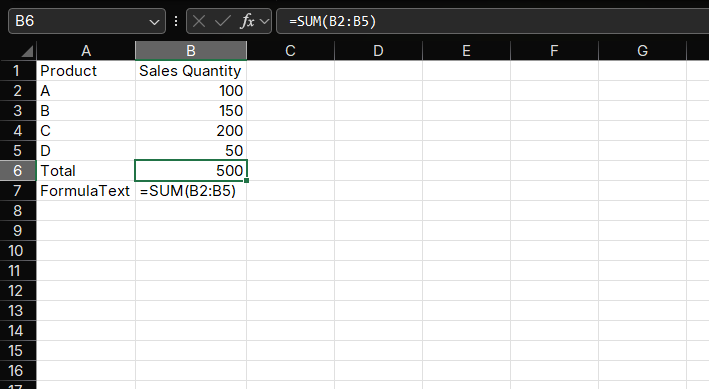
Use Cases
- Calculate monthly sales revenue
- Count total inventory
- Summarize expense expenditures
2. Advanced Uses of the SUM Function
Multi-Range Summing
The SUM function can sum multiple non-contiguous ranges simultaneously.
Syntax
=SUM(range1, range2, ...)Example
If you need to calculate sales for both January and February, but these data are in different ranges, you can use:
=SUM(B2:B10, D2:D10)Summing with Constants
In addition to referencing cell ranges, the SUM function can also use constant values directly.
Example
=SUM(B2:B5, 100, 200)This formula will calculate the sum of the range B2:B5, then add 100 and 200.
Ignoring Text in Ranges
When the argument range of the SUM function contains text, it automatically ignores the text and only sums the numerical values.
Example
If range A1:A3 contains the value 10, the text "abc", and the value 30, the
formula =SUM(A1:A3) will return 40.
3. SUMIF Function: Conditional Summing
What is SUMIF?
The SUMIF function is used to sum numerical values in a specified range based on a given condition.
Syntax
=SUMIF(range, criteria, [sum_range])- range: Required parameter, representing the range of cells to be evaluated based on the condition
- criteria: Required parameter, representing the condition, which can be a number, text, or expression
- sum_range: Optional parameter, representing the actual range of cells to sum
How to Use
- Select the cell where you want to display the result
- Enter
=SUMIF( - Select the criteria range
- Enter the criteria (text or expression enclosed in quotes)
- Select the range to sum (optional)
- Press Enter to complete
Example
Suppose we have the following sales data:
| Product | Sales Revenue |
|---|---|
| A | 1000 |
| B | 1500 |
| A | 800 |
| C | 2000 |
| B | 1200 |
To calculate the total sales revenue for Product A, you can use:
=SUMIF(A2:A6, "A", B2:B6)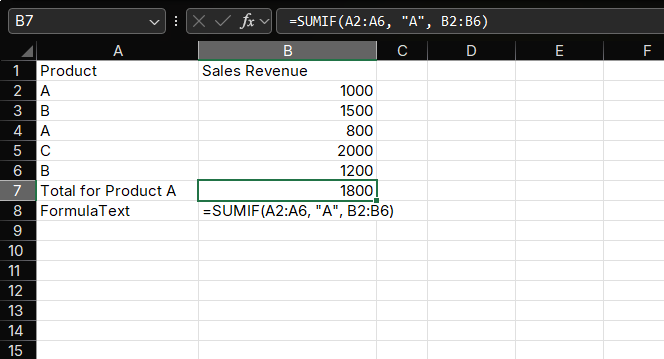
Use Cases
- Calculate total sales for specific products
- Statistics expense expenditures for specific departments
- Summarize data within specific date ranges
4. SUMIFS Function: Multi-Conditional Summing
What is SUMIFS?
The SUMIFS function is used to sum numerical values in a specified range based on multiple conditions and is an extended version of the SUMIF function.
Syntax
=SUMIFS(sum_range, criteria_range1, criteria1, [criteria_range2, criteria2], ...)- sum_range: Required parameter, representing the actual range of cells to sum
- criteria_range1: Required parameter, representing the first range of cells to be evaluated based on the condition
- criteria1: Required parameter, representing the first condition
- criteria_range2, criteria2, ...: Optional parameters, up to 127 condition ranges and conditions
Example
Suppose we have the following sales data:
| Product | Region | Sales Revenue |
|---|---|---|
| A | North | 1000 |
| B | South | 1500 |
| A | North | 800 |
| C | East | 2000 |
| B | North | 1200 |
To calculate the total sales revenue for Product A in the North region, you can use:
=SUMIFS(C2:C6, A2:A6, "A", B2:B6, "North")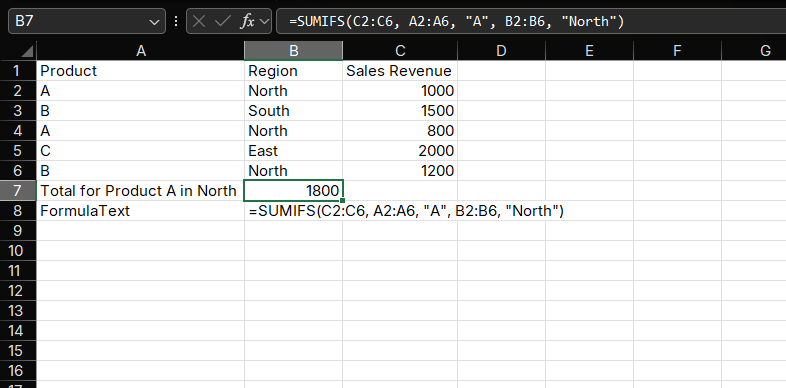
The result will display as 1800.
Use Cases
- Calculate total sales for specific products in specific regions
- Statistics expense expenditures for specific departments in specific months
- Summarize data for specific categories within specific date ranges
5. Practical Application Examples
Example 1: Monthly Sales Summary
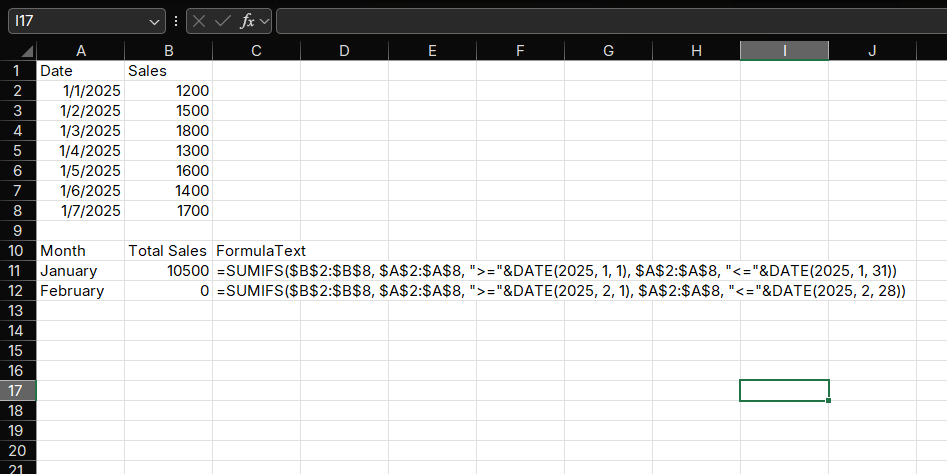
Suppose you have daily sales data for the entire year and need to calculate the total sales for each month.
Enter the formula in cell B11:
=SUMIFS($B$2:$B$366, $A$2:$A$366, ">="&DATE(2025,1,1), $A$2:$A$366, "<="&DATE(2025,1,31))Copy the formula down to C13 to calculate the sales for each month
Example 2: Inventory Valuation
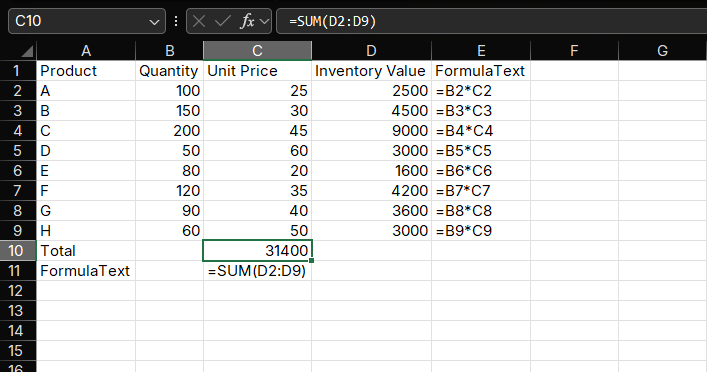
Calculate the total inventory value, which includes product quantities and unit prices:
Enter the formula in cell D2:
=B2*C2Copy the formula down to all product rows
Enter the formula in cell D10:
=SUM(D2:D9)
The result will display the total inventory value.
6. Practice Exercise with Answers
Complete the exercise using the following data:
| Employee Name | Department | Sales Revenue |
|---|---|---|
| Zhang San | Sales | 5000 |
| Li Si | Marketing | 3000 |
| Wang Wu | Sales | 6000 |
| Zhao Liu | Technical | 2000 |
| Sun Qi | Sales | 4500 |
| Zhou Ba | Marketing | 3500 |
- Calculate the total sales revenue for all employees
- Calculate the total sales revenue for the Sales department
- Calculate the total sales revenue for employees in the Sales department with sales revenue exceeding 5000
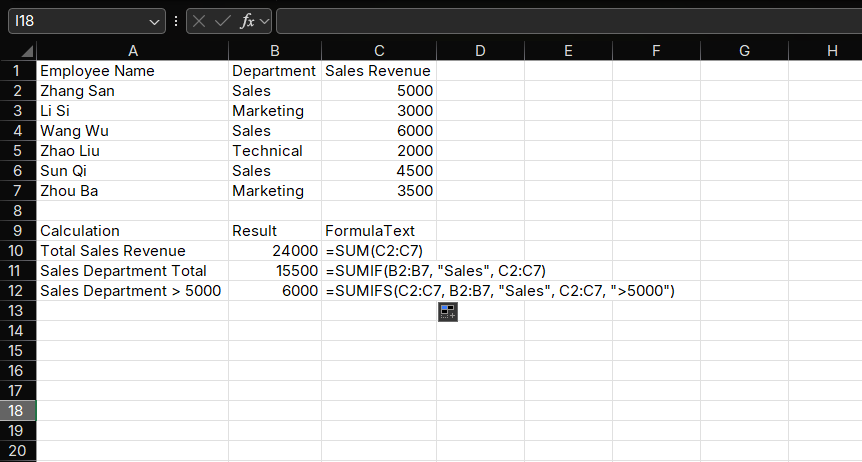
Answers
| Question | Formula | Result |
|---|---|---|
| Total sales revenue for all employees | =SUM(C2:C7) |
24000 |
| Total sales revenue for Sales | =SUMIF(B2:B7, "Sales", C2:C7) |
15500 |
| Sales department revenue above 5000 | =SUMIFS(C2:C7, B2:B7, "Sales", C2:C7, ">5000") |
6000 |
7. SUM vs Other Core Functions
When a workbook grows, the question is often not "How do I add these numbers?" but "Which summary function matches the question?" Use this quick comparison:
| Reader question | Function to try first | Example use |
|---|---|---|
| What is the total? | SUM |
Total revenue for the month |
| What is the total for one condition? | SUMIF |
Sales for the East region |
| What is the total for several conditions? | SUMIFS |
East region sales for paid orders |
| How many records match? | COUNTIF or COUNTIFS |
Number of late invoices |
| What is the typical value? | AVERAGE, AVERAGEIF, or AVERAGEIFS |
Average order size |
If the answer should be a number, use a summary function. If the answer should be the matching rows themselves, use a filtering approach instead.
Summary
The SUM function is one of the most powerful and commonly used functions in Excel. Mastering its various uses can greatly improve your data processing efficiency. From basic single-range summing to complex multi-conditional summing, the SUM function family (SUM, SUMIF, SUMIFS) can meet various summing needs. Through this article, you should have mastered:
- Basic usage and advanced applications of the SUM function
- Using SUMIF for single-conditional summing
- Using SUMIFS for multi-conditional summing
- Techniques and examples in practical applications
By proficiently using these functions, you will be able to process and analyze data in Excel more efficiently, providing accurate support for decision-making.
Related Guides
- Compare totals with averages in Excel AVERAGE Function.
- Decide between conditional sum patterns with SUMIF vs SUMIFS in Excel.
- Count records before summing them with Excel COUNT Function Tutorial.
- If totals return unexpected errors, use Excel formula errors to debug the source data.
Need help fixing a formula?
Share the formula, a small sample table, and the result you expected. This free beta helps us learn which Excel problems readers actually need solved.
Ask for formula help