
Excel Cell References: Relative, Absolute, and Mixed References Explained
Formula not working?
Share a small sample and the result you expected.
1. Quick Answer: Which Cell Reference Should You Use?
| Reference type | Example | What stays fixed when copied? | Best use |
|---|---|---|---|
| Relative | A1 |
Nothing | Copying row-by-row calculations |
| Absolute | $A$1 |
Column and row | Tax rate, exchange rate, fixed lookup table |
| Mixed row | A$1 |
Row only | Copying across columns while keeping a header row fixed |
| Mixed column | $A1 |
Column only | Copying across a table while keeping an input column fixed |
If a copied formula points to the wrong cell, check the dollar signs before changing the formula logic. Many Excel formula errors are reference errors, not math errors.
2. Introduction
Cell references are the foundation of Excel formulas. Understanding the different types of references is crucial for using Excel formulas correctly. This article will detail the three types of references in Excel: relative references, absolute references, and mixed references, with practical examples to help you master their usage.
3. Relative References
What are Relative References?
Relative references are the default reference type in Excel. When you copy a formula, the referenced cell addresses change relative to the new location.
Syntax
Simply use the cell address, such as A1 or B2:C5.
How They Work
When a formula is copied from one cell to another, relative references automatically adjust based on the relative position of the target cell to the source cell.
Example
Suppose we have the following data:
| Product | Sales | Price | Amount |
|---|---|---|---|
| A | 10 | 5 | |
| B | 20 | 8 | |
| C | 15 | 6 |
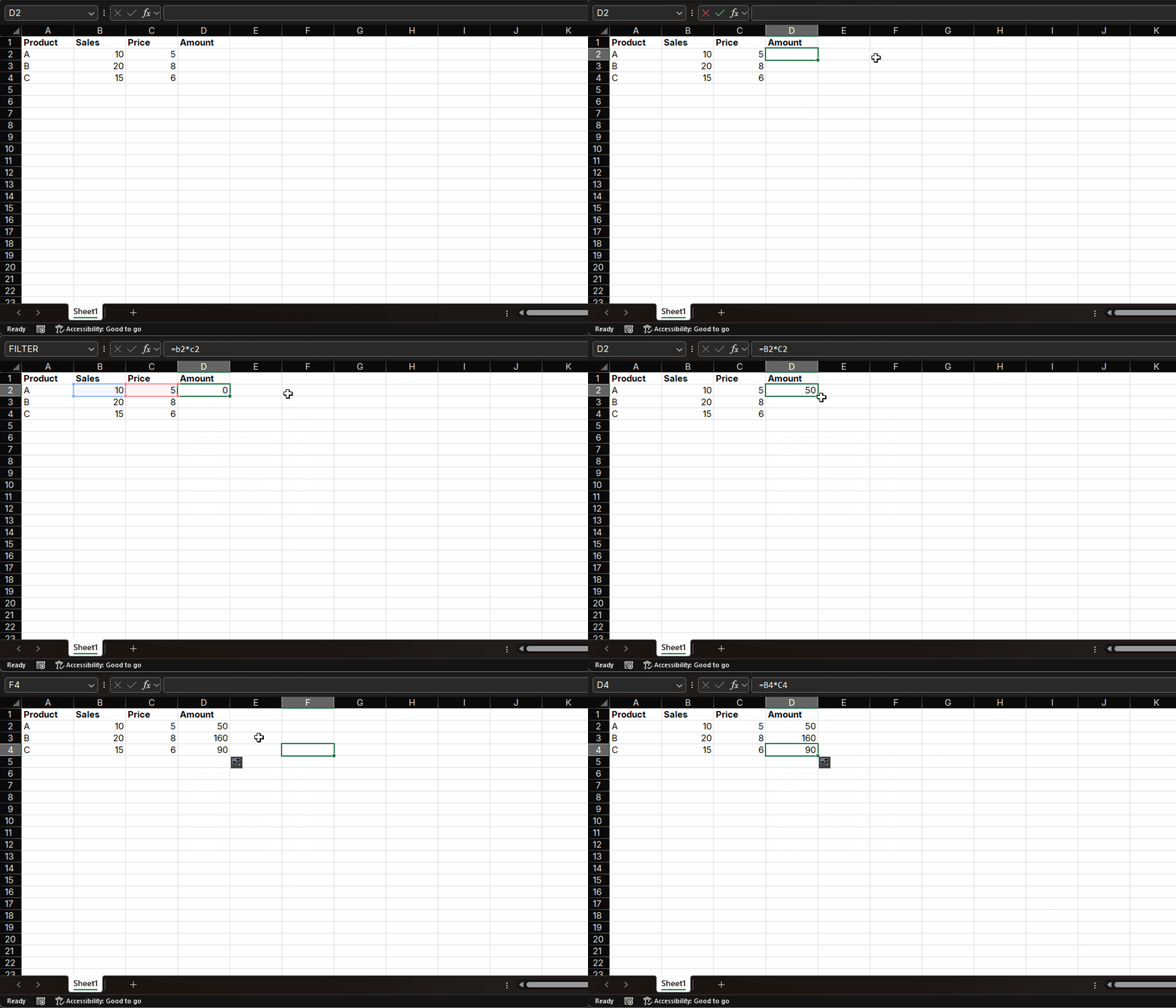
- Enter the formula
=B2*C2in cell D2 - Press Enter to get the result 50
- Move the mouse to the bottom-right corner of cell D2 until a black cross appears, then drag down to cell D4
- Observe the formulas in D3 and D4, which become
=B3*C3and=B4*C4respectively
Use Cases
- When formulas need to be applied to multiple rows or columns
- When the relative position of referenced cells remains fixed when copying formulas
- Most daily formula calculations
4. Absolute References
What are Absolute References?
Absolute references are references where the cell address remains unchanged when the formula is copied.
Syntax
Add dollar signs $ before the column letter and row number, such as $A$1 or
$B$2:$C$5.
How They Work
When a formula is copied from one cell to another, absolute references do not change.
Example
Suppose we need to calculate the percentage of each product's sales to total sales:
| Product | Sales | Percentage |
|---|---|---|
| A | 10 | |
| B | 20 | |
| C | 15 | |
| Total | 45 |
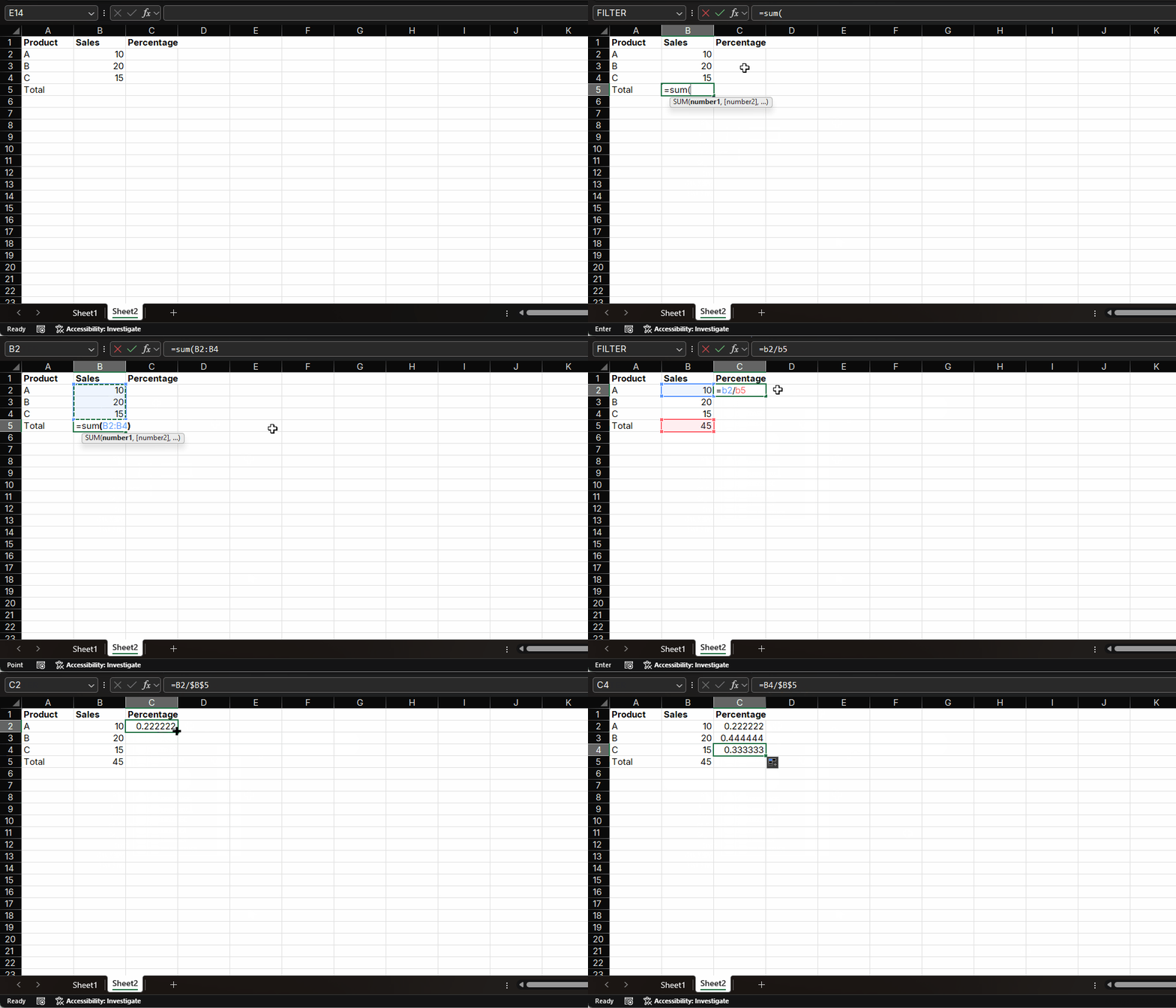
- Calculate total sales in cell B5:
=SUM(B2:B4)to get 45 - Enter the formula
=B2/$B$5in cell C2 - Press Enter and set the cell format to percentage
- Drag the fill handle of C2 down to C4
- Observe that the formulas in C3 and C4 still remain
=B3/$B$5and=B4/$B$5
Use Cases
- When the referenced cell in the formula is fixed (such as tax rate, total amount)
- When the same fixed value needs to be referenced in multiple formulas
- Calculating percentages, ratios, etc., that require a fixed denominator
5. Mixed References
What are Mixed References?
Mixed references combine relative references and absolute references. They can fix either the column letter or the row number while allowing the other to change relatively.
Syntax
- Fix column letter, row number changes relatively:
$A1 - Fix row number, column letter changes relatively:
A$1
How They Work
When a formula is copied, the fixed part remains unchanged, while the relative part automatically adjusts based on the target cell position.
Example 1: Fixed Column
Suppose we need to calculate sales for different products in different regions, with prices fixed in column B:
| Product | Price | Region 1 Sales | Region 1 Amount | Region 2 Sales | Region 2 Amount |
|---|---|---|---|---|---|
| A | 5 | 10 | 15 | ||
| B | 8 | 20 | 25 | ||
| C | 6 | 15 | 18 |
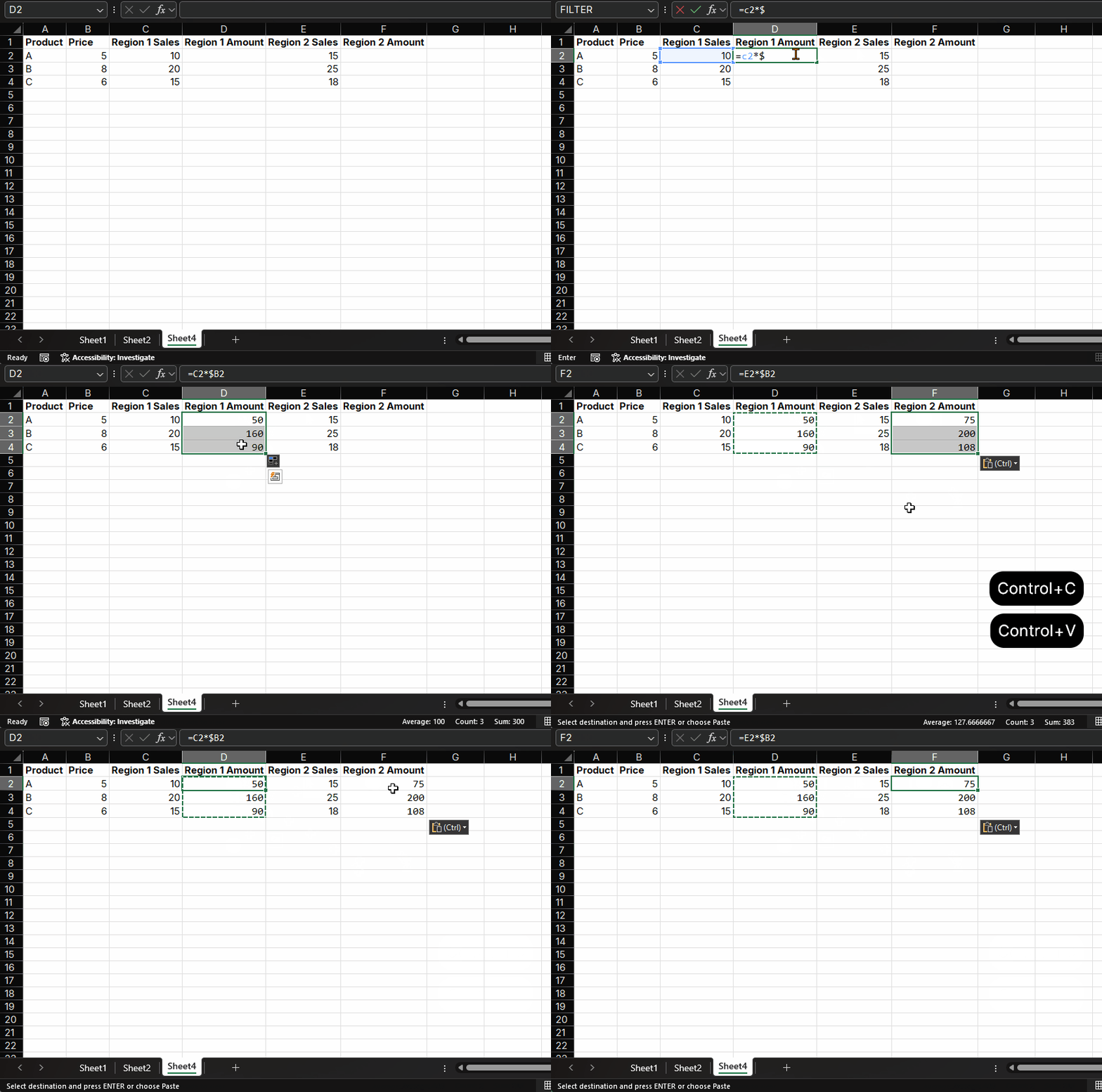
- Enter the formula
=C2*$B2in cell D2 - Press Enter to get 50
- Copy the formula to the next amount column, such as F2
- Observe that the formula in F2 becomes
=E2*$B2
Example 2: Fixed Row
Suppose we need to calculate each product's monthly sales as a percentage of a monthly target. The target values are fixed in row 1:
| Product | Jan Sales | Feb Sales | Mar Sales |
|---|---|---|---|
| Target | 10000 | 12000 | 11000 |
| A | 8200 | 9400 | 10300 |
| B | 7600 | 10100 | 9800 |
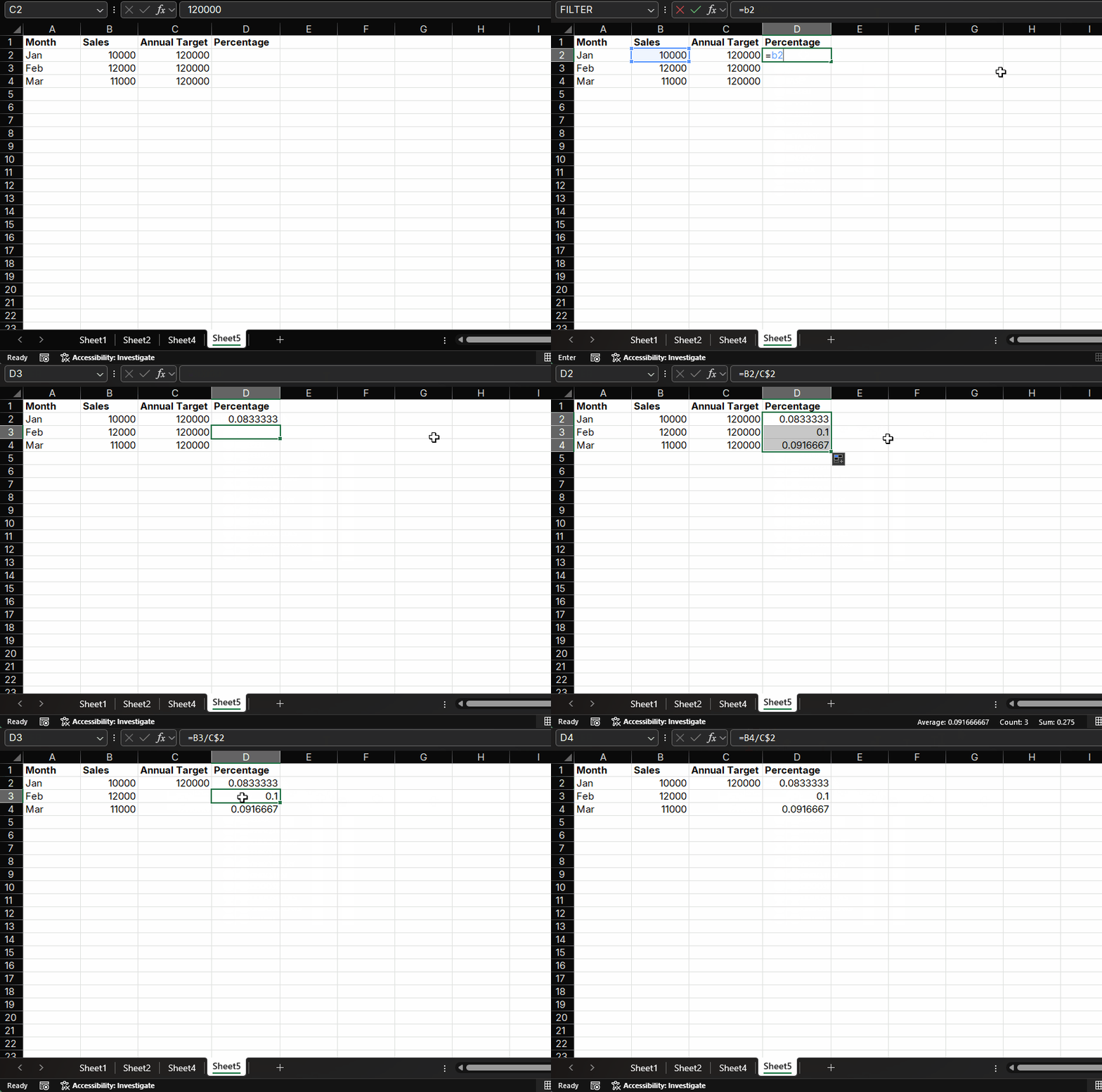
- Enter the formula
=B3/B$2in cell B4 - Press Enter and set the cell format to percentage
- Copy the formula across the row to C4 and D4
- Observe that the formulas become
=C3/C$2and=D3/D$2. The row stays fixed at row 2, while the column changes across months.
Use Cases
- When calculations are needed in a two-dimensional table
- When a formula needs to fix either rows or columns
- When creating pivot tables or complex reports
6. How to Quickly Switch Reference Types
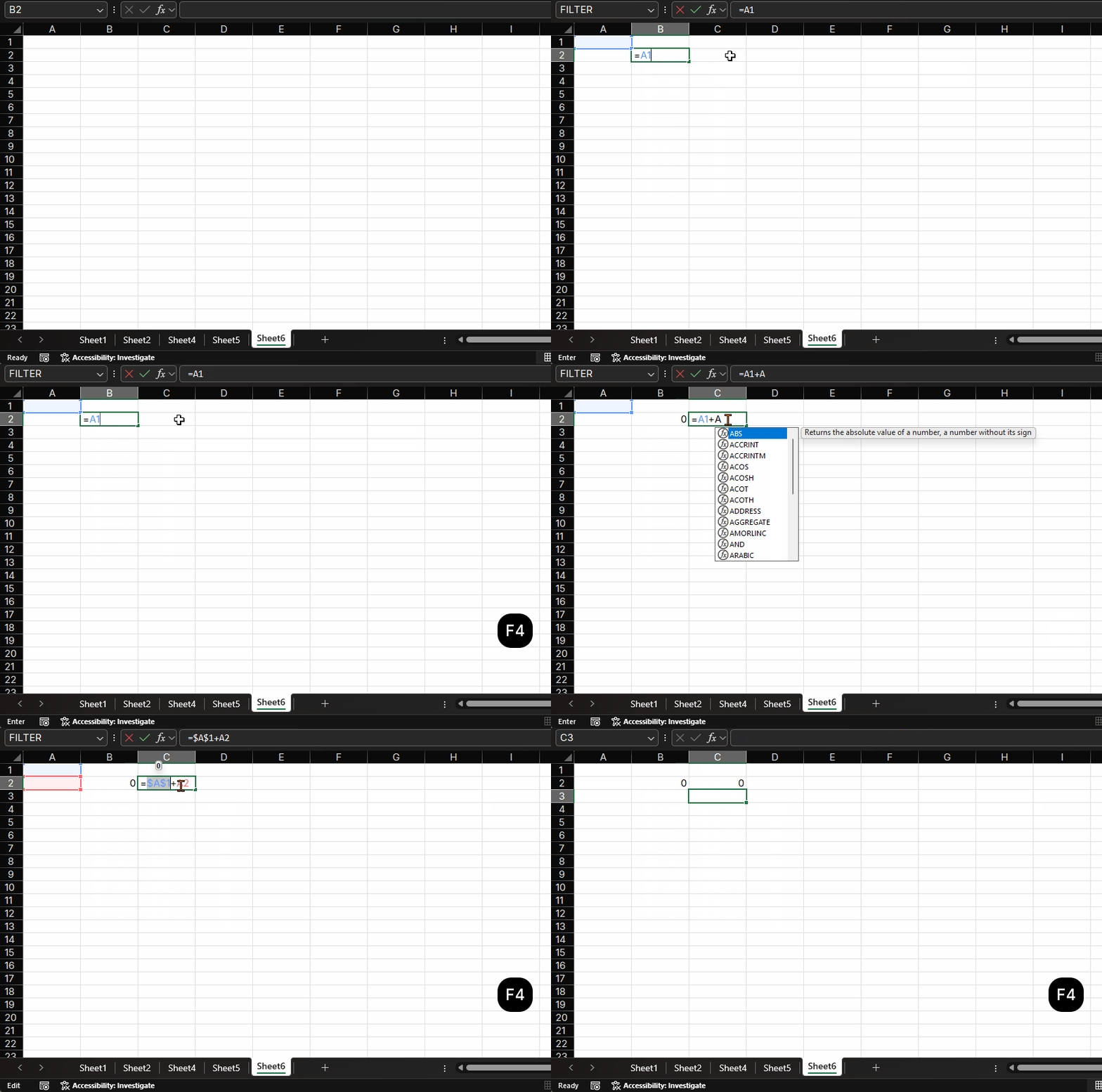
In Excel, there's a quick shortcut to switch reference types: F4.
How to Use
- Select the cell reference in the formula bar
- Press
F4to switch reference types - Each press of
F4cycles through the reference types:- Relative reference:
A1 - Absolute reference:
$A$1 - Mixed reference (fixed row):
A$1 - Mixed reference (fixed column):
$A1
- Relative reference:
Example
- Enter
=A1in a cell - Select
A1 - Press
F4to change to=$A$1 - Press
F4again to change to=A$1 - Press
F4again to change to=$A1 - Press
F4again to return to=A1
Tips
- You can select multiple cell references and press
F4to batch switch - When entering formulas, you can first enter relative references and then switch to the desired reference type
7. Practical Application Examples
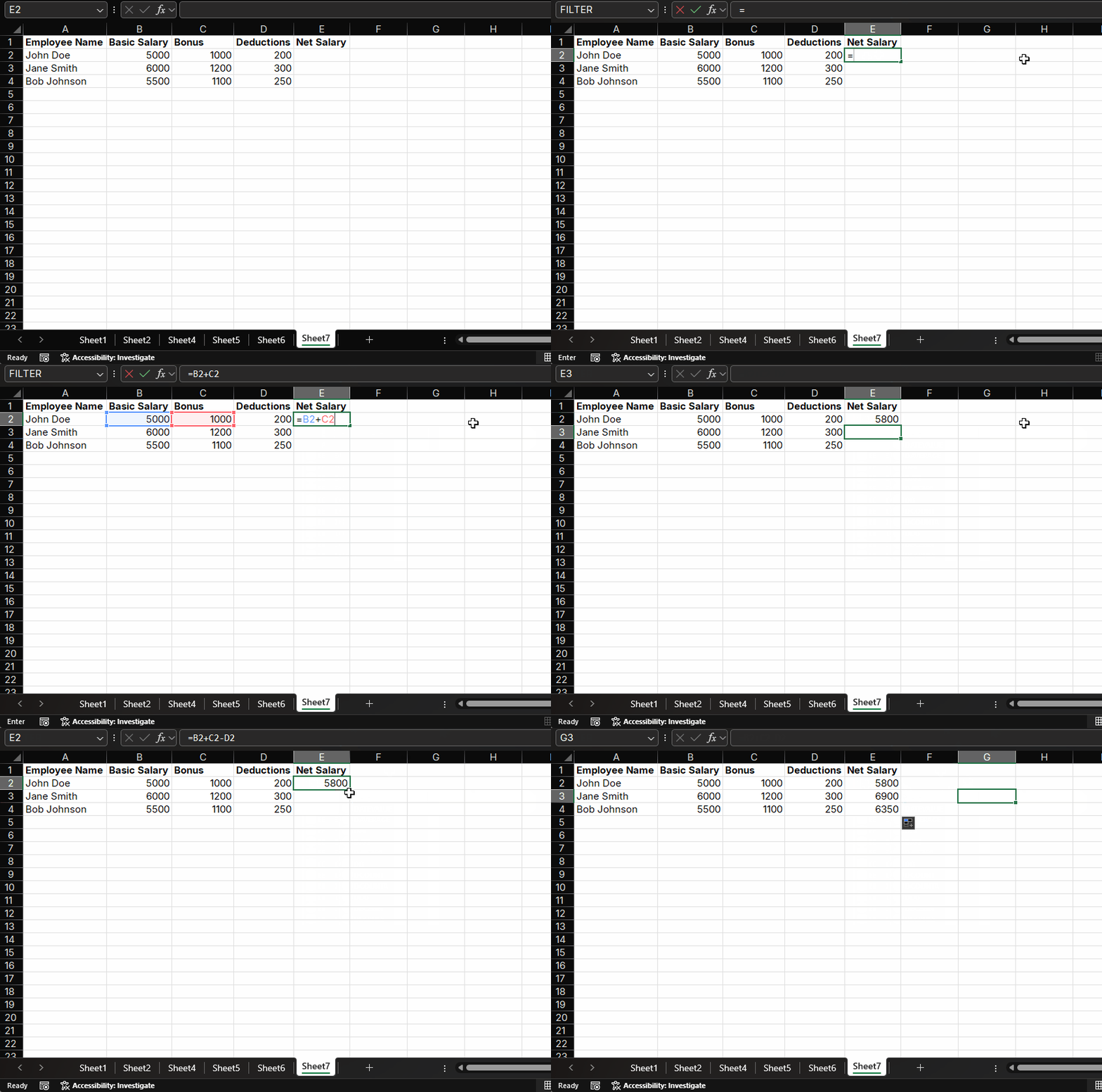
Example: Creating a Payroll Sheet
Suppose we need to create a simple payroll sheet with basic salary, bonus, and deductions:
| Employee Name | Basic Salary | Bonus | Deductions | Net Salary |
|---|---|---|---|---|
| John Doe | 5000 | 1000 | 200 | |
| Jane Smith | 6000 | 1200 | 300 | |
| Bob Johnson | 5500 | 1100 | 250 |
- Enter the formula
=B2+C2-D2in cell E2 - Drag the fill handle of E2 down to E4
- All employees' net salaries are automatically calculated
Example: Calculating VAT
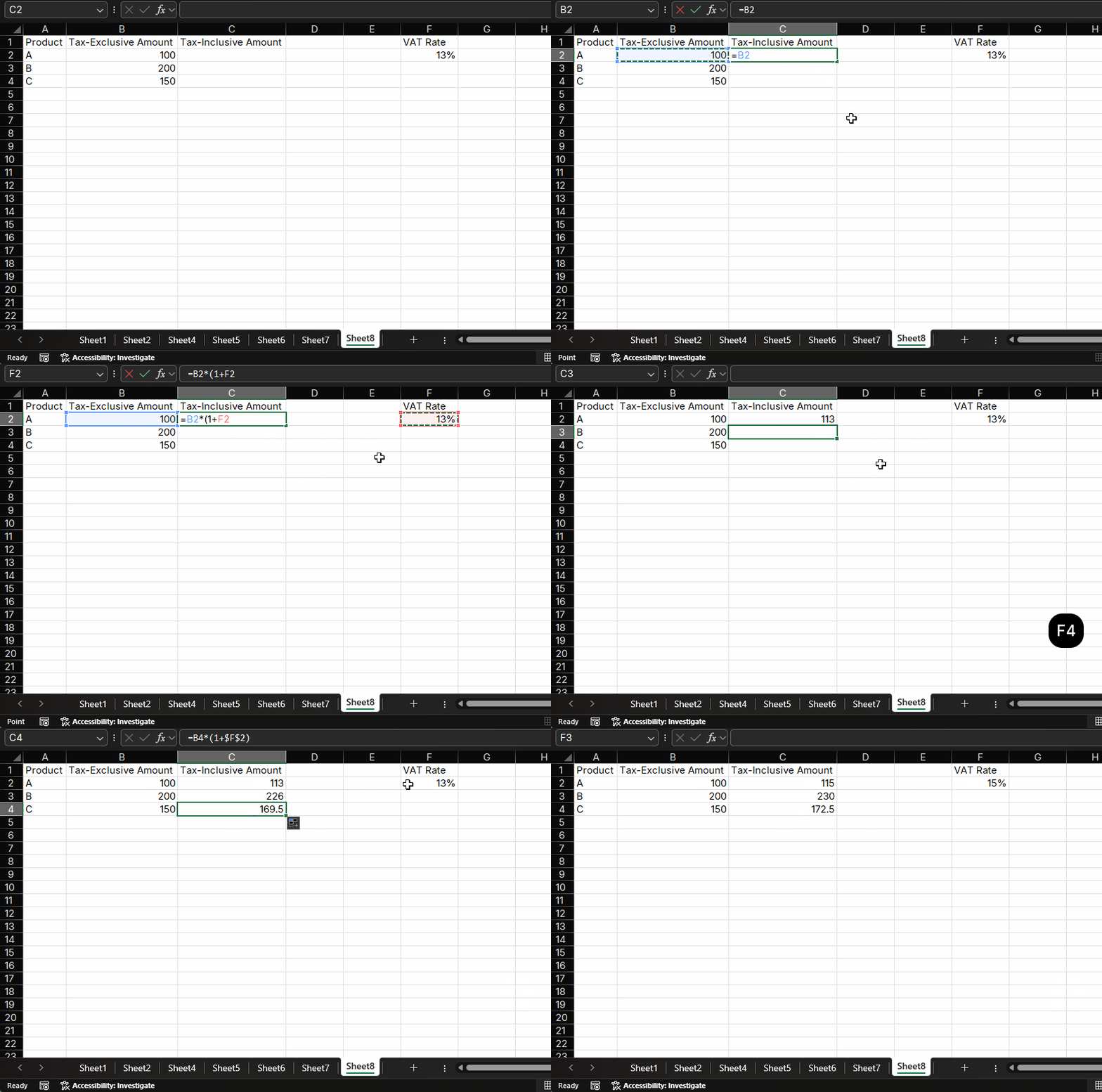
Suppose the VAT rate is 13%, and we need to calculate the tax-inclusive amount for each product:
| Product | Tax-Exclusive Amount | VAT Rate | Tax-Inclusive Amount |
|---|---|---|---|
| A | 100 | 13% | |
| B | 200 | 13% | |
| C | 150 | 13% |
- Enter the formula
=B2*(1+$C$2)in cell D2 - Drag the fill handle of D2 down to D4
- All products' tax-inclusive amounts are automatically calculated
8. Common Cell Reference Mistakes
| Mistake | Symptom | Fix |
|---|---|---|
Forgetting $ around a fixed input |
Copied formulas point to the next row or column | Use $A$1 for a fixed input cell |
| Locking only the row when the column should stay fixed | Formula works in one direction but breaks when copied sideways | Use $A1 to lock the column |
| Locking only the column when the row should stay fixed | Formula works sideways but breaks when copied down | Use A$1 to lock the row |
| Copying a lookup formula without locking the lookup table | VLOOKUP, XLOOKUP, or MATCH starts searching the wrong range |
Lock the table range before filling down |
9. Summary
Cell references are the foundation of Excel formulas. Mastering different types of references is crucial for using Excel formulas correctly:
- Relative References: Default reference type, addresses change relatively when copying formulas
- Absolute References: Use
$to fix addresses, remain unchanged when copying formulas - Mixed References: Fix either rows or columns, the other changes relatively
- F4 Shortcut: Quick way to switch reference types
By reasonably using different types of cell references, you can greatly improve the efficiency and accuracy of Excel formulas. In practical applications, choosing the appropriate reference type based on specific needs is key.
Related Guides
- See TRIMRANGE and trim references for a modern look at reference handling in dynamic arrays.
- Review Excel formula errors when copied references start producing unexpected results.
- Use Excel LET function when a formula has correct references but is still too long to read.
- Practice faster reference editing with Excel shortcuts for beginners, especially the
F4shortcut. - Use Excel Autofill tips after locking references so copied formulas keep pointing at the right cells.
- Lock lookup ranges correctly when using VLOOKUP across sheets.
- Pair this with Excel XLOOKUP tutorial when building larger lookup formulas.
Need help fixing a formula?
Share the formula, a small sample table, and the result you expected. This free beta helps us learn which Excel problems readers actually need solved.
Ask for formula help