Excel Shortcuts for Beginners: 10 Must-Learn Shortcuts
Introduction
Excel shortcuts are productivity powerhouses that can boost your efficiency by
50% or more. You've probably used basic shortcuts like copy and paste, but there
are many more that can save you hours of manual work. This article will
introduce 10 must-learn Excel shortcuts, from basic selection to advanced
editing, perfect for beginners to get started quickly.
1. Ctrl + C / Ctrl + V: Copy and Paste
Function
Copy and paste are among the most frequently used operations. Using shortcuts
can save a lot of time.
How to Use
Copy: Select cells or range, press Ctrl + C
Paste: Select target location, press Ctrl + V
Use Cases
Copy formulas, text, and values
Quickly repeat the same content
Copy data across worksheets or workbooks
Example
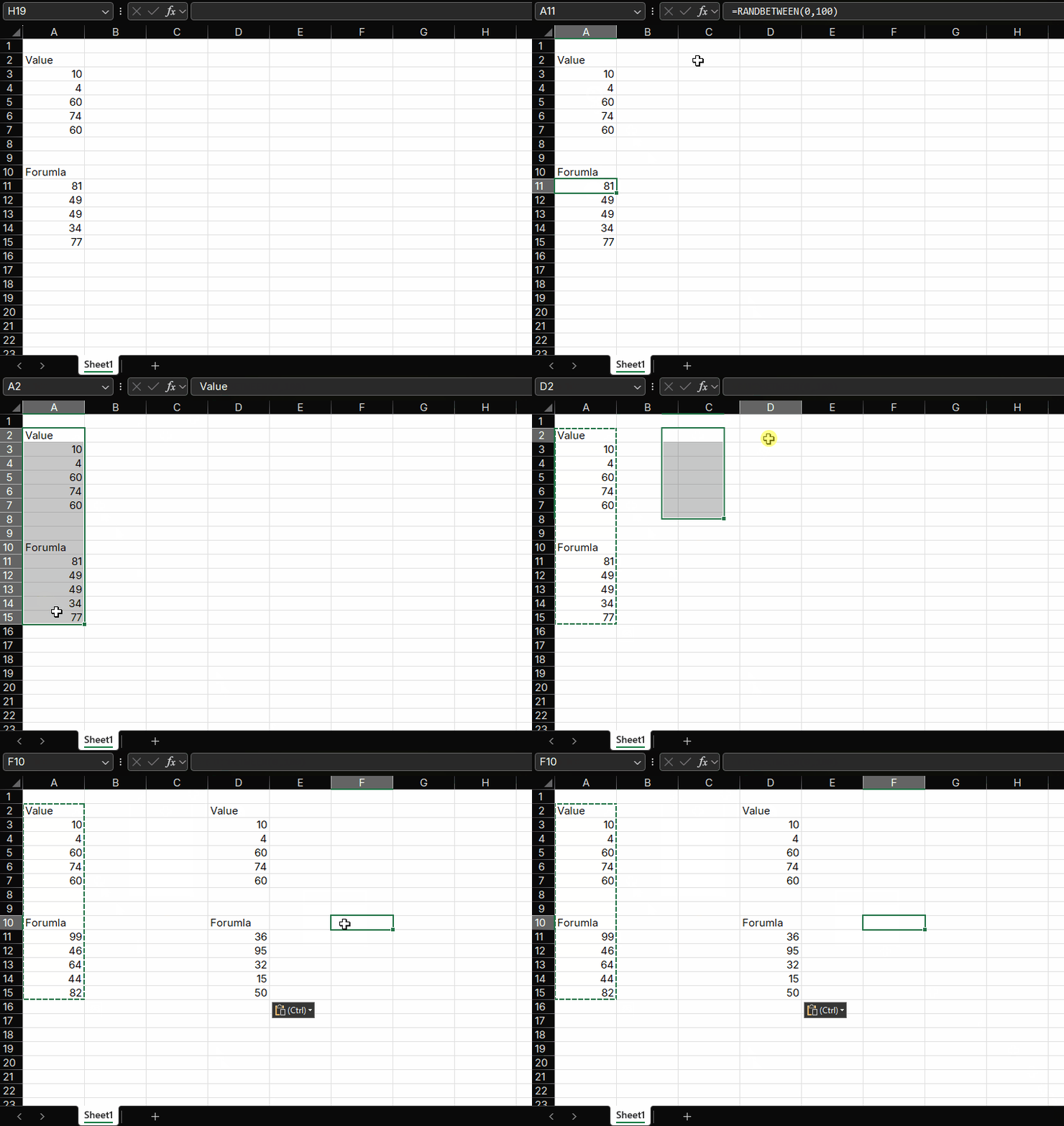
Copy names from column A to column B:
Select range A2:A10
Press Ctrl + C to copy
Select cell B2
Press Ctrl + V to paste
Excel Copy Paste Shortcut
2. Ctrl + X: Cut
Function
The cut function is used to move data. Unlike copy, cutting removes the data
from its original location.
How to Use
Select cells or range, press Ctrl + X
Select target location, press Ctrl + V to paste
Use Cases
Adjusting data positions
Moving entire rows or columns
Reorganizing table structure
Example
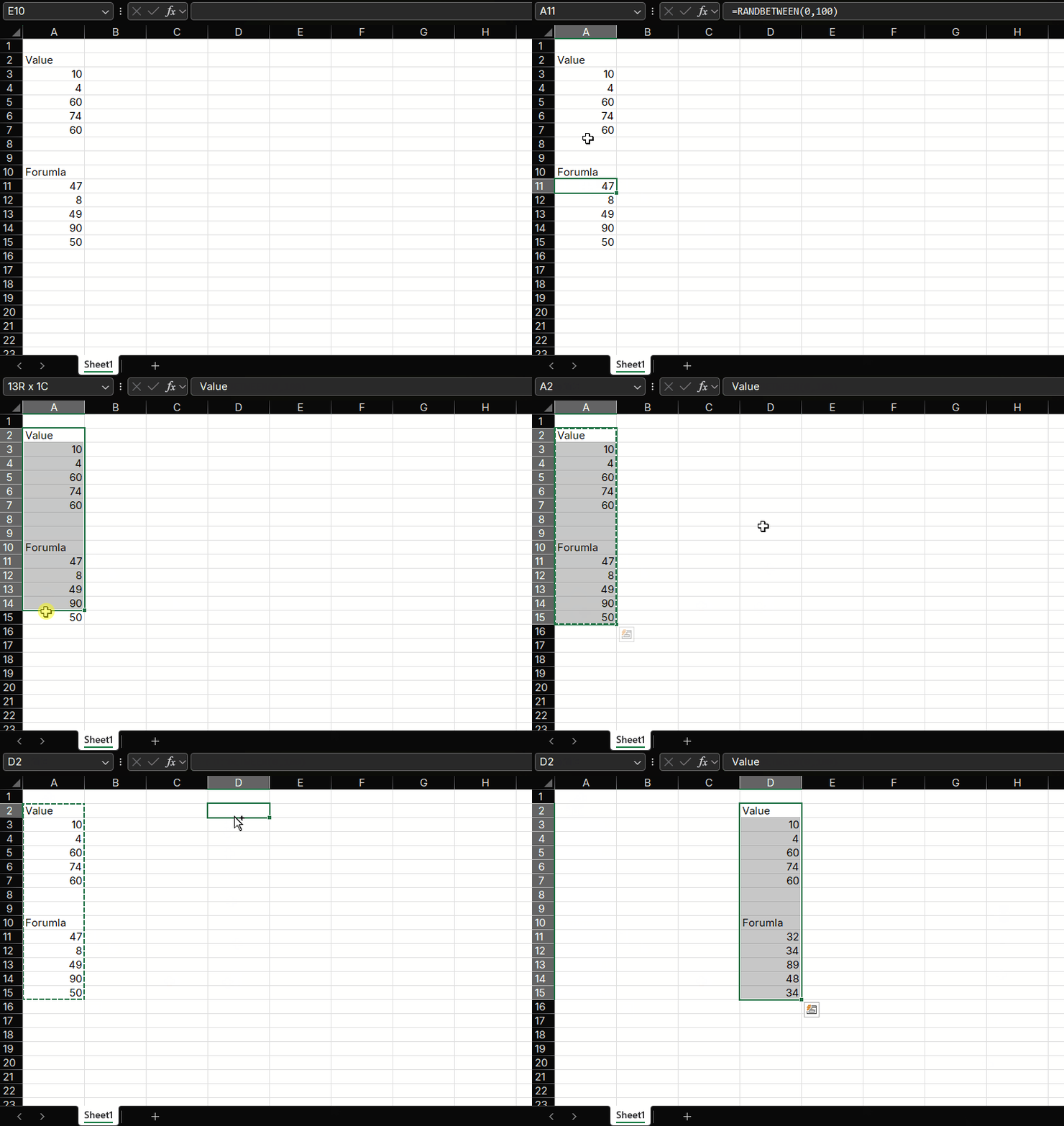
Move age data from column C to column D:
Select column C
Press Ctrl + X to cut
Select column D
Press Ctrl + V to paste
Excel Cut Paste Shortcut
3. Ctrl + Z: Undo
Function
Undo the last operation, an essential shortcut to avoid mistakes.
How to Use
Press Ctrl + Z to undo the most recent operation
Press multiple times to undo multiple steps
Use Cases
Restore accidentally deleted data
Undo incorrect formula entries
Cancel inappropriate formatting operations
Example
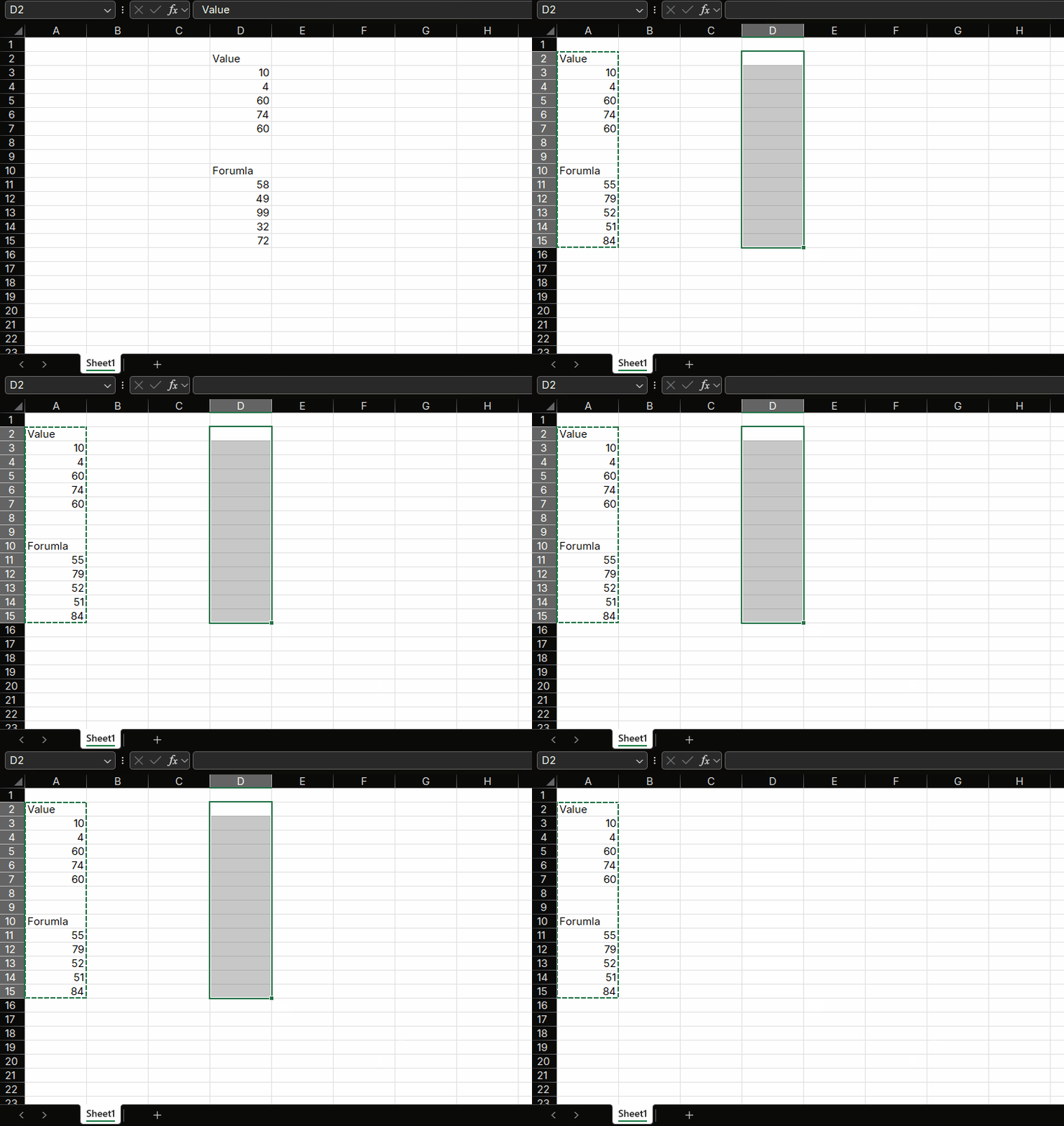
Undo an accidental deletion:
Accidentally delete data in column A
Immediately press Ctrl + Z
Data is restored
Excel Undo Shortcut
4. Ctrl + Y: Redo
Function
Redo an undone operation, works with the undo function.
How to Use
Press Ctrl + Y to redo the last undone operation
Use Cases
Change your mind after undoing
Restore previous correct operations
Example
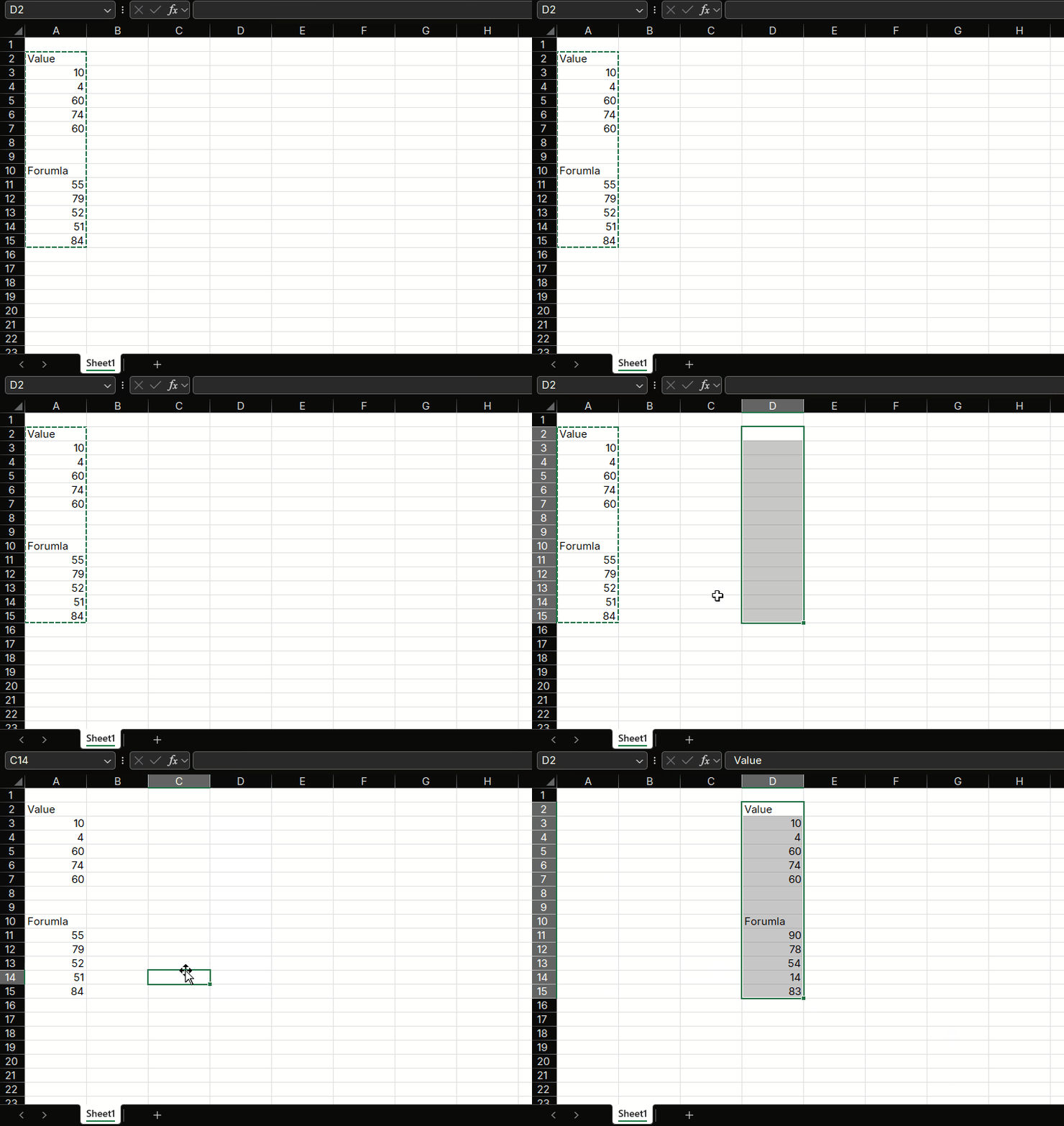
Redo a deleted operation:
Undo a deletion
Decide you still want to delete
Press Ctrl + Y to redo the deletion
Excel Redo Shortcut
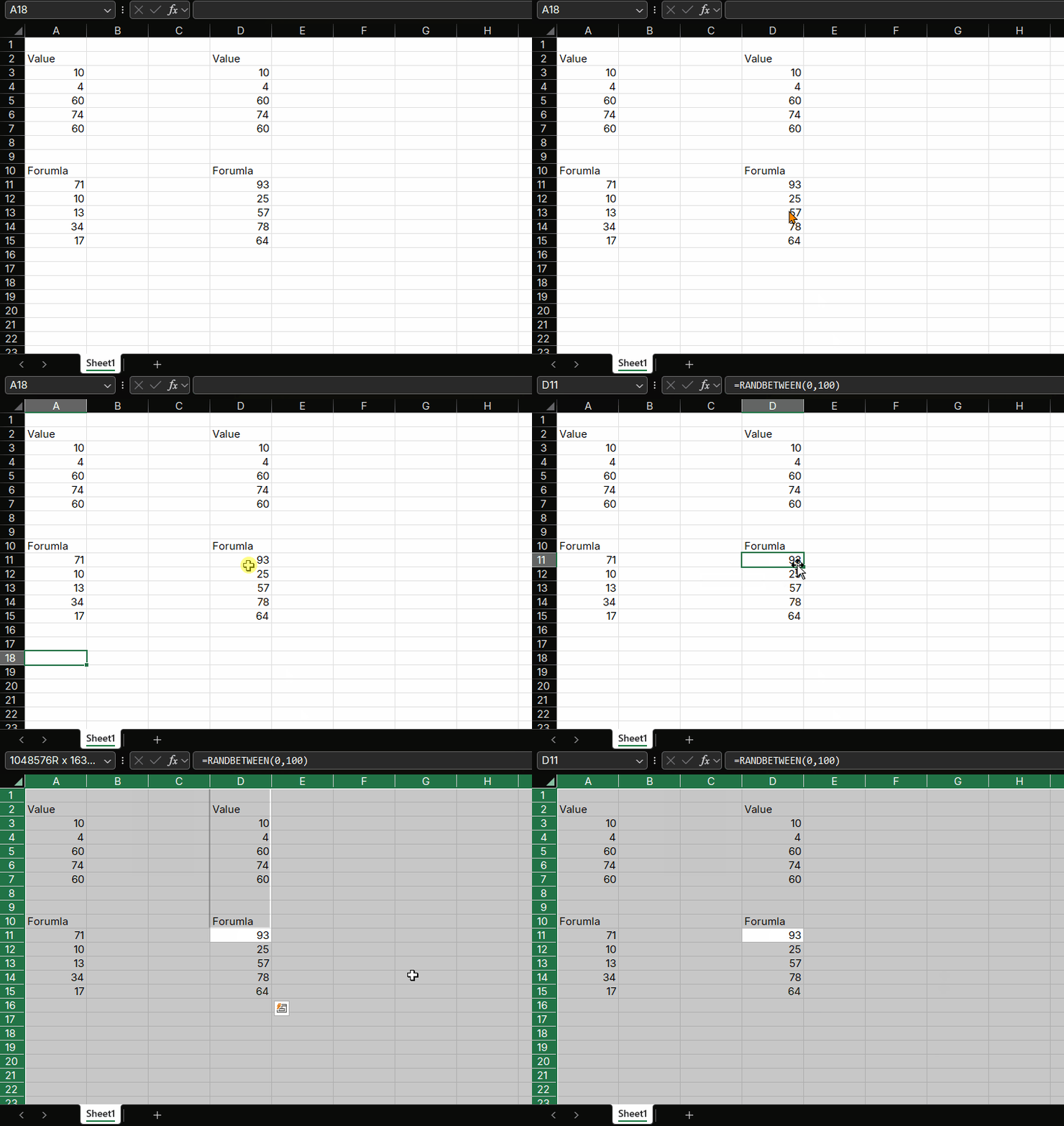
5. Ctrl + A: Select All
Function
Quickly select all data in the current worksheet or current range.
How to Use
Press Ctrl + A to select the current data range
Press again to select the entire worksheet
Use Cases
Select all data for formatting
Quickly select the entire table
Prepare to copy or delete large amounts of data
Example
Select the current data range:
Click any cell within the data range
Press Ctrl + A
All data is selected
Excel Select All Shortcut
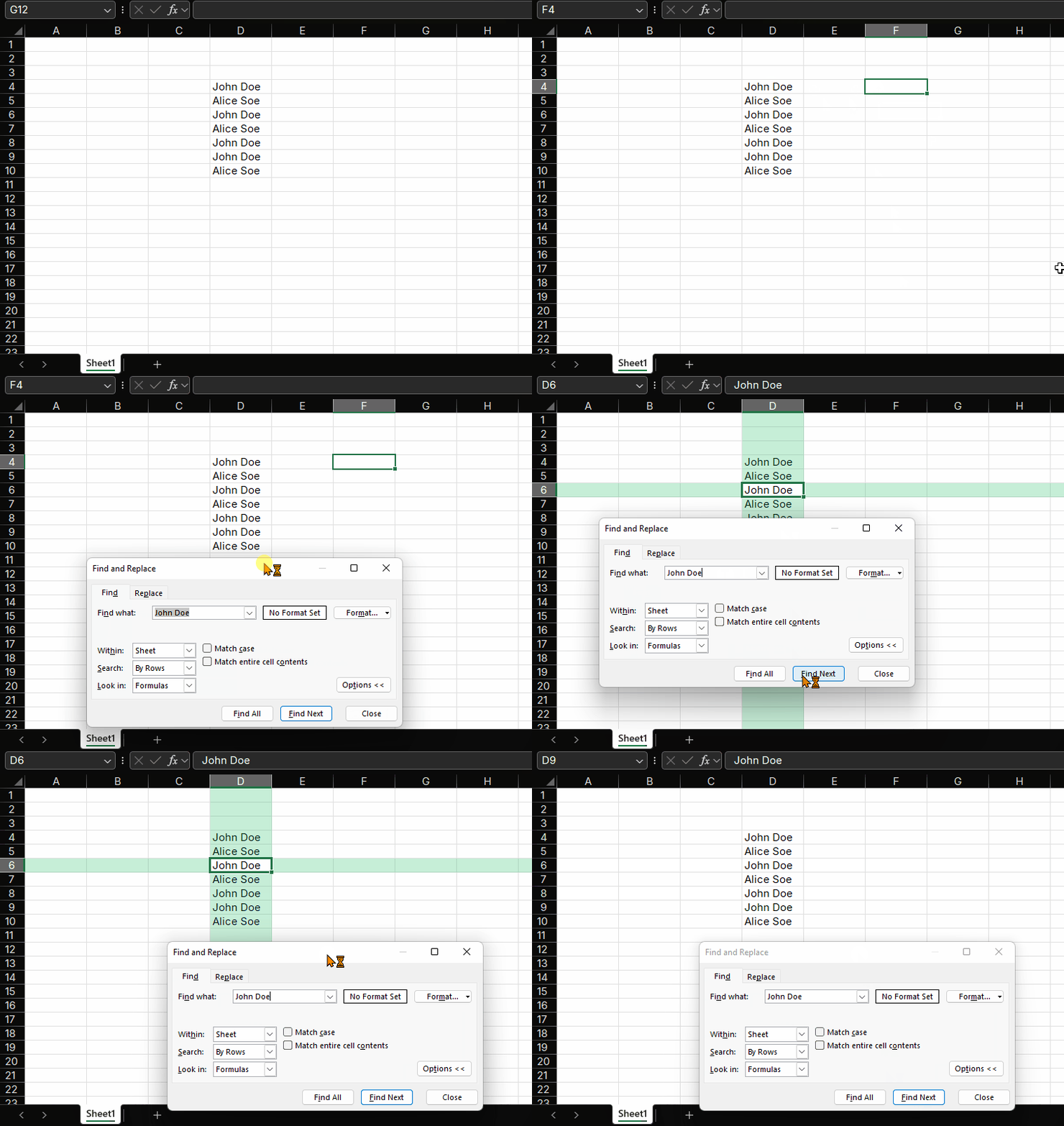
6. Ctrl + F: Find
Function
Quickly find specific content in the worksheet.
How to Use
Press Ctrl + F to open the Find dialog box
Enter the content to find, click "Find Next"
Use Cases
Find specific values or text
Locate error data
Find duplicate values
Example
Find all cells containing "John Doe":
Press Ctrl + F
Enter "John Doe"
Click "Find Next" to view one by one
Excel Find Shortcut
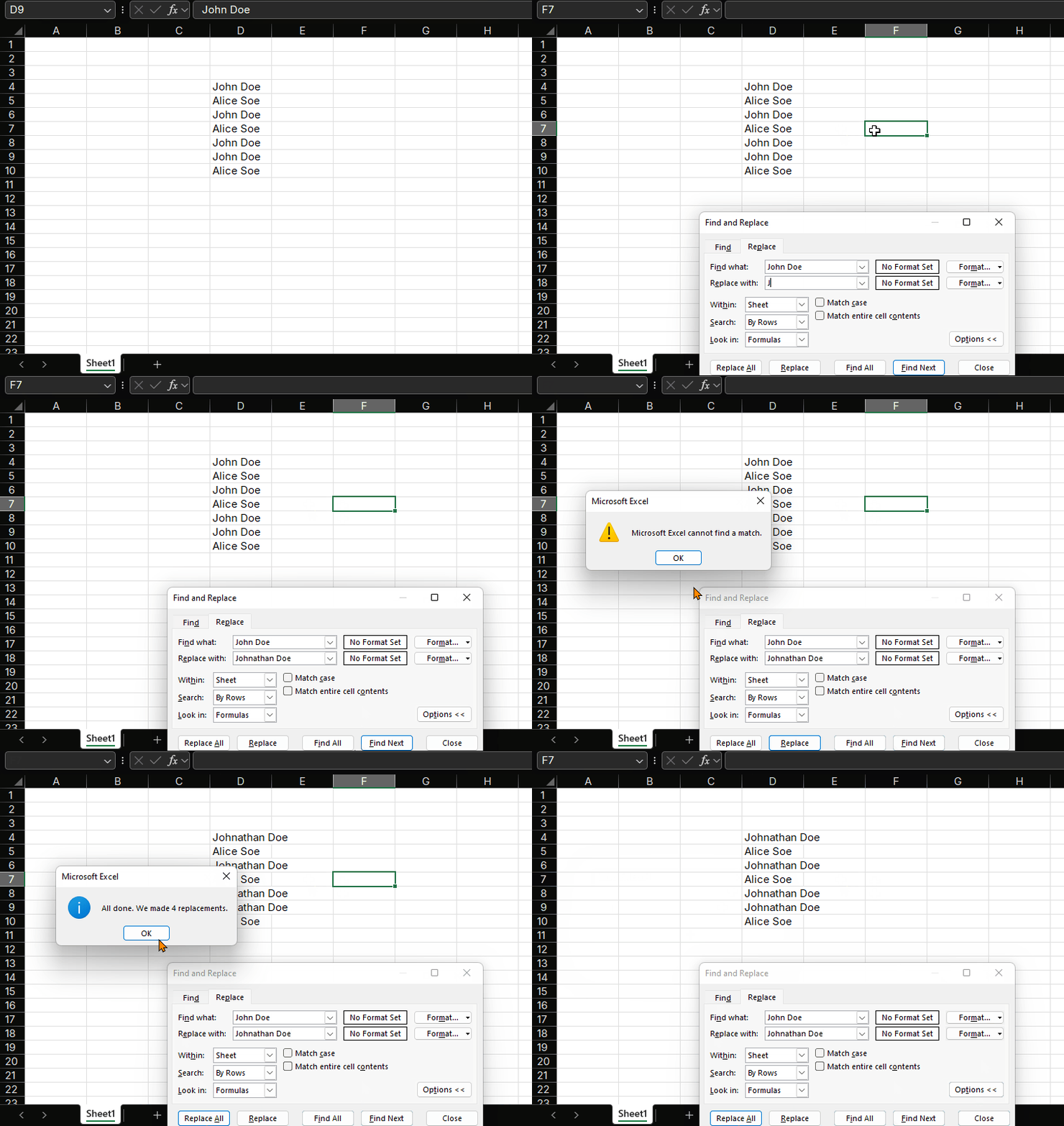
7. Ctrl + H: Replace
Function
Batch replace specific content in the worksheet.
How to Use
Press Ctrl + H to open the Replace dialog box
Enter the content to find and the content to replace with
Click "Replace" or "Replace All"
Use Cases
Batch modify data
Correct spelling errors
Update uniform formats
Example
Replace all "John Doe" with "Johnathan Doe":
Press Ctrl + H
Enter "John Doe" in Find what, "Johnathan Doe" in Replace with
Click "Replace All"
Excel Find Replace Shortcut
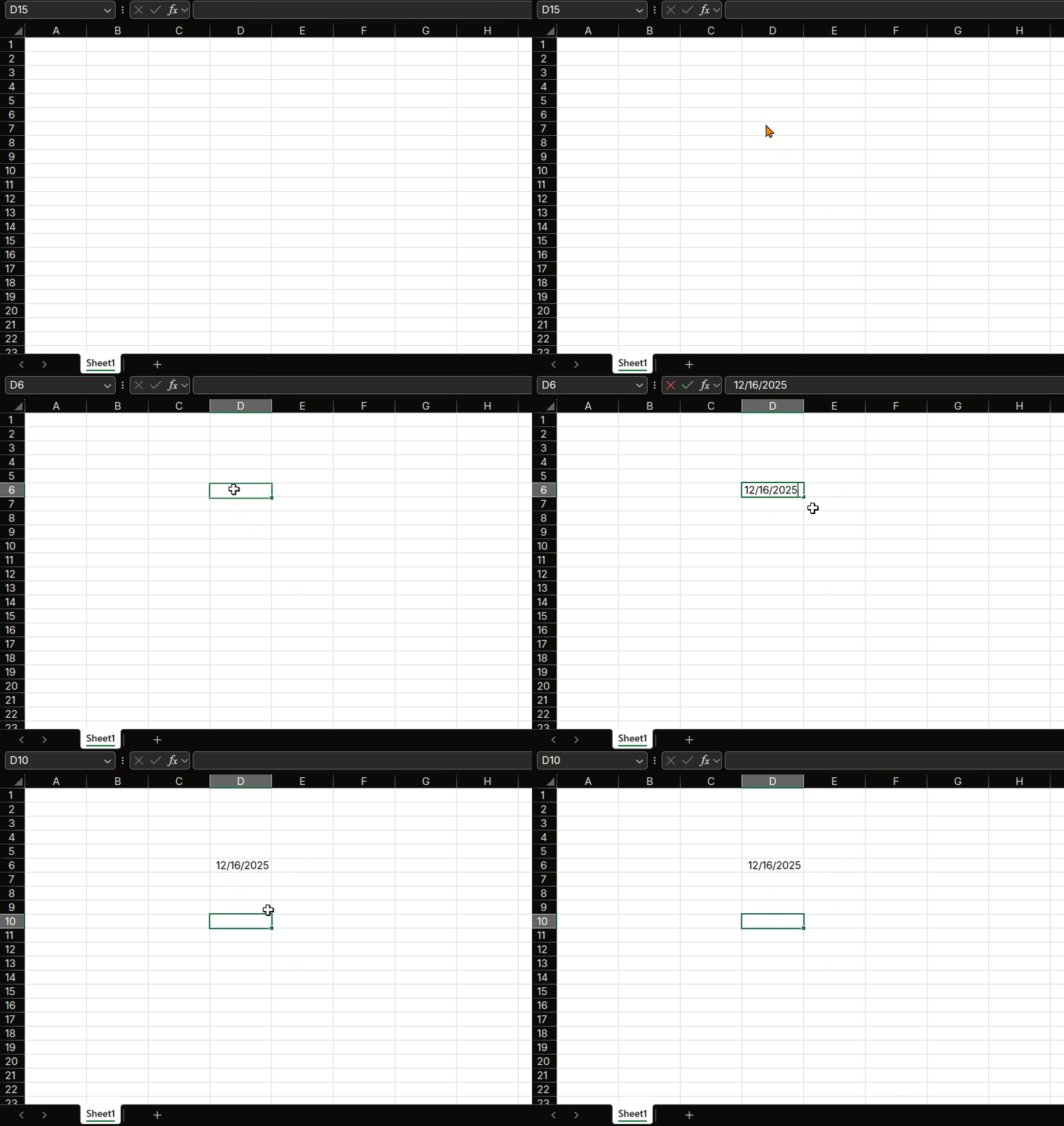
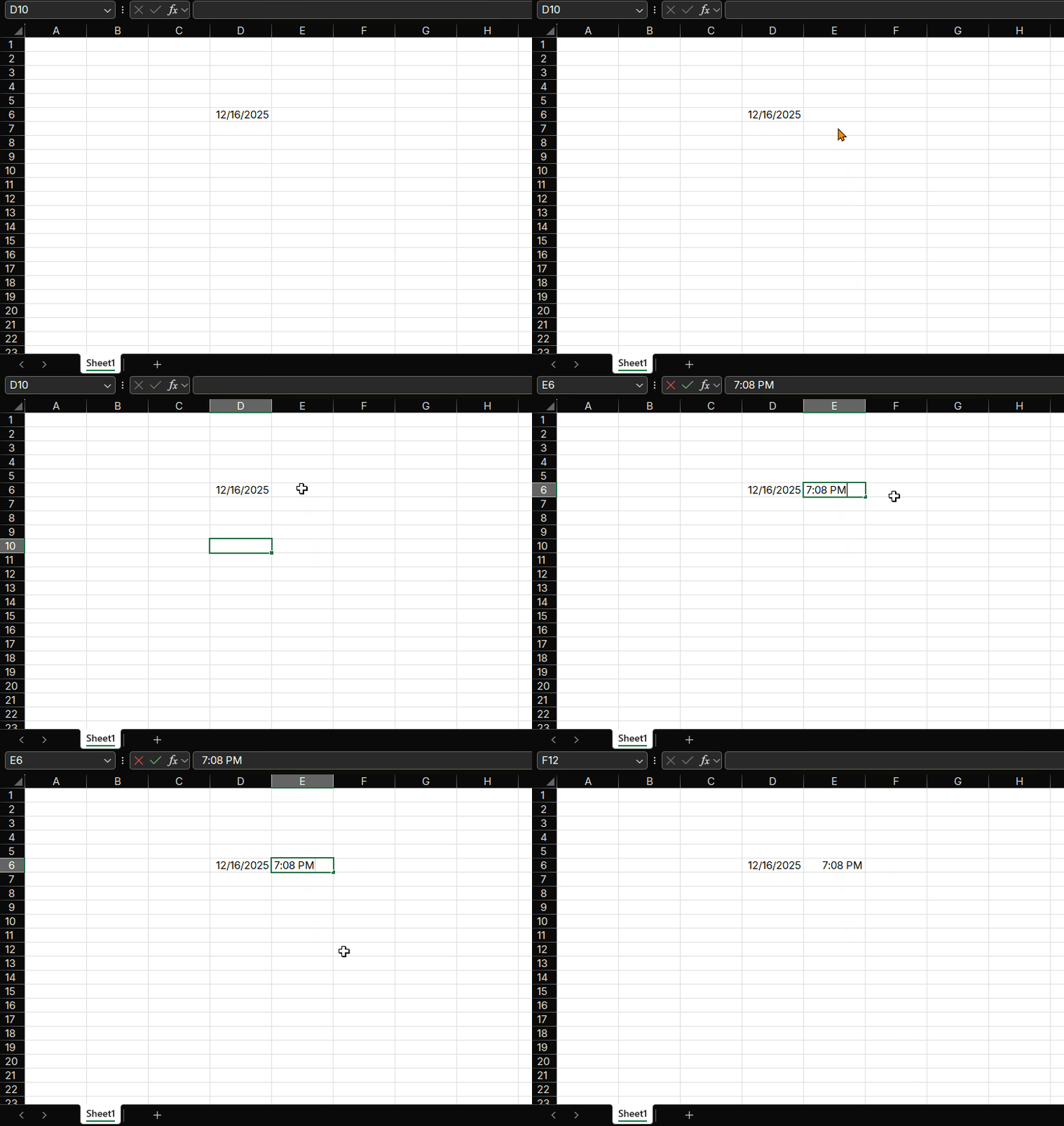
8. Ctrl + ; (Semicolon): Insert Current Date
Function
Quickly insert the current system date. The date format is static and won't
automatically update.
How to Use
Select the cell where you want to insert the date
Press Ctrl + ;
Use Cases
Record data entry dates
Mark completion times
Create timestamps
Example
Insert current date in column A:
Select cell A1
Press Ctrl + ;
Current date is inserted
Excel Insert Current Date Shortcut
9. Ctrl + Shift + : (Colon): Insert Current Time
Function
Quickly insert the current system time. The time format is static and won't
automatically update.
How to Use
Select the cell where you want to insert the time
Press Ctrl + Shift + :
Use Cases
Record operation times
Create time logs
Track task completion times
Example
Insert current time in column B:
Select cell B1
Press Ctrl + Shift + :
Current time is inserted
Excel Insert Current Time Shortcut
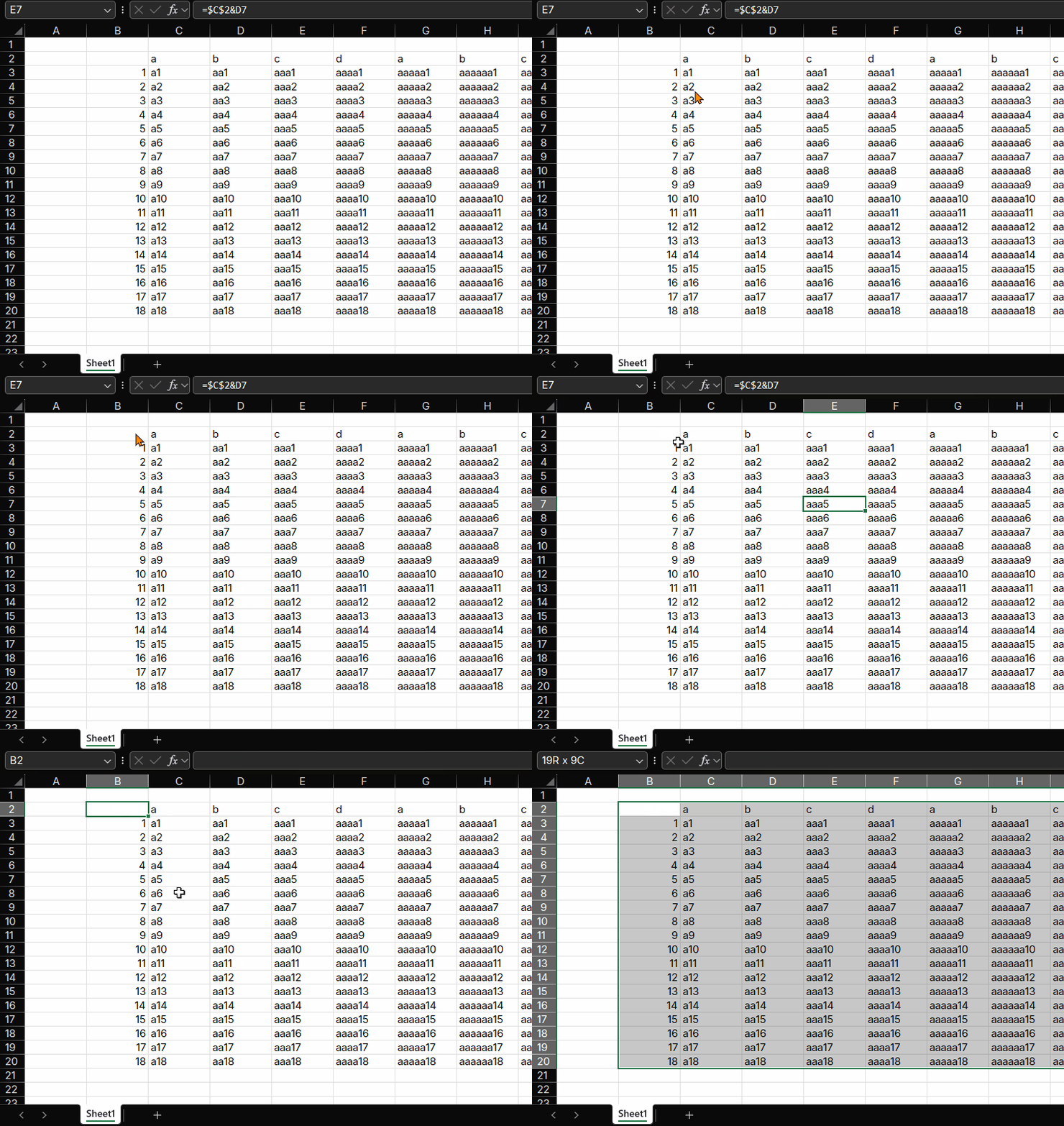
10. Ctrl + Shift + → / ↓: Select to End of Row or Column
Function
Quickly select all data from the current cell to the end of the row or column.
How to Use
Select to end of row: Press Ctrl + Shift + →
Select to end of column: Press Ctrl + Shift + ↓
Use Cases
Select entire row data
Select entire column data
Quickly select continuous data ranges
Example
Select from A1 to the end of the row:
Select cell A1
Press Ctrl + Shift + →
All cells from A1 to the end of the row are selected
Excel Select to End Shortcut
Useful Shortcut Combinations
In addition to single shortcuts, there are some useful shortcut combinations:
Shortcut Combination
Function
Ctrl + Shift + L
Quick add/remove filter
Ctrl + B
Bold text
Ctrl + I
Italic text
Ctrl + U
Underline text
F2
Edit current cell
These shortcuts work when you select a range with your starting value in the
first cell.
Shortcut Workflows to Practice
Shortcuts are easier to remember when you practice them in small workflows
instead of one key at a time.
Workflow
Shortcut sequence
Result
Copy a formula and fix its references
F2, F4, Ctrl+Enter
Edit a formula, lock references, and confirm
Fill a column quickly
Select range, Ctrl+D
Copy the top value or formula down
Clean repeated labels
Ctrl+H, Find All, Replace
Review matches before changing text
Navigate a table
Ctrl+Arrow, then Ctrl+Shift+Arrow
Jump to an edge, then select the range
Recover from a mistake
Ctrl+Z, then Ctrl+Y
Undo and redo to compare the change
Pick one workflow per week and use it deliberately. This is usually more useful
than memorizing a long shortcut list.
Practice Exercise
Now it's your turn to practice. Try completing these tasks:
Open an Excel file and enter some test data
Use Ctrl + C and Ctrl + V to copy and paste data
Use Ctrl + Z to undo, then Ctrl + Y to redo
Use Ctrl + F to find specific content
Use Ctrl + ; to insert the current date
Use Ctrl + Shift + ↓ to select an entire column
Summary
Mastering these must-learn Excel shortcuts can significantly boost your
productivity. At first, you may need to practice deliberately, but with
increased use, these shortcuts will become second nature.
Remember: The goal of shortcuts is to improve efficiency. Don't use shortcuts
just for the sake of it—choose the most appropriate method for the current task.