
How to Show PivotTable Errors as Dashes in Excel
When a PivotTable calculation returns #DIV/0!, #VALUE!, or another error, the
usual fix seems obvious: open PivotTable Options and set For error values
show to -. But if the error comes from a calculated field, Excel may still
show 0 or keep the result from behaving the way you expect.
The reliable fix is to format the value field itself. This guide explains when the normal PivotTable option works, when it does not, and how to show errors as dashes without changing the source data.
1. Check Where the Error Comes From
Start by identifying whether the error is produced by source data, a normal PivotTable aggregation, or a calculated field.
| Error source | Example | Best fix |
|---|---|---|
| Source data cell | A source row contains #N/A |
Clean the source data or use IFERROR before building the PivotTable |
| Normal value field | Sum or average includes an error value | Use PivotTable Options > For error values show |
| Calculated field | Sales / Quantity returns #DIV/0! |
Use custom number formatting on the value field |
If your PivotTable uses calculated fields, skip straight to the custom number format method below.
2. Why "For Error Values Show" May Not Work
The standard setting is in the right place, but it does not solve every case:
- Right-click inside the PivotTable value area.
- Choose PivotTable Options.
- Open the Layout & Format tab.
- Check For error values show.
- Type
-and click OK.
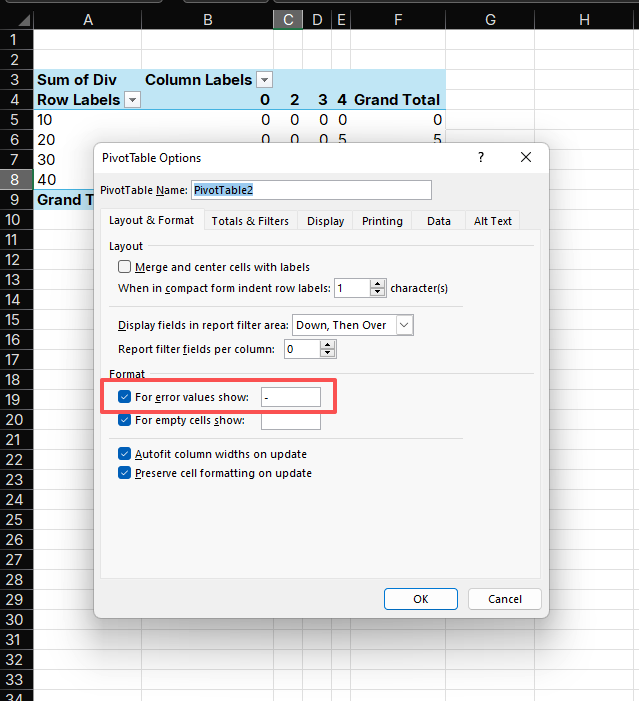
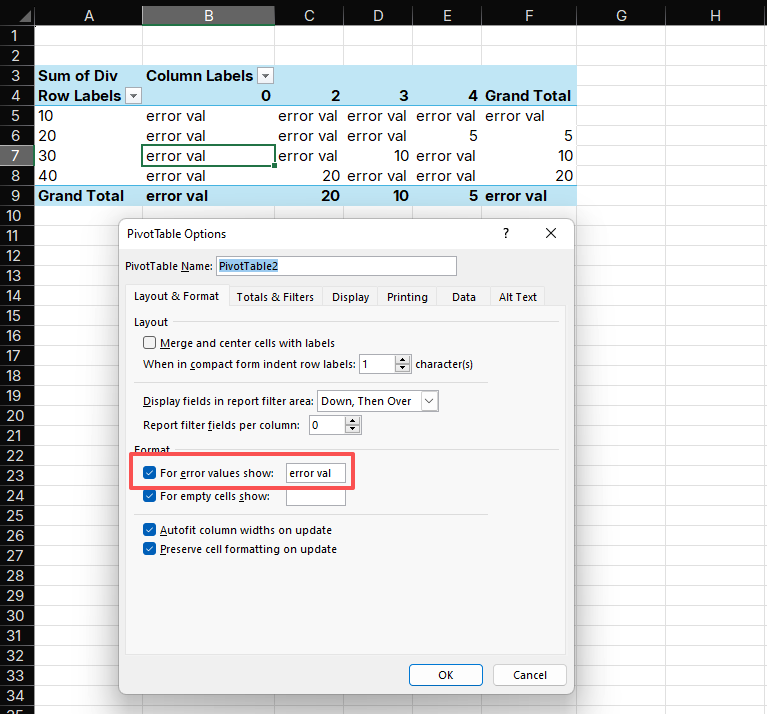
This setting works best for errors that flow into the PivotTable from regular source fields. Calculated fields are different because Excel evaluates the field and then applies value field formatting. In that path, number formatting can take priority over the general PivotTable error display setting.
That is why the same setting can appear to work in one PivotTable and fail in another.
3. Use a Custom Number Format for Calculated Fields
For calculated fields, apply the dash display rule directly to the value field.
- Right-click any number in the calculated field.
- Choose Value Field Settings.
- Click Number Format.
- Select Custom.
- Enter this format code:
0;-0;-;@- Click OK, then OK again.
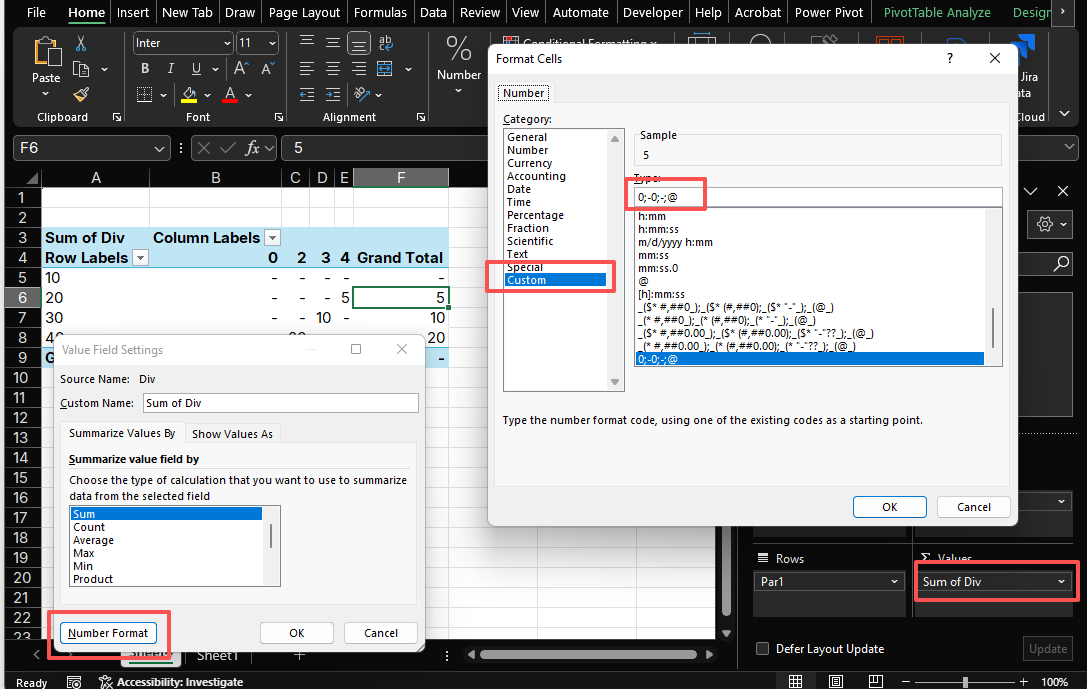
The four parts of the format code control positive numbers, negative numbers, zero values, and text:
| Format part | Meaning | Display result |
|---|---|---|
0 |
Positive numbers | 125 |
-0 |
Negative numbers | -125 |
- |
Zero values | - |
@ |
Text values | Original text |
This is useful when the calculated field produces a zero-like result after Excel handles the error display. If you need to distinguish a real zero from an error, use the formula-based method in the next section.
4. Use Formula Logic When You Need More Control
If your report must separate true zero values from formula errors, fix the logic before the PivotTable sees the data. Add a helper column to the source table:
=IFERROR([@Sales]/[@Quantity], "")Then use that helper column in the PivotTable instead of a calculated field.
| Need | Recommended method |
|---|---|
| Hide errors quickly in a normal PivotTable | PivotTable Options |
| Show calculated field zero/error results as dashes | Custom number format |
| Keep true zero values visible | Helper column with IFERROR |
| Reuse the logic in Google Sheets | Formula with IFERROR |
Google Sheets usually handles this through formula logic:
=IFERROR(Sales/Quantity, "-")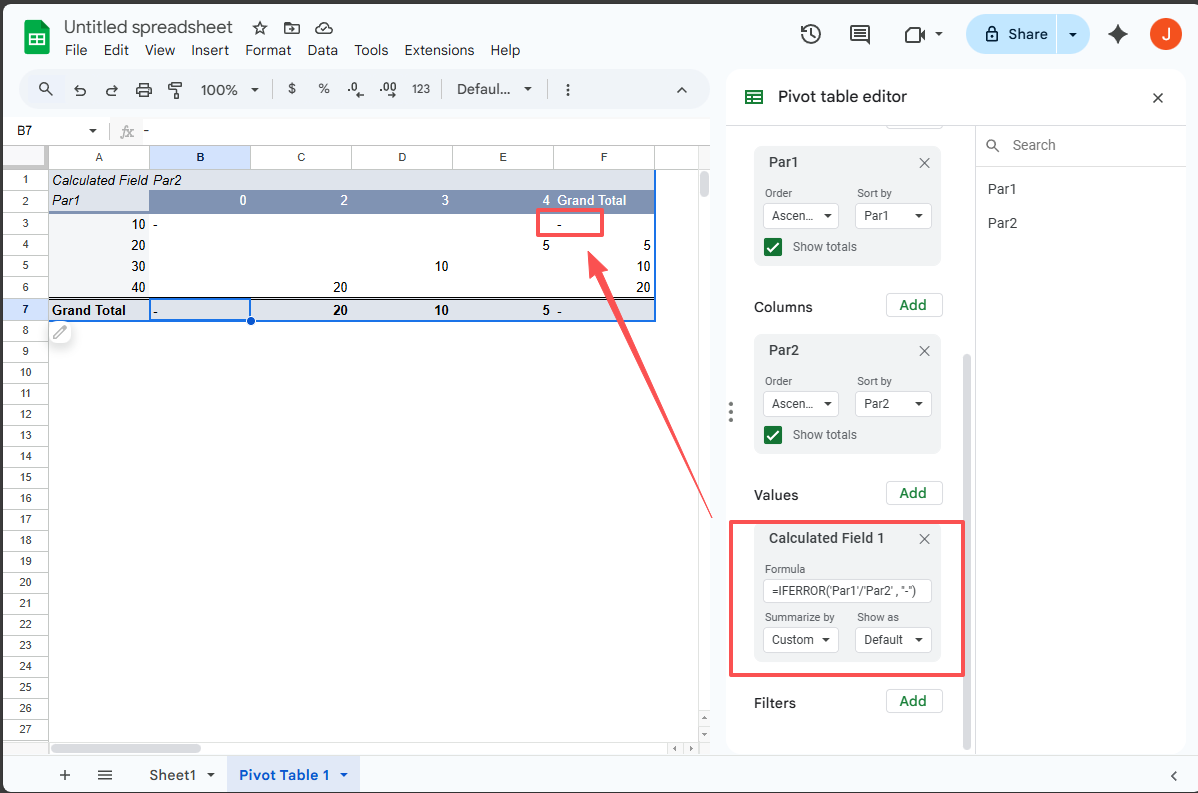
Excel can use the same idea with helper columns, Power Query, or source-table formulas.
5. Common Mistakes
| Mistake | Why it causes confusion | Fix |
|---|---|---|
| Setting only For error values show | Calculated fields can ignore the visual setting | Apply a value field number format |
| Typing a dash into source data | The dash becomes text and can break numeric summaries | Keep source columns numeric |
| Using one calculated field for all display logic | It mixes calculation and presentation | Use helper columns for complex rules |
| Forgetting to refresh the PivotTable | Old cached values stay visible | Right-click the PivotTable and choose Refresh |
6. FAQ
Does this change the actual PivotTable value?
No. Custom number formatting changes how the value is displayed. It does not change the underlying source data.
Why does Excel sometimes show 0 instead of a dash?
Calculated fields and value field formatting can be applied after the general PivotTable error display setting. In those cases, the visual display rule may not be the final formatting step.
Should I use a dash, blank, or text like "N/A"?
Use a dash when the report needs a compact display. Use a blank when the missing
value should disappear visually. Use N/A only when readers need to notice the
missing or invalid result.
7. Summary
Use PivotTable Options > For error values show for simple PivotTable errors.
For calculated fields, use a custom number format such as 0;-0;-;@. If you
need to preserve the difference between true zero values and errors, move the
logic into the source data with IFERROR before building the PivotTable.
Related Guides
- Start with Excel Pivot Tables for Beginners if you want the broader workflow around PivotTables.
- Review Excel formula errors for the source-data version of error handling.
- Use Excel TEXT Function when you need custom display formatting beyond a dash.
Was this guide helpful?
If something is missing or unclear, open an issue and we will improve it.
Send feedback