
Excel IF Function Tutorial: Master Conditional Logic
Formula not working?
Share a small sample and the result you expected.
Introduction
The IF function is one of the most powerful and widely used functions in Excel. It allows you to make logical comparisons between a value and what you expect, and returns one result if the comparison is True and another if it's False.
This tutorial will guide you through everything you need to know about the IF function, from basic usage to advanced nested formulas.
If you frequently combine logic with math, this pairs naturally with Excel SUM Function and Excel Formula Errors.
Basic Syntax of IF Function
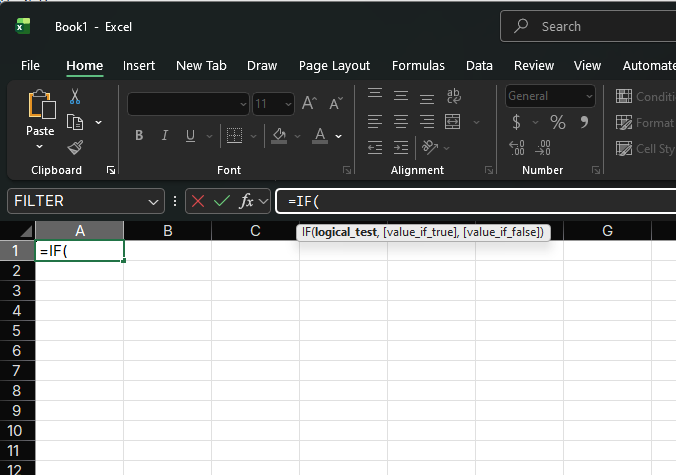
The IF function has three arguments:
=IF(logical_test, value_if_true, value_if_false)Arguments Explained:
- logical_test: The condition you want to check (required)
- value_if_true: The value to return if the condition is True (required)
- value_if_false: The value to return if the condition is False (optional)
Simple IF Function Examples
Example 1: Basic Pass/Fail Check
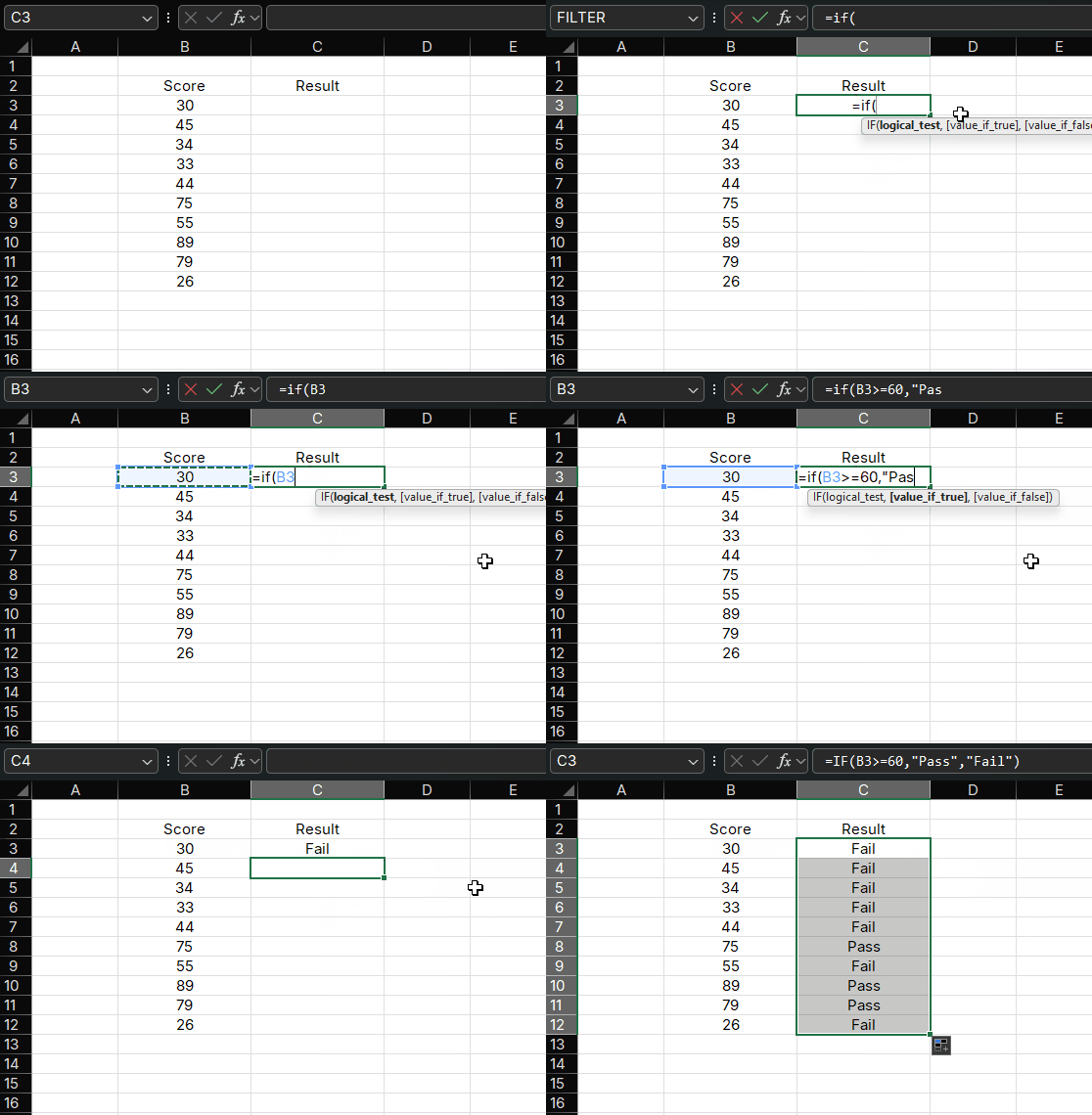
Suppose you have student scores in column A and want to determine if each score is passing (60 or above) or failing.
Formula:
=IF(A2>=60, "Pass", "Fail")How it works:
- If score in A2 is 60 or higher → returns "Pass"
- If score is below 60 → returns "Fail"
Example 2: Numeric Results
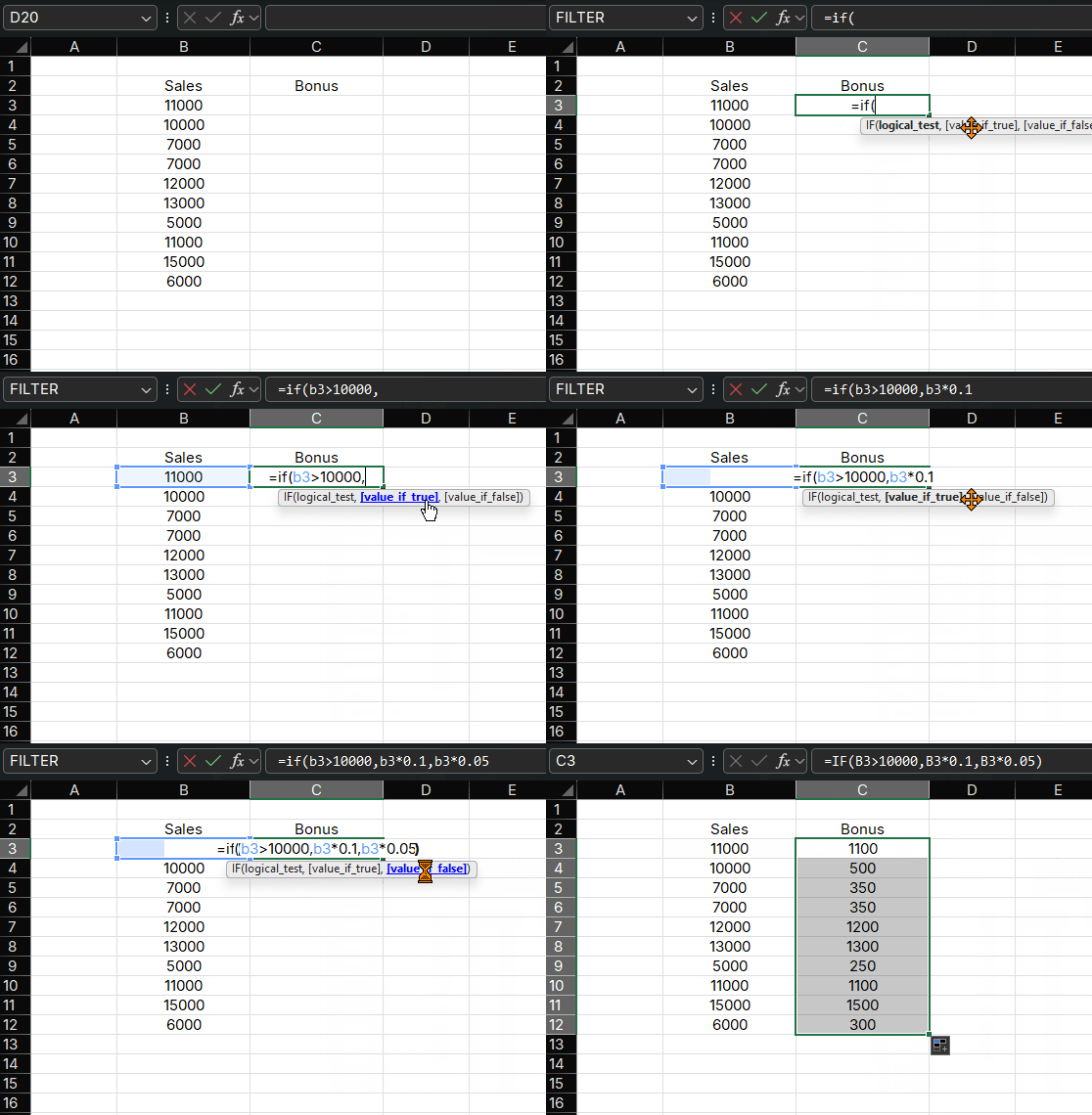
You can also return numbers instead of text. Let's calculate bonuses based on sales:
Formula:
=IF(B2>10000, B2*0.10, B2*0.05)How it works:
- If sales > $10,000 → 10% bonus
- If sales ≤ $10,000 → 5% bonus
Nested IF Functions
When you need to test multiple conditions, you can nest IF functions inside each other.
Example: Grade Classification
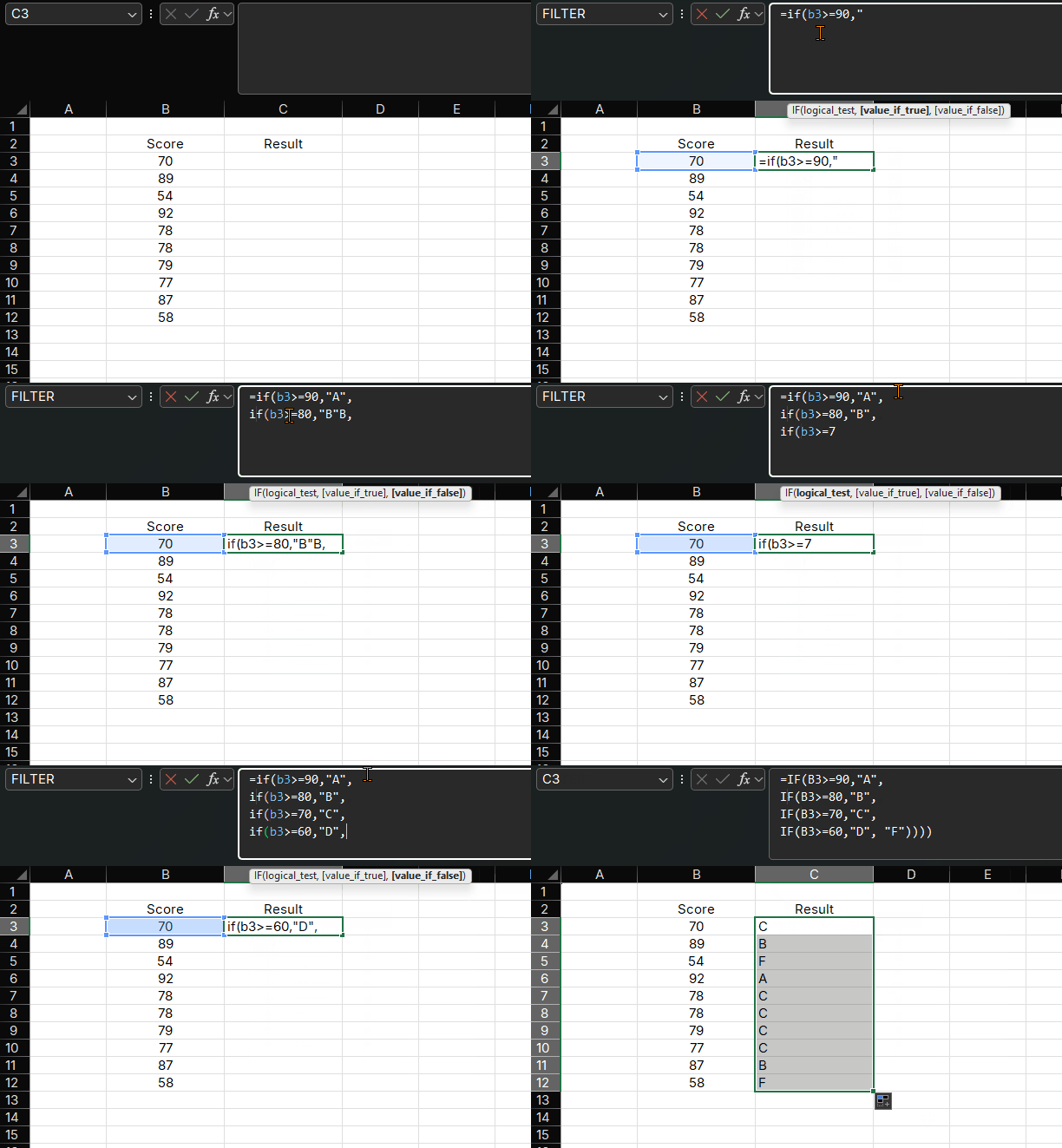
Let's convert numeric scores to letter grades:
Formula:
=IF(A2>=90, "A",
  IF(A2>=80, "B",
    IF(A2>=70, "C",
      IF(A2>=60, "D", "F")
    )
  )
)
How it works:
- First checks if score ≥ 90 → returns "A"
- If not, checks if score ≥ 80 → returns "B"
- Continues checking until all conditions are tested
- Defaults to "F" if none of the above
Important Notes About Nested IF:
- Excel allows up to 64 levels of nesting
- Always order conditions from most specific to least specific
- Use indentation to make complex formulas easier to read (press Alt+Enter to add line breaks)
Combining IF with AND/OR Functions
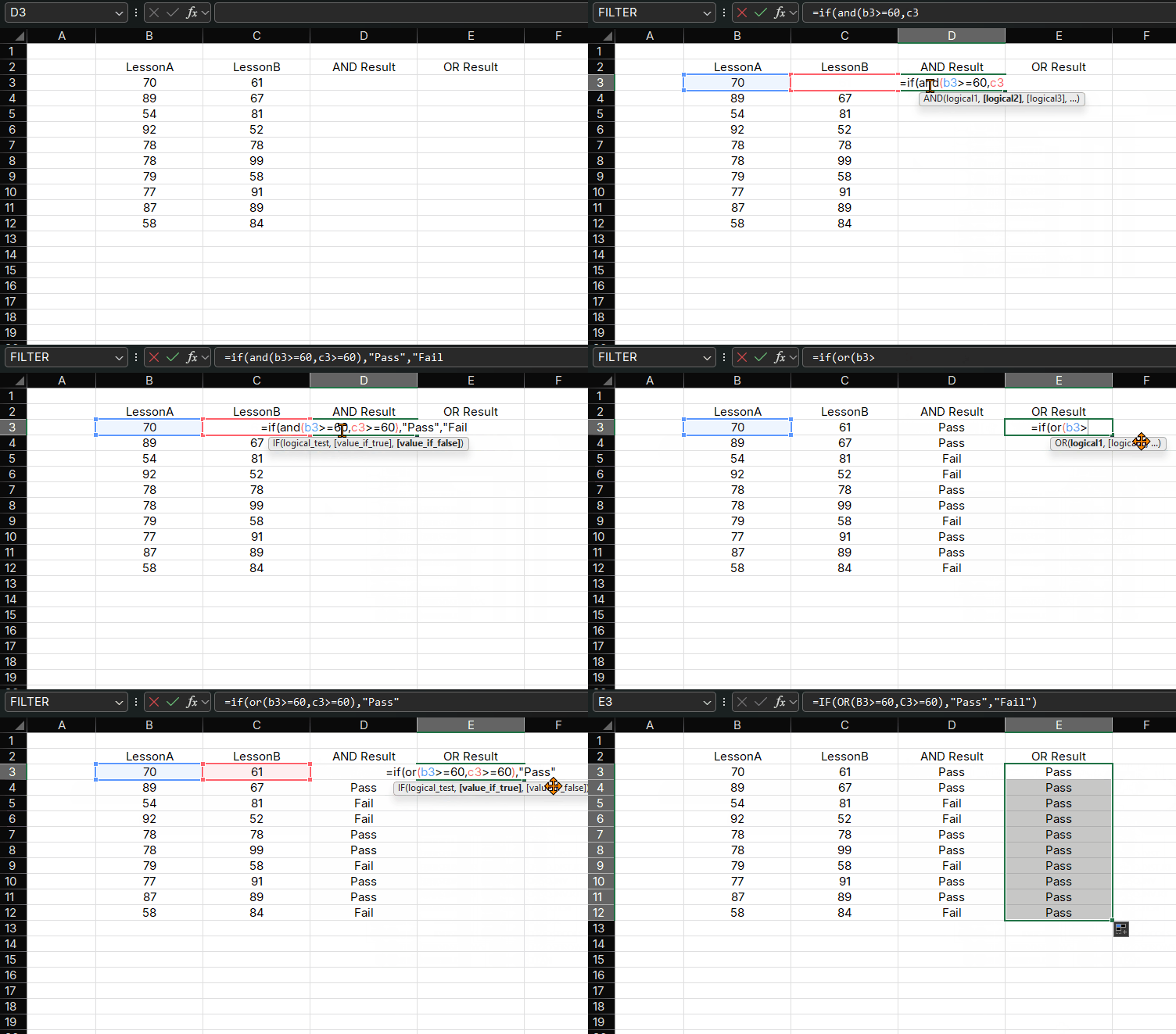
For multiple conditions, use AND or OR functions inside IF. For a focused walkthrough with combined AND/OR examples, see IF with AND OR in Excel.
Example with AND Function
Check if a student passed both exams:
Formula:
=IF(AND(A2>=60, B2>=60), "Pass", "Fail")How it works:
- Returns "Pass" only if both scores are ≥ 60
- Returns "Fail" if either score is < 60
Example with OR Function
Check if a student passed at least one exam:
Formula:
=IF(OR(A2>=60, B2>=60), "Pass", "Fail")How it works:
- Returns "Pass" if either score is ≥ 60
- Returns "Fail" only if both scores are < 60
Practical Applications
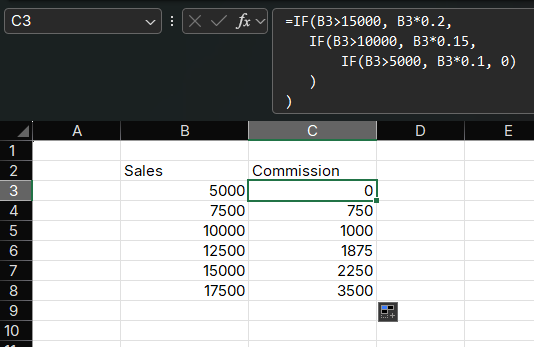
Application 1: Sales Commission Calculation
Calculate commissions based on sales tiers:
Formula:
=IF(C2>15000, C2*0.20,
   IF(C2>10000, C2*0.15,
       IF(C2>5000, C2*0.10, 0)
   )
)
Commission Structure:
- $15,000: 20% commission
- $10,001-$15,000: 15% commission
- $5,001-$10,000: 10% commission
- ≤ $5,000: 0% commission
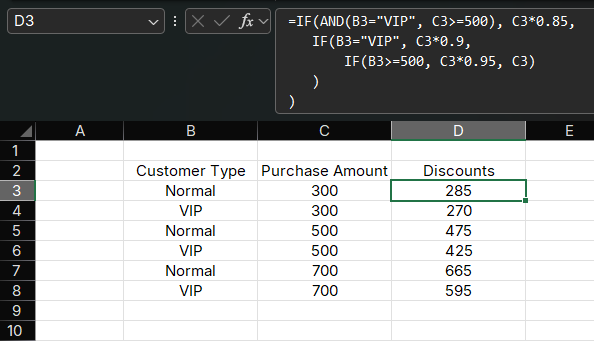
Application 2: Discount Calculation
Apply discounts based on customer type and purchase amount:
Formula:
=IF(AND(D2="VIP", E2>=500), E2*0.85,
   IF(D2="VIP", E2*0.90,
       IF(E2>=500, E2*0.95, E2)
   )
)
Discount Rules:
- VIP customers get 15% off orders ≥ $500
- VIP customers get 10% off orders < $500
- Regular customers get 5% off orders ≥ $500
- No discount for regular customers on small orders
Common Errors and How to Avoid Them
1. Missing Parentheses
Error: =IF(A2>100 "High" "Low") Fix: Add commas between arguments:
=IF(A2>100, "High", "Low")
2. Incorrect Nesting Order
Error: Checking lower values first:
=IF(A2>=60, "D", IF(A2>=70, "C", ...))Fix: Always check highest values first
3. Forgetting Quotation Marks for Text
Error: =IF(A2>100, High, Low) Fix: Add quotes around text:
=IF(A2>100, "High", "Low")
4. Too Many Nested Levels
Solution: Consider using IFS function (Excel 2019/365) or VLOOKUP for complex conditions
Best Practices
Use Meaningful Cell References
Instead of
=IF(A2>100, B2*0.10, B2*0.05), use named ranges:=IF(Sales>10000, Sales*0.10, Sales*0.05)Test Each Condition Separately
Verify each logical test works before combining them
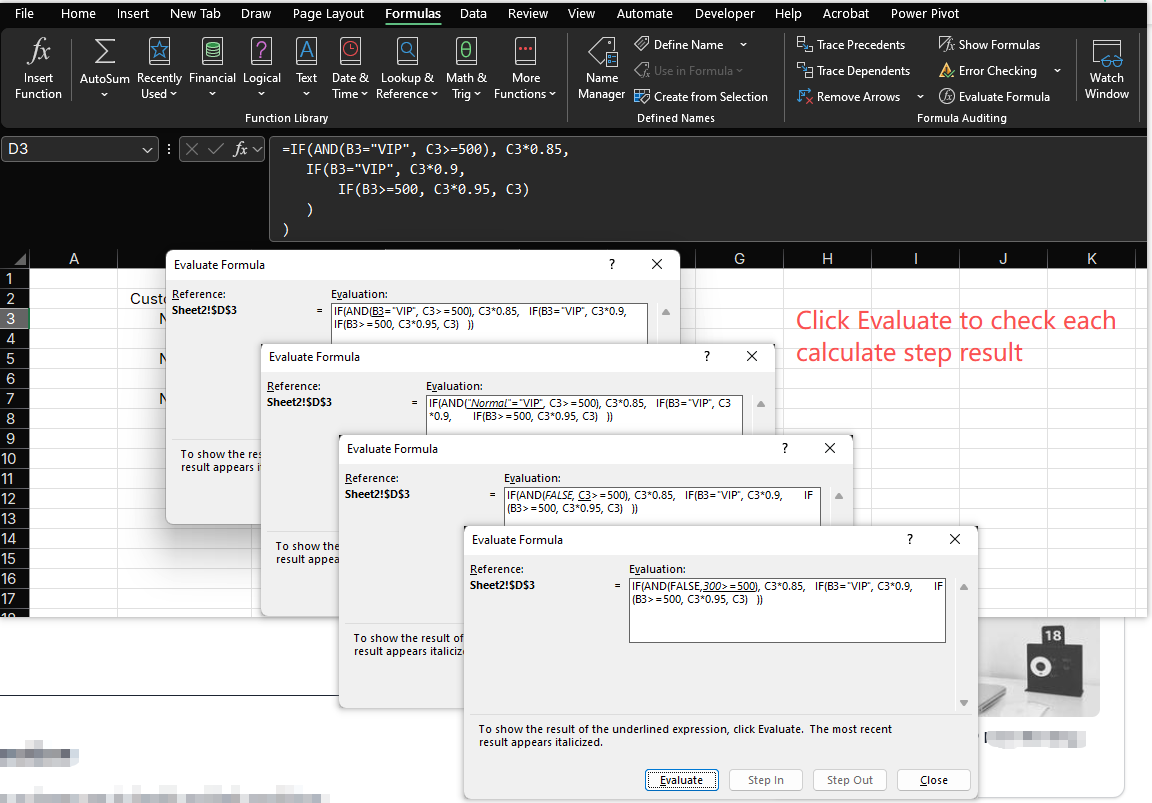
Use the Evaluate Formula Tool
Go to Formulas > Evaluate Formula to step through complex formulas
Limit Nesting Levels
For more than 3-4 conditions, consider alternative approaches like:
- IFS function (Excel 2019/365)
- VLOOKUP with a reference table
- SWITCH function (Excel 2019/365)
Alternative to Nested IF: IFS Function
For Excel 2019/365 users, the IFS function provides a cleaner way to handle multiple conditions:
Formula:
=IFS(A2>=90, "A", A2>=80, "B", A2>=70, "C", A2>=60, "D", TRUE, "F")Advantages:
- Easier to read and write
- No need for nested functions
- Clearer structure
Summary
The IF function is a fundamental Excel tool that enables:
- Basic conditional checks
- Multiple condition testing with nested IF
- Complex logic with AND/OR combinations
- Real-world calculations like commissions and discounts
By mastering the IF function and its variations, you can automate decision-making processes and create more powerful Excel spreadsheets.
Related Guides
- Combine multiple conditions with IF with AND OR in Excel.
- Count rows that meet one or more conditions with COUNTIF vs COUNTIFS in Excel.
- Add values that meet conditions with Excel SUMIF and SUMIFS.
- Decide between one-condition and multi-condition totals with SUMIF vs SUMIFS in Excel.
- Filter matching rows directly with the Excel FILTER function tutorial.
Need help fixing a formula?
Share the formula, a small sample table, and the result you expected. This free beta helps us learn which Excel problems readers actually need solved.
Ask for formula help